
The AI assistant Claude compiled this guide on behalf of Peter Hoenig from the suite’s instructions, source code and test records. Peter Hoenig checked and published it.
The MC4Y Productivity Suite does not run in a cloud but on your own computer or server. In this guide I describe every installation route in detail: the Windows PC, the Mac and Linux for one person, Windows Server with IIS and the Linux server for a team, plus certificate, first account, e-mail, network drive, backup, update, the desktop taskbar and the agents for the CMDB. For each system I say what I have tested and what I have not. The short step-by-step guide for beginners remains the post Installing the MC4Y Suite; how you then work with the suite is described in the user manual.
Status of this guide: 21 November 2026, MC4Y Suite 0.4.68, MC4Y Taskbar 1.7.9. The pictures of the graphical installer come from its demonstration mode, which changes nothing and shows invented sample data; the pictures of the suite come from a freshly created test installation with invented names.
Which installation suits you?
There are three modes of operation – the first needs no suite at all – and almost everything else follows from them.
- Browser only: if you want to use the tools on your own and save your work as files, you do not need the suite. Unpack mc4y-werkzeuge.zip, double-click
index.html– done, on any Windows computer, any Mac and on Linux. - Single workstation: the suite for you alone, with sign-in, shared storage for all tools, document library, wiki, notes, tasks, calendar and a daily backup. It deliberately listens only to this one computer (
127.0.0.1), so it cannot be reached from a phone or another PC. - Server for a team: everyone works together in the browser, encrypted via HTTPS, with Windows sign-in if you wish. This is set up by the person who looks after your servers – on a Windows Server with IIS, a Linux server or a web hosting package.
Two building blocks come on top, independently of this: the desktop taskbar, a small program at the edge of the screen that opens the suite’s tools with two clicks (category, tool), and the agents and crawlers, which report devices to the suite’s CMDB. You set up both on the workstations, not on the server.
You can start small. Files from “Browser only” open again later in the suite, and a single-workstation suite on Linux can be turned into a server with the same script.
What is tested on which system?
I test every version on several systems before release. The table shows what has actually run for the installation – not what the script is meant to support.
| System | Tested | Not tested |
|---|---|---|
| Windows 11 | single workstation with the graphical installer and updates; desktop taskbar; CMDB agent | Windows 10 (supported, but without a test run of its own) |
| Windows Server with IIS | real installation and updates on a Windows Server 2022 Standard; network drive and calendar on the IIS of a Windows 11 computer (35 of 35 checks) | Windows Server 2016 and 2019; installing under strictly configured behaviour protection |
| Linux | Ubuntu 26.04.1 LTS under WSL: dry run, single workstation, server with Apache and with nginx (HTTPS), uninstalling, agent and crawler, network drive with nginx and PHP-FPM | Debian, Linux Mint, Fedora, Red Hat, Rocky, AlmaLinux, openSUSE and Arch on real systems |
| macOS | single-workstation installation on a real Mac (October 2026) | server mode, the e-mail task under launchd, the desktop taskbar on a real Mac |
What does “under WSL” mean?
WSL is the Windows Subsystem for Linux: a real Ubuntu with systemd, Apache, nginx and PHP that runs on a Windows computer. The scripts work there exactly as on a Linux computer of its own. The script recognises other distributions by itself and uses their package manager – apt-get (Debian, Ubuntu, Mint), dnf or yum (Fedora, Red Hat, Rocky, AlmaLinux), zypper (openSUSE) and pacman (Arch, Manjaro).
On these systems please run a dry run first; it changes nothing and shows line by line what would happen. The script sets up server mode with Apache or nginx only on Debian/Ubuntu (apt) and Red Hat, Rocky, AlmaLinux and Fedora (dnf); on openSUSE, Arch and other systems it stops with a note – there only the single workstation works, or you set up the web server and PHP-FPM by hand as described in install/linux/README.txt. How the tools themselves behave on macOS and Linux is described in the post MC4Y tools on Mac and Linux.
What do you need beforehand?
- For all routes: a current browser (Edge, Chrome, Firefox or Safari), internet access during the installation and about 1 GB of free space. The suite’s system check later reports yellow if less than 2 GB is free, because the backups need space.
- Windows PC: Windows 10 or 11 and the password of an administrator account. The installation downloads PHP 8.5 from windows.php.net (about 35 MB) and, if needed, the Visual C++ runtime from Microsoft.
- Windows Server: recommended from Windows Server 2019; the installation adds IIS itself. For sign-in with the company account, an Active Directory.
- Mac: macOS 12 (Monterey) or newer, Intel Mac or Apple silicon, an administrator account. You do not need Homebrew or Xcode.
- Linux: bash 4.4 or newer and systemd, an account with
sudo. PHP 8.4 or newer with pdo_sqlite, mbstring, openssl, fileinfo, sodium and zip; the script installs missing packages after asking. For server mode, Apache or nginx, PHP-FPM, openssl and curl. - Desktop taskbar: Python 3.8 or newer with tkinter (Tk 8.6). The suite itself needs no Python.
You do not need database software; the suite uses the SQLite included in PHP. Please do not unpack the package in a Nextcloud or other cloud folder: hidden files such as .htaccess and execute permissions get lost in the process.
The graphical installer step by step
The graphical installer is a page in the browser, operated by a small helper on your computer. The helper listens only on 127.0.0.1 and to a random key in the address; nobody can reach it from the network. At the top right you switch the language with “DE | EN”, and the installation scripts then write in the same language.
How do I start the installer?
- Windows: download the package, right-click “mc4y-suite.zip” in File Explorer › “Properties” › under “Security”, tick “Unblock” › “OK”. Then “Extract All…” and double-click “Installer-starten” in the unpacked folder. A black window “MC4Y-Suite - Installer” opens; leave it open until everything is done.
- Linux: open a terminal in the unpacked folder and enter
bash installer-starten.sh, withoutsudo– the system asks for your password itself when installing. - Mac: in Terminal,
bash installer-starten.command. On the Mac the graphical installer also needs Python from python.org; the installation script is simpler there (see below).
If no browser opens, the black window shows a long address. Copy it into your browser’s address bar.
Step 1: What would you like to set up?
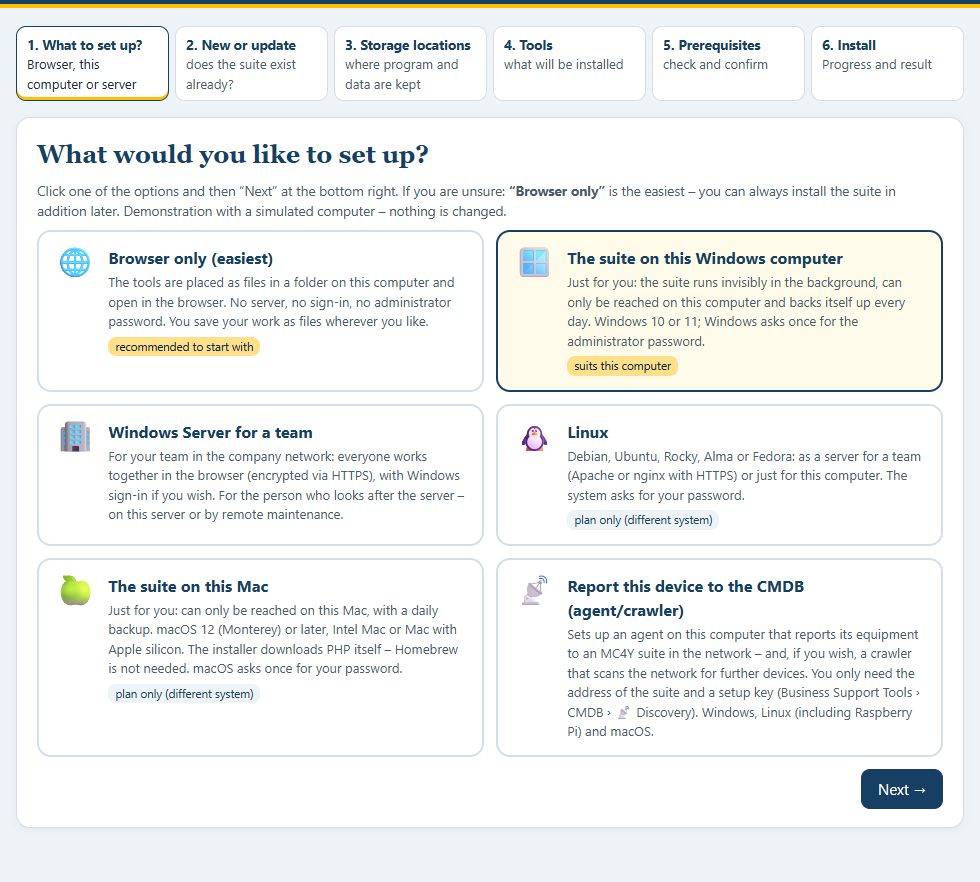
The first step offers six options: “Browser only (easiest)”, “The suite on this Windows computer”, “Windows Server for a team”, “Linux”, “The suite on this Mac” and “Report this device to the CMDB (agent/crawler)”. The tile that fits your computer is marked “suits this computer”. Other systems can only be planned: at the end you then get an answer file, which you place next to the installer on the target computer.
Steps 2 and 3: existing installation and storage locations
In the step “New or update” the installer looks for an existing suite. If it finds none, it says “No existing installation found – a new installation will be made.” If the search itself fails, it shows in yellow “The search for an existing installation failed.” with the reason, a copy button and “Search again” – if the suite is already running, do not install it again.
In the step “Storage locations” you deliberately choose four locations yourself: program, PHP, data storage and daily backups. The simplest way is to click a drive next to “All locations on”; on C: the installer uses the Windows default locations, on other drives folders of their own at the root, such as E:\MC4Y-Suite. After that, each location can be changed individually. If possible, put the backups on a different drive from the data.
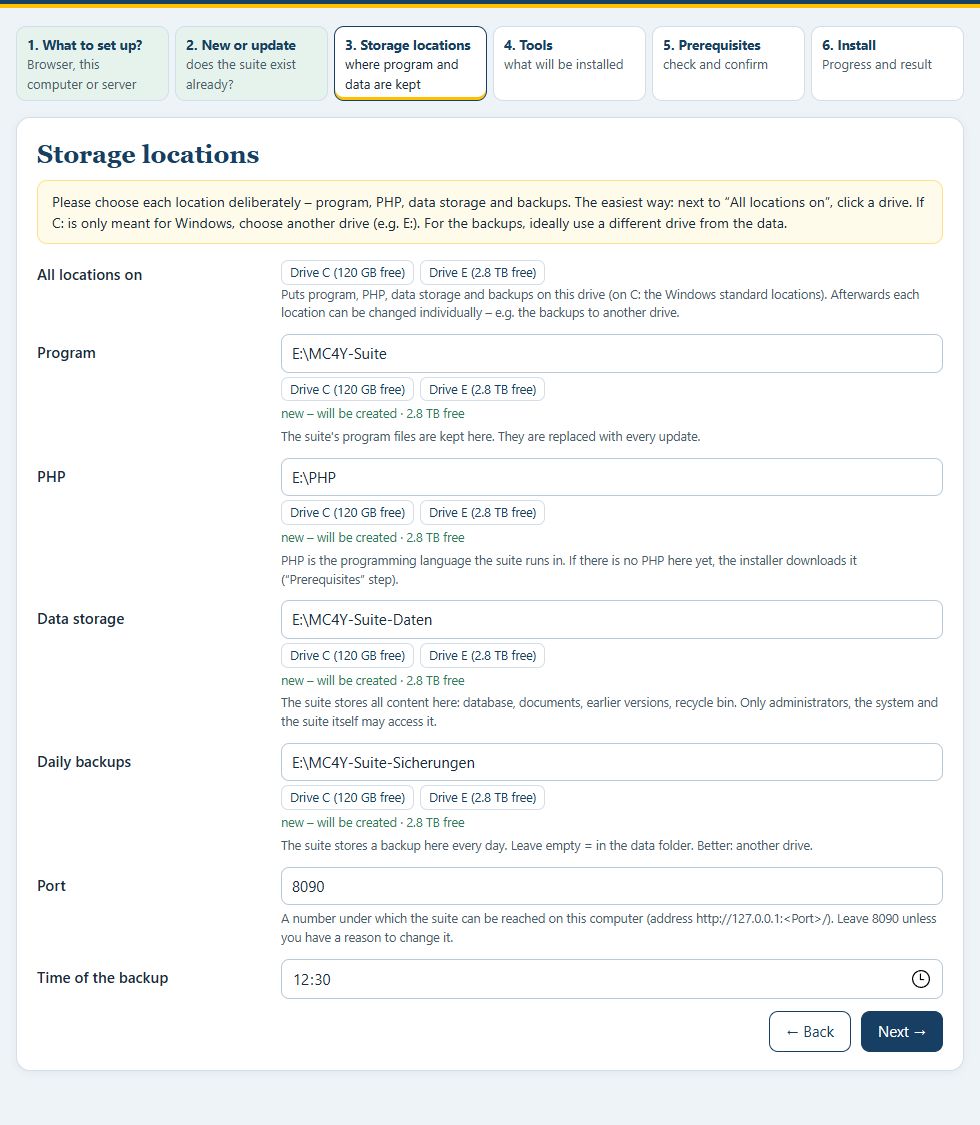
The installer checks each location immediately under the field. Green means OK, red gives the reason, for example a folder that is not empty or a drive without NTFS. As long as a field is red, “Next →” stays grey. The data folder must be on this computer, not on a network share: the suite runs under a service account of its own, and its database needs file locks that a share does not provide reliably. On a single workstation you also set the port here (default 8090) and the time of the daily backup.
Steps 4 and 5: tools, prerequisites and dry run
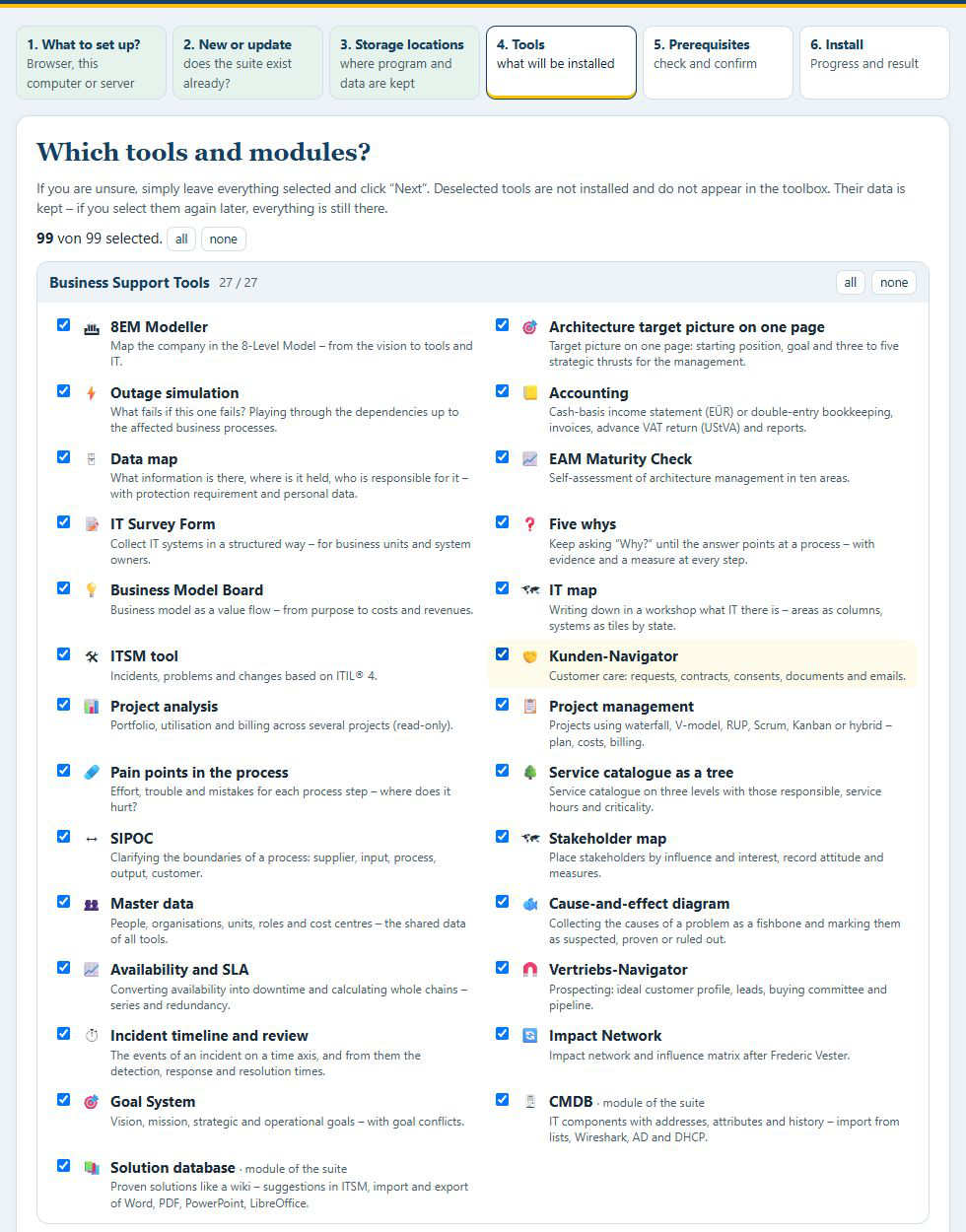
In the step “Tools” you choose what is installed. If in doubt, leave everything selected; on Windows this is also where the entry “Desktop taskbar” appears.
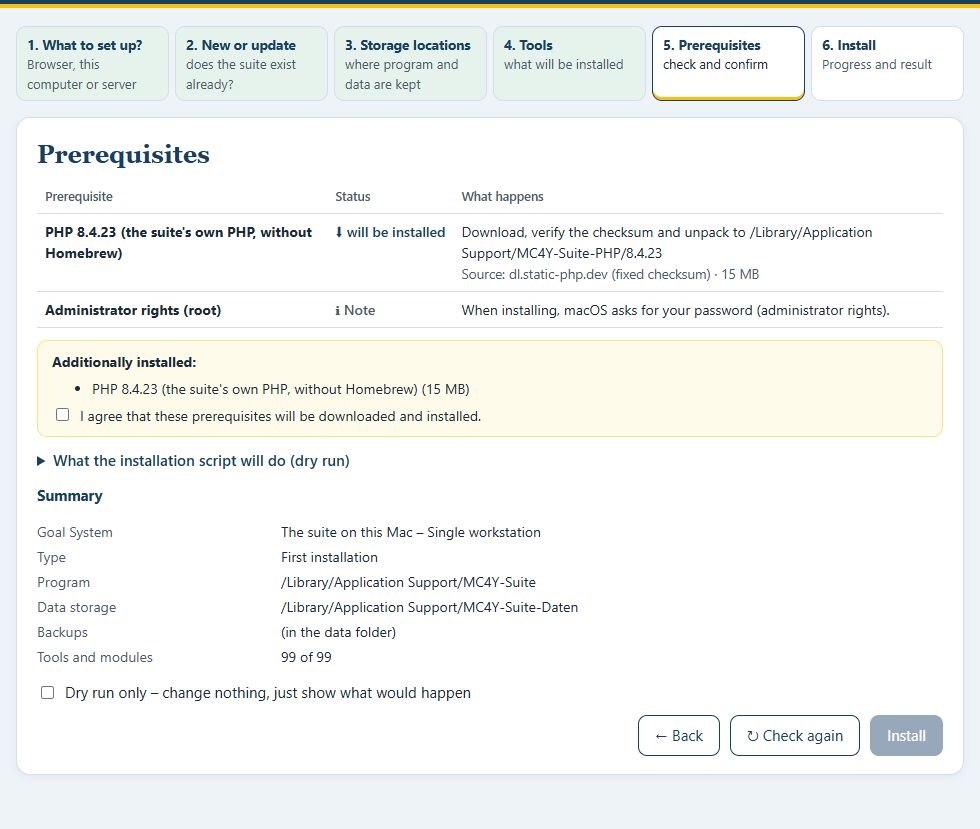
In the step “Prerequisites” the installer checks your computer and, to do so, runs the installation script once as a dry run that changes nothing. The table shows what is present (“✓ present”) and what is additionally downloaded (“⬇ will be installed”), each with source and size. Under “What the installation script will do (dry run)” you expand the planned work steps.
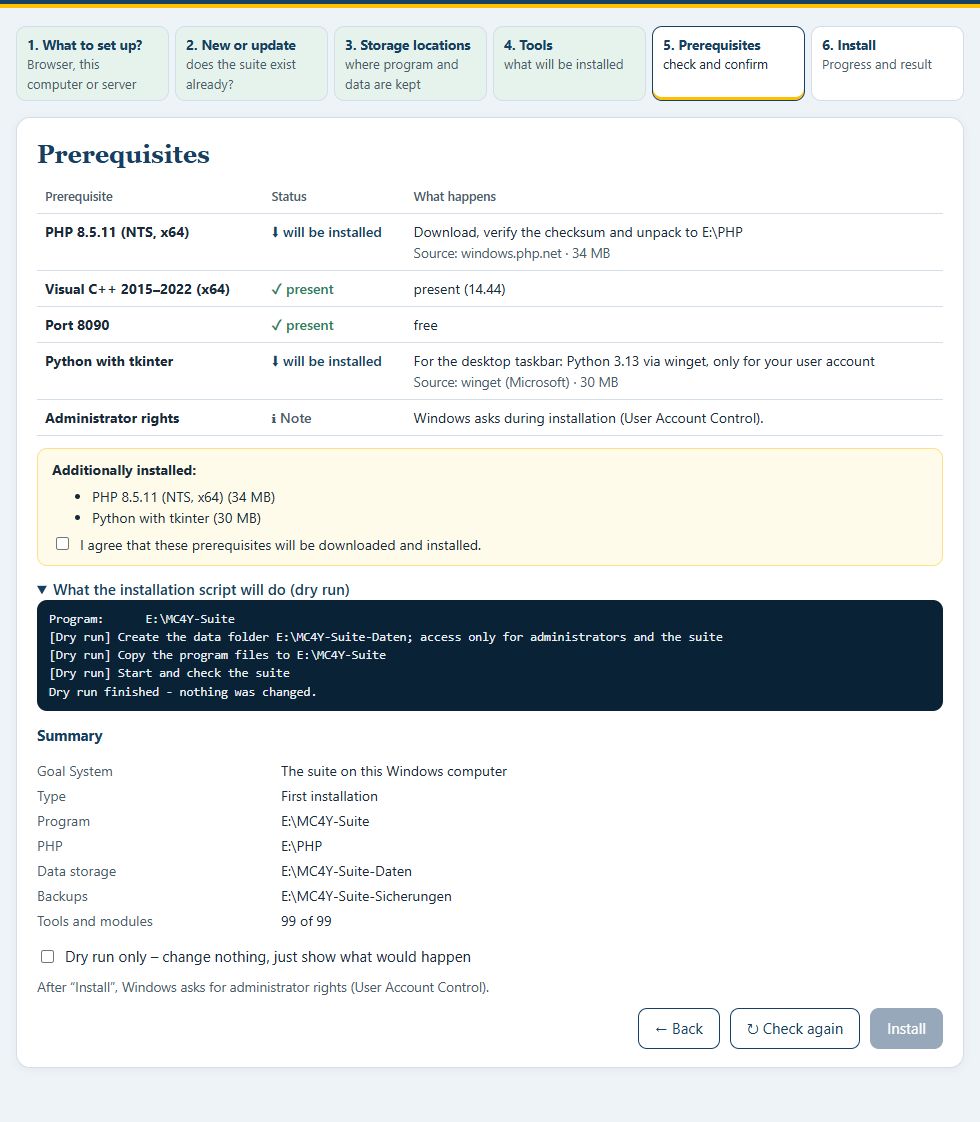
Nothing is downloaded without your consent: tick “I agree that these prerequisites will be downloaded and installed.” If you only want to see what would happen, tick “Dry run only – change nothing, just show what would happen” instead. The button then starts a dry run, and Windows does not ask for administrator rights. For the remote maintenance of a server there is no such dry run; there you run installieren-server.bat -Probelauf on the server itself.
Step 6: installing and the result
After “Install”, Windows asks once for administrator rights. The list of work steps gets a tick one after the other; this usually takes 2 to 10 minutes. At the end you see “Installation complete.” with the address and the program, data and backup folders.
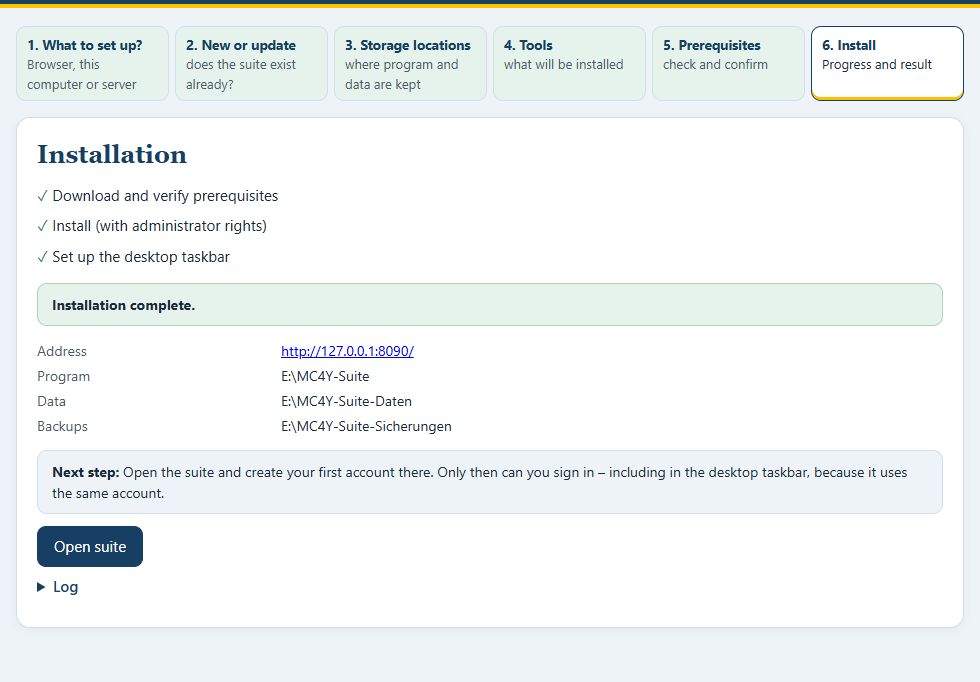
The next step is always the first account (see below); only after that can anyone sign in, the desktop taskbar included. On a server the installer additionally shows the setup code for this first account here. Under the log there is the button “📋 Copy report”: it puts the log, target system, storage locations and prerequisites into the clipboard as text, without passwords – so you can pass on an error without taking a screenshot. Finally, click “Close installer”.
Single workstation on Windows
With the graphical installer you choose “The suite on this Windows computer” and follow the six steps above. The installation creates the system account mc4y-systemuser, which cannot sign in, and four scheduled tasks: “MC4Y-Suite” starts the suite at boot, “MC4Y-Suite-Sicherung” makes the daily backup, “MC4Y-Suite-CMDB-Aufraeumen” tidies up the CMDB on Sundays at 03:30, “MC4Y-Suite-Mail” sends e-mails every 5 minutes and does nothing as long as sending is switched off. In addition there is the shortcut “MC4Y Productivity Suite” on the desktop and in the Start menu (on a computer set to German “MC4Y-Produktivitaetssuite”) and the log installation_<time>.log in the program folder.
Without the graphical installer it works in the command prompt in the unpacked package:
install\windows\installieren.bat -Probelaufshows what would happen.install\windows\installieren.bat -PhpZip <php-8.x.y-nts-Win32-vs17-x64.zip> -PhpSha256 <checksum>installs with a PHP downloaded beforehand (“VS17 x64 Non Thread Safe” from windows.php.net, where the checksum is shown next to it).- Without questions: additionally
-Programm E:\MC4Y-Suite -Daten E:\MC4Y-Suite-Daten -SicherungOrdner F:\MC4Y-Suite-Sicherungen. - Without internet: put the PHP package with a
.sha256file of the same name andvc_redist.x64.exeinto a foldervoraussetzungennext toinstaller.html. - English messages: add
-Sprache en.
Installing from a network share: the unpacked package may lie on a server, for example under \\server\software\MC4Y-Suite-0.4.68. Give the path in this long form and not via a mapped drive letter such as Z: – Windows does not show mapped drives to a program with administrator rights. If the installer reports that the package is not readable, the administrator account cannot reach the share; then copy the folder once to C:\Temp.
Single workstation on the Mac
On the Mac the installation script is the simplest route; it needs no Python. Please do not start the package’s files by double-clicking them in Finder – macOS blocks this for files from the internet. Via Terminal with bash … this problem does not arise.
- Download the package and unpack it in Finder under “Downloads” (Safari often does this itself).
- Open Terminal (cmd + Space, “Terminal”), type
cdand a space, drag the folder “MC4Y-Suite-0.4.68” from Finder into Terminal, press Return. - Enter
bash install/macos/installieren.command --lang enand type your Mac password (no characters appear while typing). - Accept the suggestions for data folder, desktop taskbar and start at sign-in with Return, and likewise “Run the installation now?”.
- At “Done. Address: http://127.0.0.1:8090/” the browser opens with “Set up the suite”.
The script downloads its own PHP 8.4 from static-php-cli, checks it against a fixed SHA-256 checksum and puts it into /Library/Application Support/MC4Y-Suite-PHP. This PHP lacks the extensions sodium, ldap and opcache; the suite then stores passwords with PHP’s own Argon2id. With --php-quelle homebrew the script uses PHP from Homebrew instead.
The script sets up a hidden system account, the service de.my-coaching4you.mc4y-suite under launchd, the daily backup at 02:30 (if the Mac was asleep, macOS catches up when it wakes), the e-mail task every 5 minutes and the program “MC4Y Suite” in the “Applications” folder. Further options: --probelauf (dry run), --daten <folder>, --port <no.>, --taskleiste or --ohne-taskleiste, --lang de|en and --hilfe for all of them.
Single workstation on Linux
- Download the package and choose “Extract Here” with the right mouse button in the file manager.
- In the unpacked folder, right-click and choose “Open in Terminal”.
- Enter
sudo bash install/linux/installieren.sh --einzelplatz --lang enand type your password. - Let it install missing packages, and accept the suggestion for the data folder and the question whether to run the installation now with Return.
- At the end it says that the suite is running at
http://127.0.0.1:8090/.
The suite then runs as the systemd service mc4y-suite with PHP’s built-in web server under the system account mc4y-systemuser, which cannot sign in. The program lives in /opt/mc4y-suite, the data in /var/lib/mc4y-suite-daten with permissions for this account only. systemd timers take care of the daily backup at 02:30 and of sending e-mails every 5 minutes; without systemd, entries in /etc/cron.d.
Before the real installation, --probelauf shows the summary and all planned steps and ends with the message that nothing was changed. If the package lies on a network share, in a cloud or on a phone (paths under /run/user/…/gvfs/), only your own account sees the folder, not root. The script then stops and names the command for copying: cp -a "<location>" ~/mc4y-paket && cd ~/mc4y-paket.
Windows Server with IIS for a team
The simplest way to set up the server is the graphical installer: choose “Windows Server for a team”, then work on the server itself or by remote maintenance from your own workstation. The installation switches on the required IIS role services (CGI/FastCGI, Windows authentication), sets up PHP with its own php.ini, creates the application pool “MC4Y-Suite” with a virtual identity, generates an HTTPS certificate, opens the firewall and sets up the daily backup and the e-mail task. At the end it shows the setup code for the first account and writes KURZANLEITUNG.txt into the program folder.
On the server or by remote maintenance?
“On this server” means the installer runs on the Windows server itself. “On another server (remote maintenance)” works from your computer via Windows Remote Management (WinRM, port 5985, Kerberos). You enter the full name of the server and, if you wish, an account; Windows asks for the password in a window of its own, and it is neither stored nor logged.
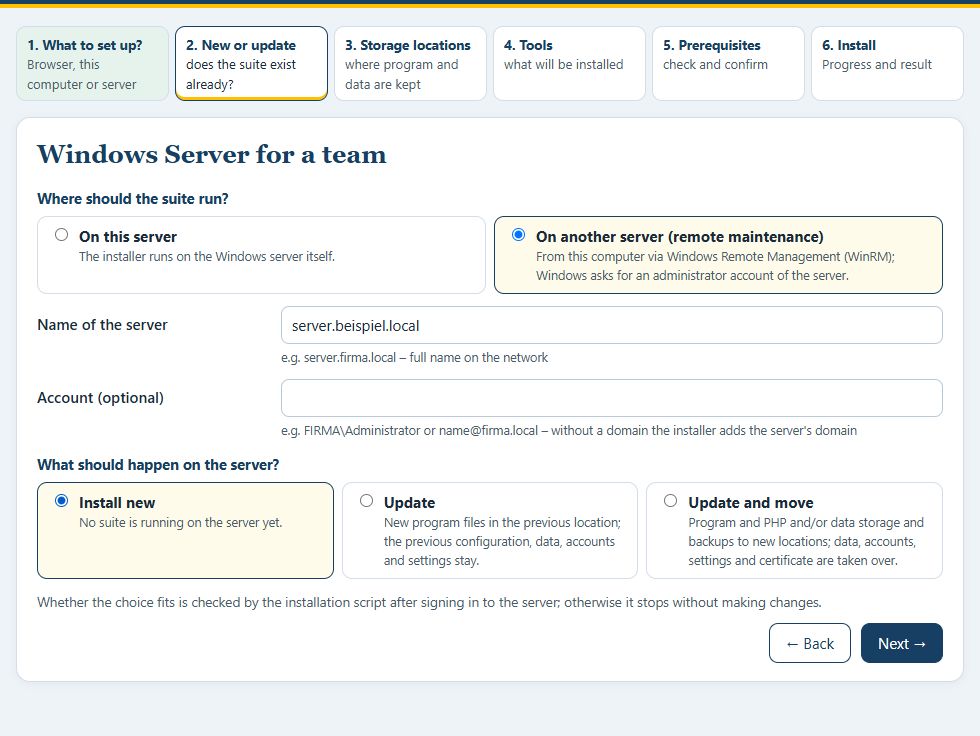
For remote maintenance you also choose straight away what should happen: “Install new”, “Update” or “Update and move”. Whether the choice fits is checked by the installation script after signing in to the server; otherwise it stops without making changes. Without the graphical installer the commands are install\windows\installieren-server.bat (on the server) and auf-server-installieren.ps1 -Server server.firma.local (from the workstation).
Name, certificate and Windows sign-in
In the step “Storage locations” further fields appear for the server. Under “Name on the network” the workstations reach the suite. “Certificate (optional)” takes the fingerprint of an existing certificate; if empty, the installation creates a self-signed certificate for five years. In addition there are the boxes “Allow sign-in with the Windows account (Active Directory)” and “Open the firewall for HTTPS and HTTP (domain, private)”.
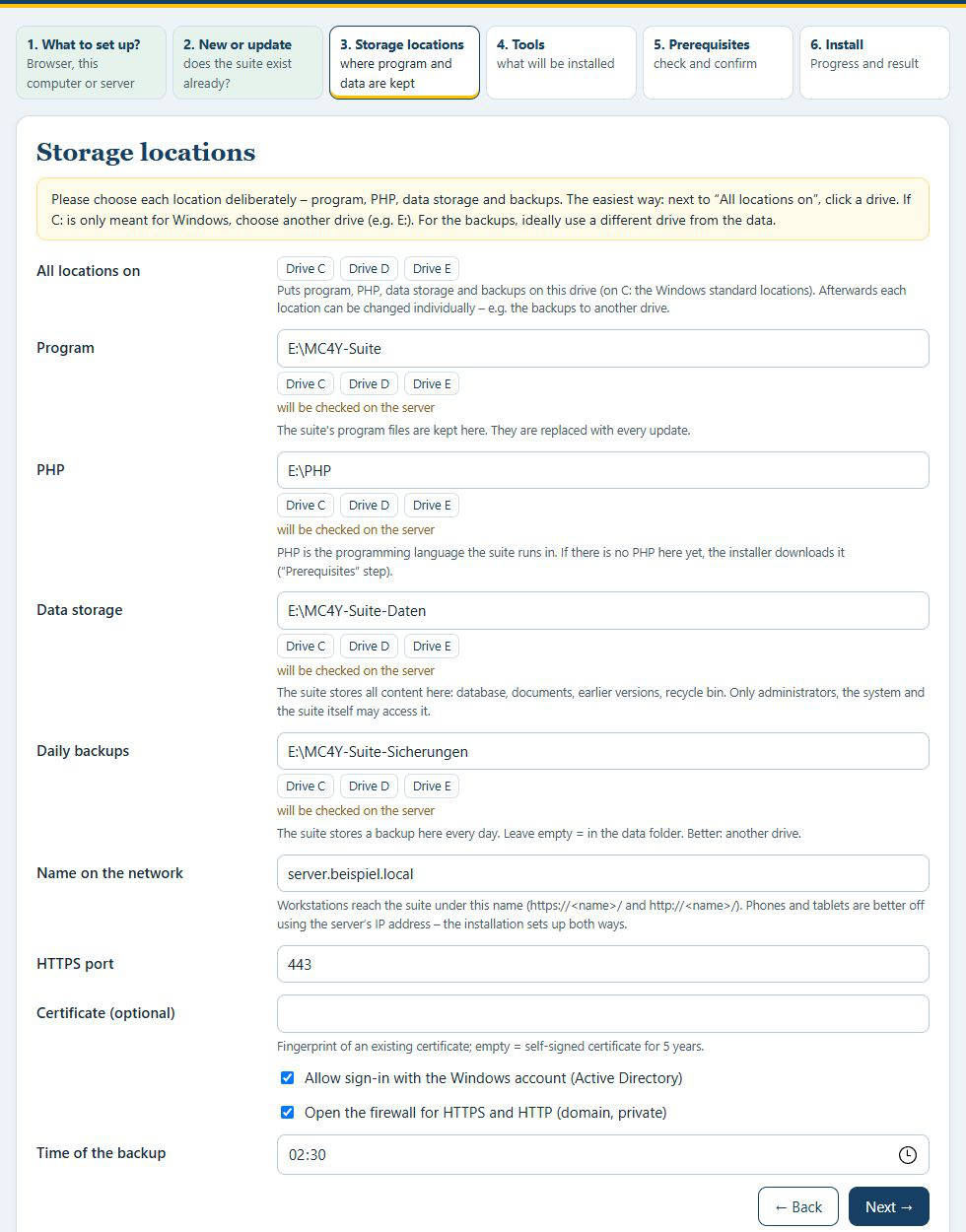
The server installation sets up four access routes at once: https:// and http://, each with the name and with the IP address of the server. Over HTTP the sign-in page points to the encrypted address. The daily backup runs at 02:30.
How do workstations and phones reach the suite?
On a PC the server name is more convenient, on a phone the IP address is more reliable: Android and iOS usually do not find names ending in .local. The suite shows all addresses at the bottom of the portal under “Other devices”, each with a QR code, plus the certificate’s fingerprint and a button to download the certificate.
- Upgrading an older server installation: run
HTTP-Zugang-einrichten.baton the server as administrator. It measures first, shows, asks, backs upkonfig.phpand measures again afterwards;-Probelaufonly shows,-Rueckgaengigundoes everything. - A phone cannot reach the suite: start
Erreichbarkeit-pruefen.baton the server and enter the phone’s IP address. It distinguishes a different network, device isolation in the Wi-Fi and a missing firewall rule, and never changes anything. - HTTPS only:
-OhneHttpwhen installing.
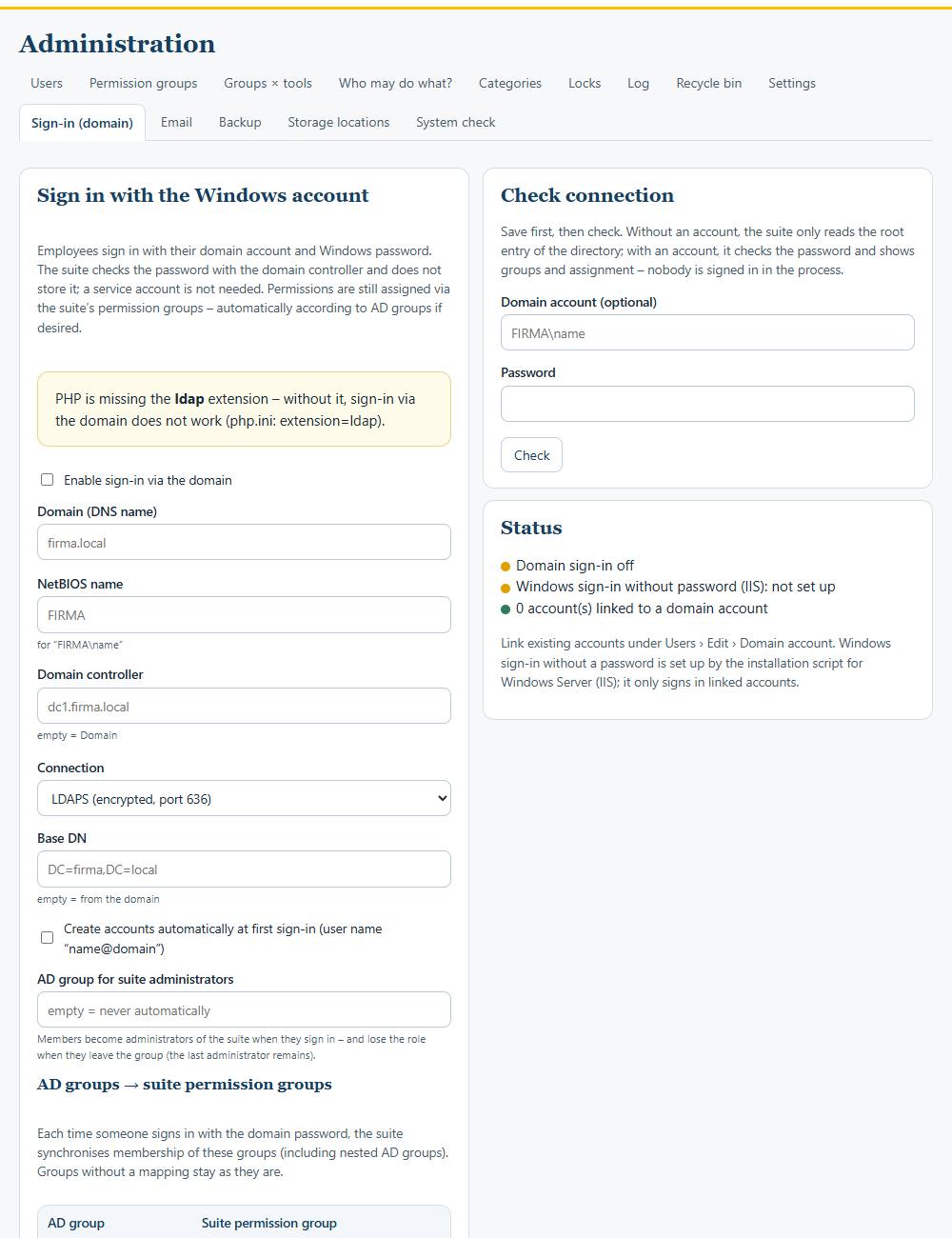
Company computers are best given the certificate by group policy (see the certificate section). You switch on sign-in with the Windows account after the first account, in the suite under “Administration” › “Sign-in (domain)”; the suite then signs in with the person’s own account, no service account of its own is needed.
Linux server with Apache or nginx
sudo bash install/linux/installieren.sh sets up server mode with Apache, --webserver nginx --host suite.firma.example with nginx and a name of your own. Beforehand, --probelauf shows what would happen. For a new installation the dry run also works without sudo; for an existing installation start it with sudo, because only root may read the settings in konfig.php. With the graphical installer you choose “Linux” and the server for a team.
Apache or nginx, HTTPS or HTTP too?
The script sets up a PHP-FPM pool “mc4y-suite” of its own under the system account mc4y-systemuser, not under the web server’s account. The web server delivers only the folder public/, blocks hidden files and redirects HTTP on port 80 to HTTPS. Without a certificate of your own (--zertifikat <file> --schluessel <file>) it creates a self-signed one. On Red Hat and related systems it sets the SELinux labels for program and data.
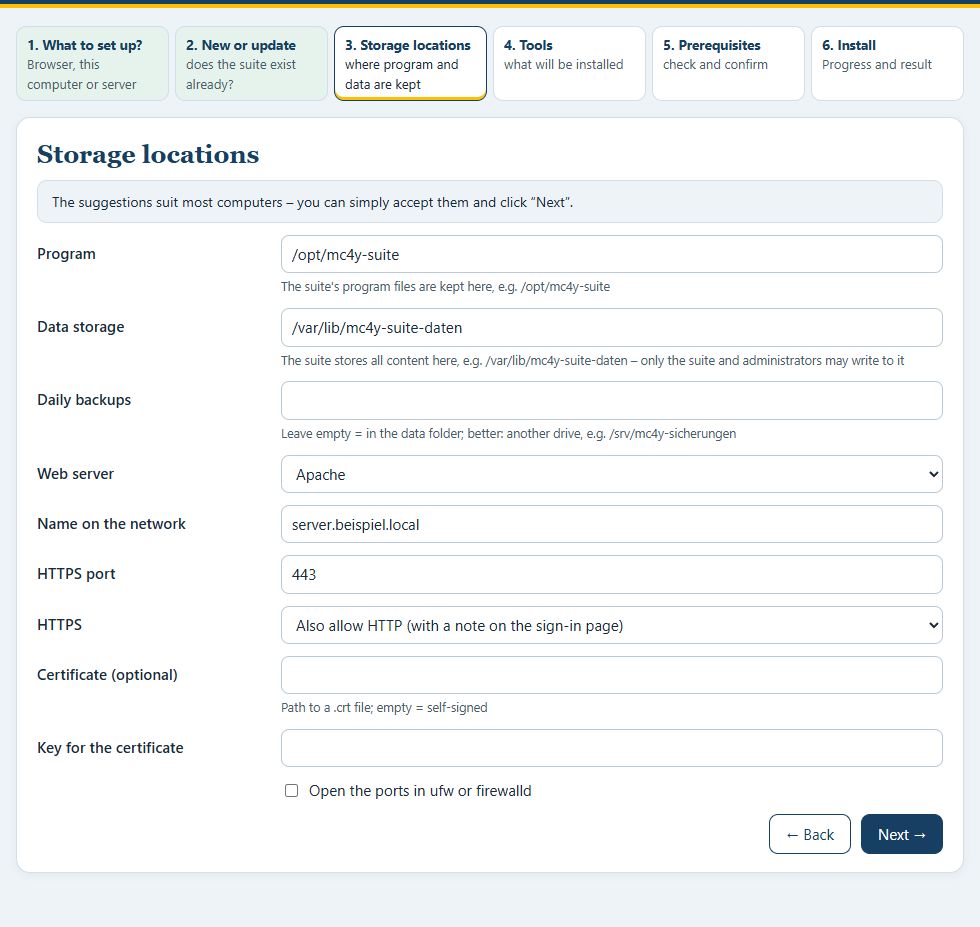
There are four settings for HTTPS: “enforce” (the default), “Also allow HTTP (with a note on the sign-in page)” (--https erlauben, for example for phones without the certificate), “behind a proxy” (--https proxy, when an upstream server terminates TLS) and “off (for testing only)”. You switch an existing installation with --aktualisieren --konfiguration-erneuern --https erlauben. The script opens the firewall only with --firewall (ufw or firewalld); otherwise it gives a note.
What if port 80 is in use?
If another web server is already running on the computer, Apache or nginx cannot start. Since version 0.4.60 the script then stops and names the program that occupies the port, together with the remedy.
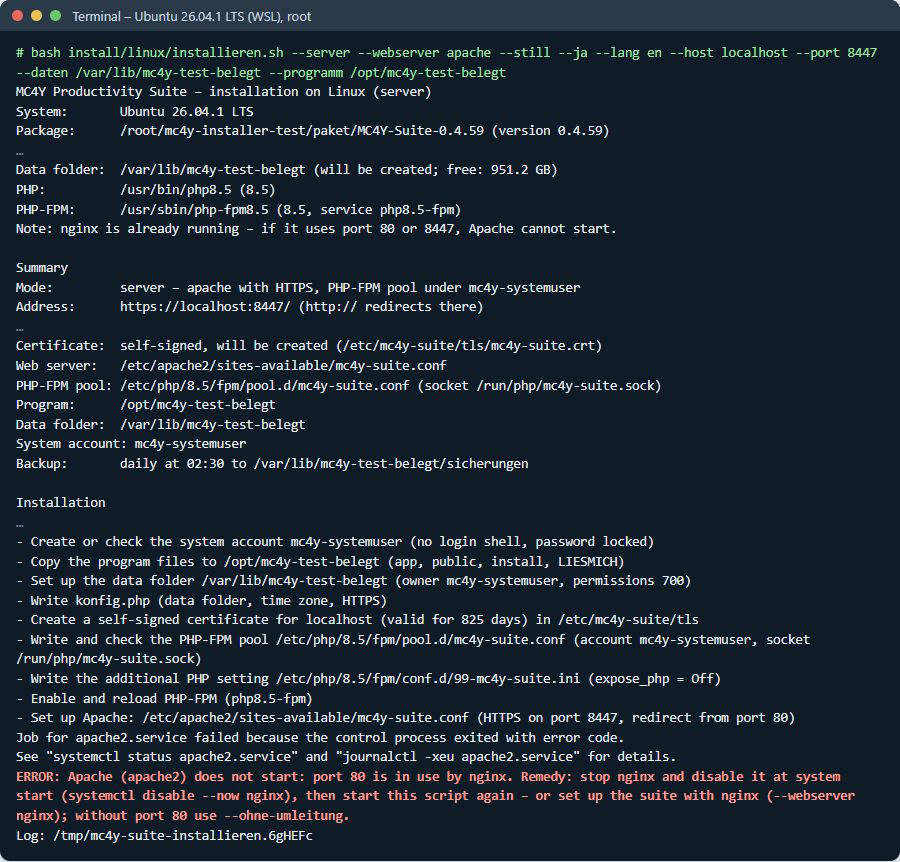
The picture shows the real message from my test run; only lines with the test computer’s name are left out. You have three options: stop the other web server and disable it at system start (systemctl disable --now nginx), set up the suite with that same web server (--webserver nginx) or work without the redirect on port 80 (--ohne-umleitung). If the HTTPS port is in use, choose another one with --port.
Web hosting package without a server of your own
- In your provider’s customer menu, set PHP 8.4 or newer.
- Upload the folders
app,publicandinstallas well as.htaccessandkonfig.beispiel.phpvia SFTP, including hidden files such aspublic/.user.ini. Ideally the domain points to thepublicfolder. - Open the address. The suite shows the dialog for setting up the storage: enter the code from
ablage-einrichtungscode.txt(read it via SFTP) and choose a data folder outside the web directory. - Create the first account; read the setup code via SFTP from
<data folder>/system/einrichtungscode.txt. - For the daily backup, create a cron job:
php /path/to/app/cli.php sicherung --auto, for e-mails additionallyphp /path/to/app/cli.php mail --stillevery 5 minutes.
For personal data you need a data processing agreement with the provider.
HTTPS, certificate and setup file
A self-signed certificate is secure, but other computers do not know it at first. The browser then warns (“Your connection is not private”), and programs such as the taskbar or the CMDB agent refuse the connection. No program of the suite switches off the certificate check; instead, you make the certificate known once. You find it at https://<server name>/zertifikat/mc4y-suite.cer and on the page “Other devices” with its fingerprint (SHA-256 and SHA-1) for comparison.
How do other computers get to know the certificate?
- Many Windows computers: by group policy under Computer Configuration › Policies › Windows Settings › Security Settings › Public Key Policies › “Trusted Root Certification Authorities” › Import.
- One Windows computer: double-click the file › “Install Certificate” › “Local Machine” › “Trusted Root Certification Authorities”, or in PowerShell as administrator
Import-Certificate -FilePath .\mc4y-suite.cer -CertStoreLocation Cert:\LocalMachine\Root. - Linux (Debian, Ubuntu):
sudo openssl x509 -inform DER -in mc4y-suite.cer -out /usr/local/share/ca-certificates/mc4y-suite.crtfollowed bysudo update-ca-certificates. - macOS:
sudo security add-trusted-cert -d -r trustRoot -k /Library/Keychains/System.keychain mc4y-suite.cer. - Firefox: if it still does not recognise the certificate, switch on the setting
security.enterprise_roots.enabledthere; it then adopts the Windows certificates.
You import a certificate of your own company under “Local Machine › Personal” and give -Zertifikat <fingerprint> when installing, or you replace it later in IIS Manager under “Bindings”.
The setup file for agents and crawlers
For devices without group policy – Linux servers, Macs, virtual machines – there is the setup file mc4y-erkennung.json. It is created in the suite under “Business Support Tools” › “CMDB” › “📡 Discovery” together with a setup key and contains the suite’s address and key as well as the public part of its certificate with fingerprint. Put the file next to the agent’s installation script; agent and crawler then trust the certificate only for exactly this suite address. Without the file, --zertifikat-holen --fingerabdruck <value> fetches the certificate and compares it with the fingerprint from the suite.
The first account and the setup code
After the installation the browser shows the page “Set up the suite”. The first account becomes the administrator: it manages users, groups and categories. Even the administration sees the contents of the tools only via permission groups.
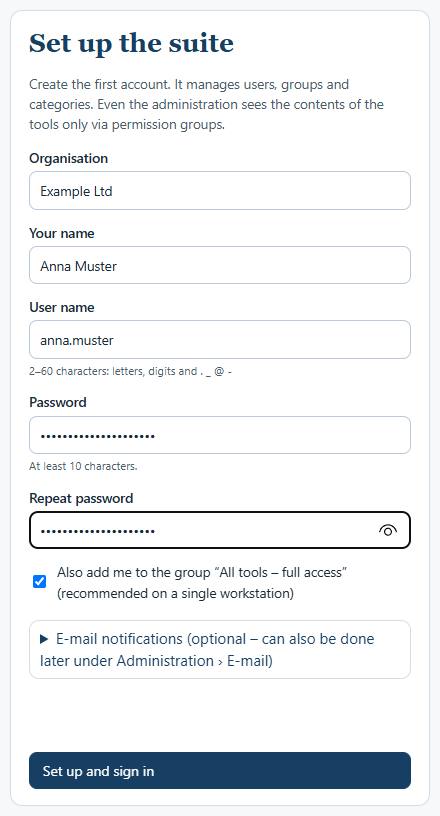
- Enter “Organisation” (it can stay empty), “Your name” and a “User name” without spaces, for example “anna.muster”.
- Enter a “Password” of at least 10 characters and repeat it.
- On a server only: enter the setup code. On a single workstation the field does not appear, because you are sitting at the same computer.
- Leave the box “Also add me to the group “All tools – full access”” ticked and click “Set up and sign in”.
The installation shows the setup code on the screen at the end, not in the log. It is also stored in <data folder>\system\einrichtungscode.txt (on Linux and the Mac with /), readable only by the server’s administrators, with web hosting via SFTP. It is valid only until the first account has been created, and it does not belong in the backup. Under “E-mail notifications” on the same page you can enter the e-mail settings straight away.
What if I forget my password?
On the sign-in page, “Forgot password?” leads to entering a reset code. The code is generated by whoever looks after the suite, on the computer or server: on Windows with Kennwort-zuruecksetzen.bat in the folder install\windows of the installation, on the Mac with bash "/Library/Application Support/MC4Y-Suite/install/macos/kennwort-zuruecksetzen.command", on Linux with sudo bash /opt/mc4y-suite/install/linux/kennwort-zuruecksetzen.sh. It is valid for 30 minutes, only once, and expires after five wrong entries. There is deliberately no reset by e-mail. For accounts with Windows sign-in you change the password in Windows.
E-mail sending and the mail task
At the top of the portal, the bell 🔔 (button “Notifications”) shows new notifications – invitations, cancellations, assigned tasks, comments, shared notes. If you wish, the suite also sends these notifications by e-mail, plus appointment reminders. You set up sending under “Administration” › “Email”: tick “Switch on sending e-mails”, then SMTP server, port, encryption, user name, password and sender. A test message checks the settings.
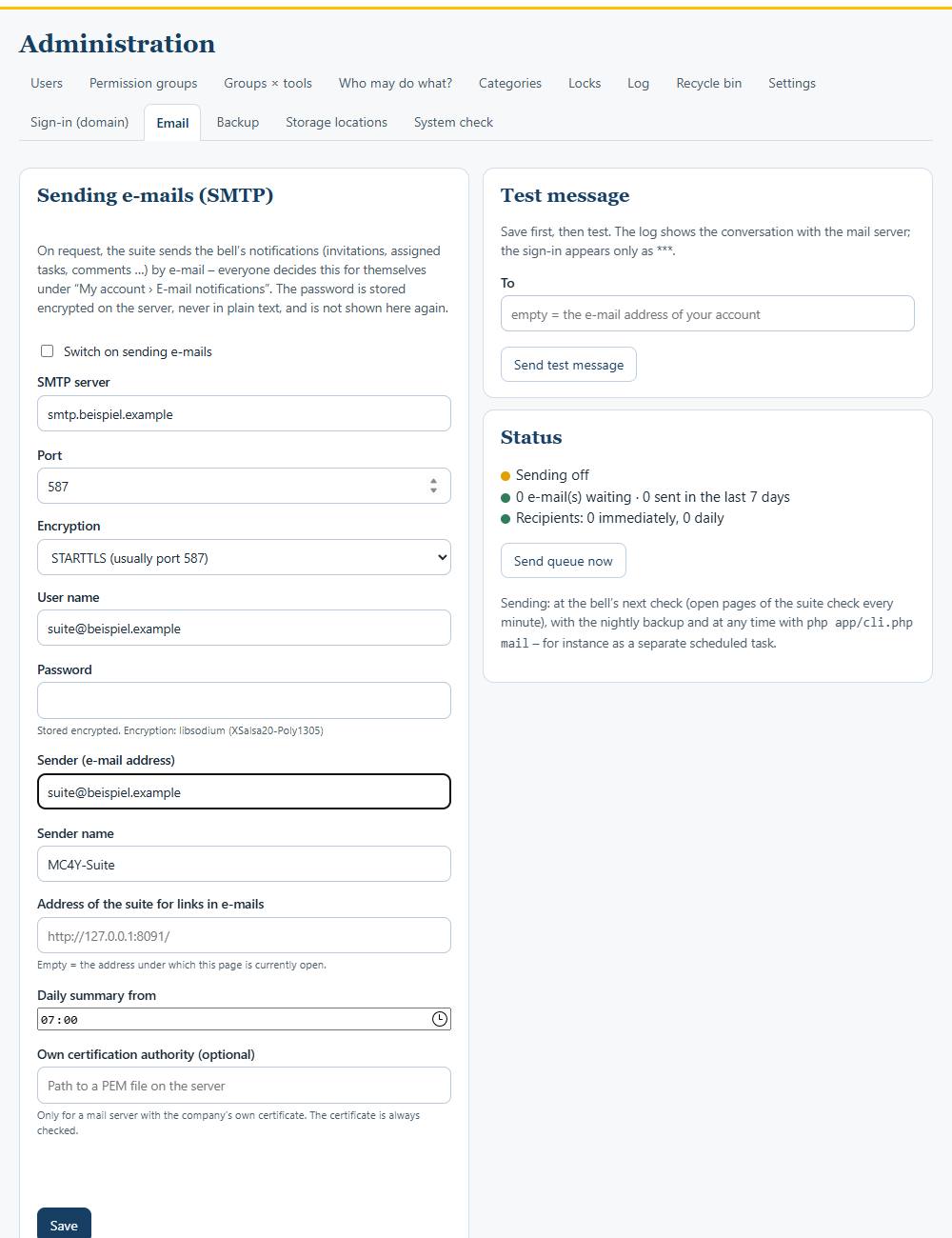
The choices are “STARTTLS (usually port 587)”, “TLS from the start of the connection (usually port 465)” and “none – only a relay in your own network, without signing in”. The password is stored on the server in encrypted form only, the key for it in <data folder>/system/geheim.key; the interface never gets it back. If you move the suite to another server, enter the SMTP password there again. Providers that only allow OAuth are not supported; with two-factor sign-in an app password usually helps.
Mail goes out every 5 minutes via a task that all installation scripts create: on Windows “MC4Y-Suite-Mail”, on Linux the timer mc4y-suite-mail.timer (without systemd /etc/cron.d/mc4y-suite-mail), on the Mac de.my-coaching4you.mc4y-suite.mail under launchd. It calls php app/cli.php mail --still and does nothing as long as sending is switched off. It retries failed attempts at most eight times. Whether and how often a person gets mails is their own choice under their account › “✉ E-mail notifications”. I have not tested sending with real mail providers, nor the task under launchd on a real Mac.
Network drive and calendar with access passwords
The document library can be connected as a network drive (WebDAV), and the calendars can be synchronised in calendar programs (CalDAV). The addresses are https://<server>/dav.php/dokumente/ and https://<server>/dav.php/. These programs do not sign in with the person’s password but with an access password of their own per device.
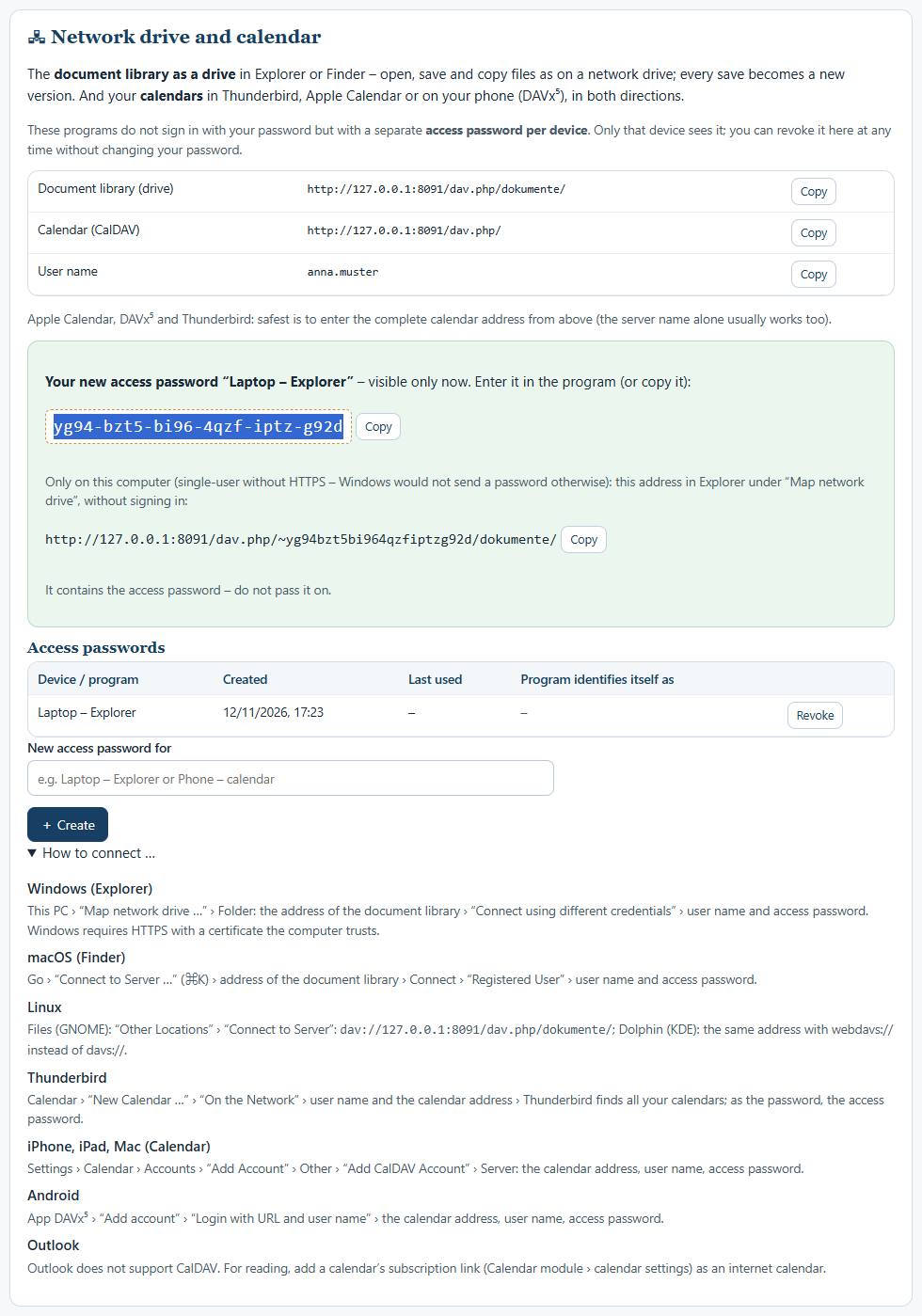
This is how you create one: in the suite, click your name at the top, in the section “🖧 Network drive and calendar” enter a name next to “New access password for”, such as “Laptop – Explorer”, and click “+ Create”. The password is visible only now; with “Revoke” you disconnect the device at any time without changing your own password. Under “Users”, the administration revokes all access passwords of an account at once, for example for a lost phone.
Under “How to connect …” the suite describes the routes for Windows File Explorer, Finder, the GNOME and KDE file managers, Thunderbird, iPhone and iPad, and DAVx⁵ on Android. Important for Windows: File Explorer only sends a password over HTTPS with a certificate the computer trusts. On a single workstation without HTTPS you therefore get a special address that applies only on this computer and contains the access password. Existing IIS servers get the required handler “PHP-MC4Y-DAV” once with -Aktualisieren.
Calendar programs find the calendars themselves through the short address /.well-known/caldav (standard RFC 6764): the suite redirects it to /dav.php/ – under Apache via public/.htaccess (with mod_rewrite), under nginx via the entry the Linux or macOS installer writes, and on a single workstation via the built-in server. Under IIS, installieren-server.ps1 has set up the redirect itself since 18 November 2026 (also with -Aktualisieren): it turns on the Windows role service “HTTP Redirection” (Windows Server: Web-Http-Redirect, Windows 10/11: IIS-HttpRedirect – part of Windows, not an add-on module such as URL Rewrite) and enters the redirect for the location MC4Y-Suite/.well-known/caldav in the IIS configuration; uninstalling removes it again. If HTTP Redirection cannot be turned on, the installation still continues and reports “NOT set up” in yellow – then enter the full address https://server/dav.php/ in calendar programs. “Your account” measures in the browser whether the redirect works and then shows the matching hint. The suite does not offer CardDAV (contacts).
I have tested the real Windows File Explorer against a single-workstation suite (connect, write, read, rename) and the interface itself on IIS (35 of 35 checks) and with nginx on Linux (10 of 10). I have not tested Finder, the Linux file managers, Thunderbird, Apple Calendar or DAVx⁵ with the suite. More on this in the post Network drive, calendar and e-mail.
Backup and restore
A backup is a ZIP file with the entire data folder – database, documents, versions, recycle bin – and a list of SHA-256 checksums. The installation sets up a daily backup (php app/cli.php sicherung --auto): on a Windows single workstation at the chosen time (default 12:30), on servers, on Linux and on the Mac at 02:30. By default 14 backups are kept.
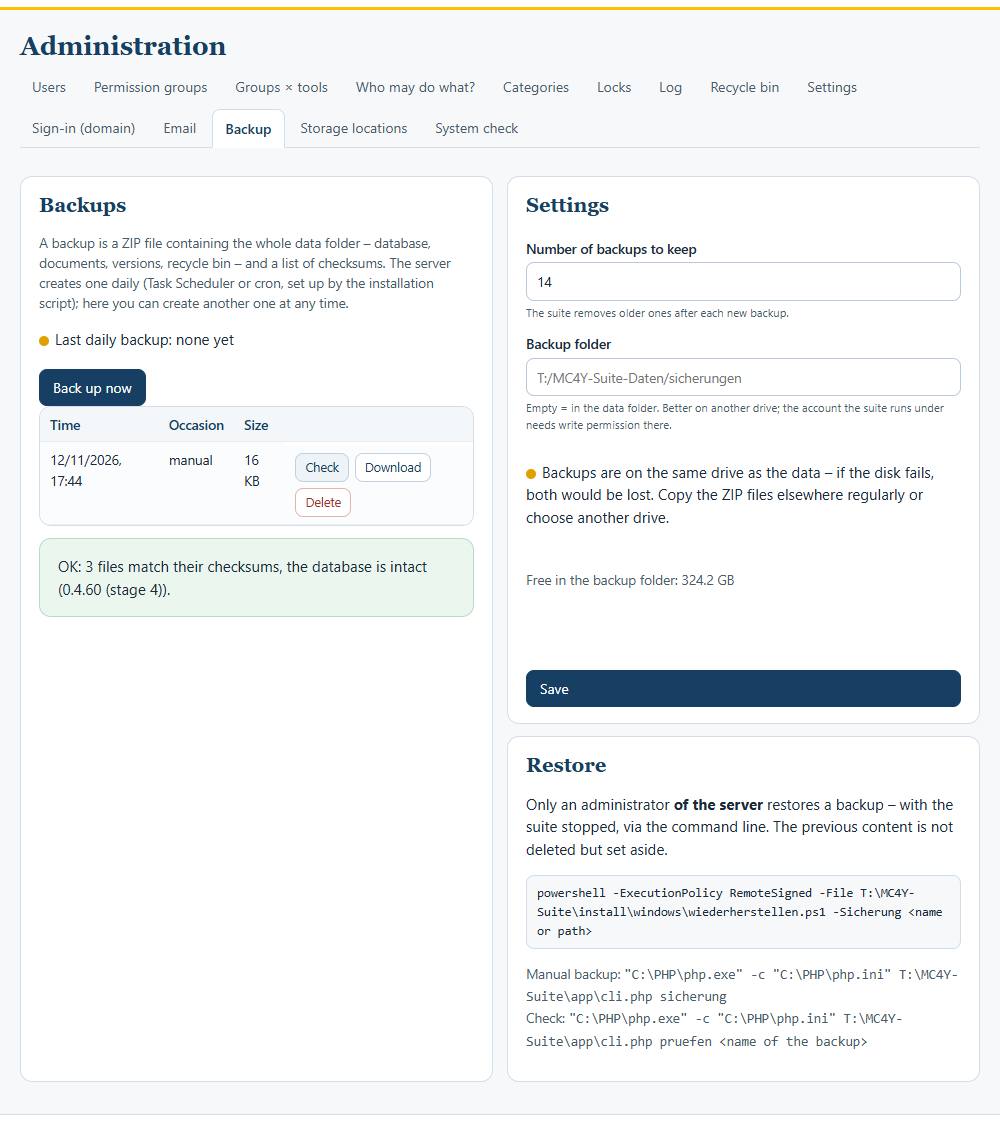
Under “Administration” › “Backup” you can create another one at any time with “Back up now”; “Check” compares the checksums and the database. This is also where you set how many backups are kept and in which folder they are stored. If the backups are on the same drive as the data, the suite points this out in yellow – if the disk fails, both would be lost. Copy the ZIP files to a second drive regularly; they are not encrypted.
Deliberately not included in the backup are system/geheim.key (the key for the SMTP password), the setup code, the backup folder itself, the update backups and temporary files.
How do I restore a backup?
Restoring only works via the command line, by an administrator of the server; the “Backup” page shows the matching command.
- Windows:
powershell -ExecutionPolicy RemoteSigned -File "<program>\install\windows\wiederherstellen.ps1" -Sicherung <name> - Linux:
sudo /opt/mc4y-suite/install/linux/wiederherstellen.sh <name or path> - Mac:
bash "/Library/Application Support/MC4Y-Suite/install/macos/wiederherstellen.command"– without an argument it lists the backups and asks.
The script checks the checksums, asks for confirmation (on Windows you type YES or JA), stops the suite and moves the previous content to <data folder>/_vor-wiederherstellung_<time> – nothing is deleted. While restoring, the suite is in maintenance mode: every request gets the answer that the suite is being restored from a backup and that you should try again in a minute. Scheduled tasks such as e-mail and backup wait for that long; afterwards everyone is signed out and signs in again. If a run is aborted hard, delete the file <data folder>/.wartung by hand. Practise restoring once before you need it. I have not yet tested the maintenance mode together with IIS and PHP-FPM.
Updating
When updating, content, accounts and settings are kept. The installation first backs up the database to <data folder>/_update-sicherung (the last 10 are kept) and replaces only the folders app, public and install. Always start an update from the new, unpacked package.
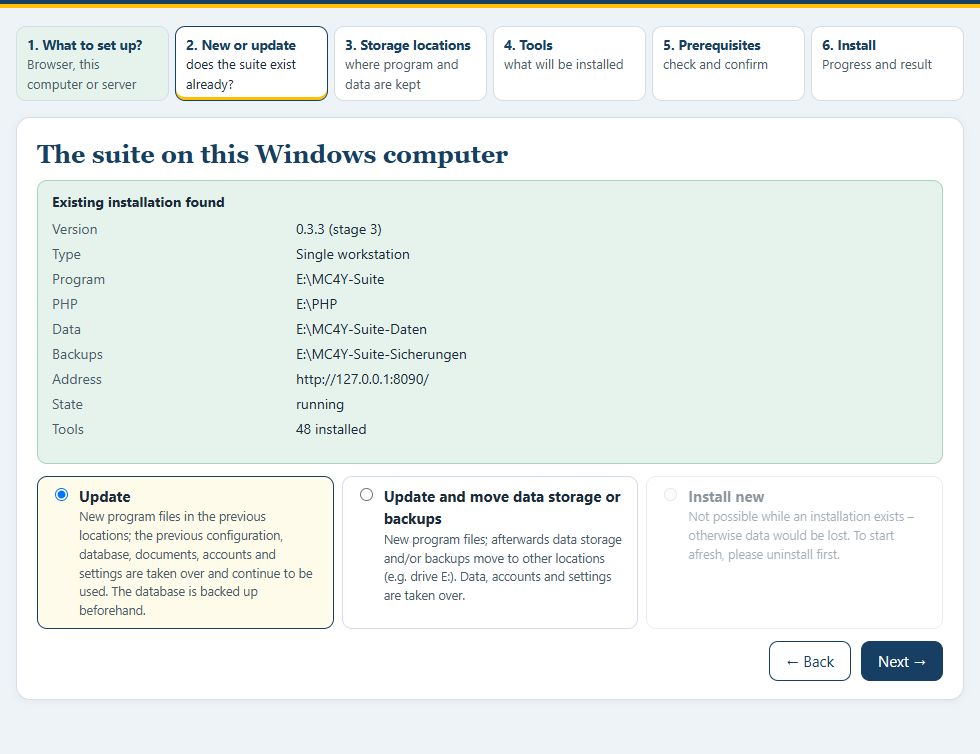
- Graphical installer: it finds the existing installation and preselects “Update”. “Update and move data storage or backups” moves the data to new locations at the same time; “Install new” is blocked as long as an installation exists.
- Windows single workstation:
installieren.bat -Aktualisieren [-DatenNeu E:\MC4Y-Suite-Daten] [-SicherungenNeu F:\…] - Windows Server:
installieren-server.bat -Aktualisierenorauf-server-installieren.ps1 -Server … -Aktualisieren; move with-Umziehen -Programm …. - Linux:
sudo bash install/linux/installieren.sh --aktualisieren; with--konfiguration-erneuernit also rewrites the pool and web server entry. - Mac: in the folder of the new package (
cd ~/Downloads/MC4Y-Suite-0.4.68– with its version number)bash install/macos/installieren.command --aktualisieren; this brings the suite’s own PHP to the package’s version and offers the desktop taskbar. - Web hosting: replace
app,publicandinstall;konfig.phpand the data folder stay.
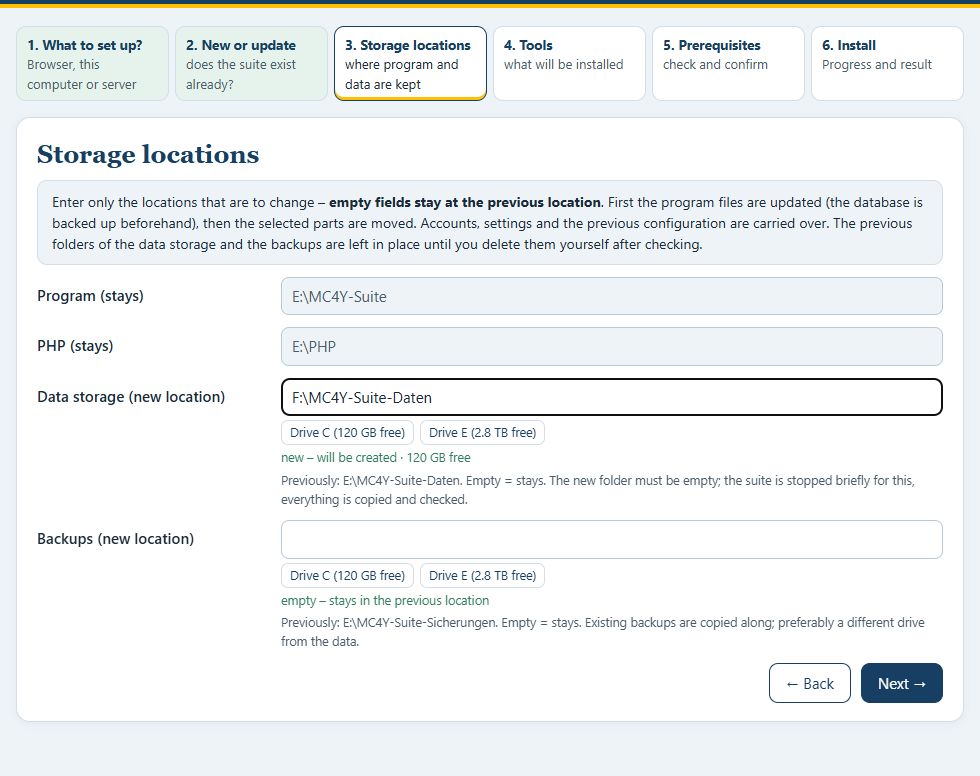
The scripts take the installation’s locations – program, PHP, data, backups, port – from the existing installation, even if it is not on C:. You move only the data folder on Windows with datenordner-verschieben.ps1 -Ziel E:\MC4Y-Suite-Daten, on Linux with datenordner-verschieben.sh <new folder>; on the Mac there is no script for this yet (instructions in install/macos/README.txt). In each case the old folder stays until you delete it yourself after a check.
How do I keep PHP up to date?
Security updates for PHP are as important as those for the operating system. The suite shows the PHP version under “Administration” › “System check”: below 8.4 red, with a note on how to update PHP. It does not compare against the latest patch level or security advisories – so you check the version yourself.
- Windows: every installation and every update brings PHP to the latest 8.5 version from windows.php.net by itself (can be switched off with
-OhnePhpUpdate); if that fails, the suite carries on with the previous PHP. In between,install\windows\php-aktualisieren.ps1is enough: it reads the checksums fromsha256sum.txton windows.php.net, installs nothing without a matching SHA-256 checksum, takes over thephp.ini, keeps the old version as<folder>-alt-<time>and rolls back automatically if PHP does not start afterwards. With-Probelaufit only shows, with-Serverit works by remote maintenance. - Linux: PHP comes from your system’s package sources and gets its security updates together with the other packages.
- Mac: the suite’s own PHP has a fixed version (package 0.4.68: still PHP 8.4.23 – static-php.dev has offered no newer 8.4 version since 7 July 2026, php.net is at 8.4.28), because static-php-cli publishes no checksums. It receives no automatic security updates: a newer verified version only comes with a new suite package, and when you update the suite the script brings its own PHP to that version. With it, the suite can only be reached on this Mac (http://127.0.0.1). If you use Homebrew,
--php-quelle homebrewtakes the PHP from Homebrew, which “brew upgrade php” keeps up to date.
Uninstalling
Your content – the data folder – is kept when uninstalling, unless you delete it explicitly.
- Windows single workstation: in the folder
install\windowsof the package or the installation, double-click “deinstallieren”, answer the Windows prompt with “Yes” and confirm the question whether to uninstall the suite. - Windows Server:
deinstallieren-server.bat, with-ZertifikatLoeschenalso the certificate. - Linux:
sudo bash /opt/mc4y-suite/install/linux/deinstallieren.sh– removes services, pool, web server entry, timers, program, system account and/etc/mc4y-suite; PHP, web server and firewall rules stay. - Mac:
bash "/Library/Application Support/MC4Y-Suite/install/macos/deinstallieren.command"– removes the suite, the program “MC4Y Suite”, its own PHP and the hidden system account.
If the data should go too, add -DatenLoeschen (Windows) or --daten-loeschen (Linux, Mac) and type LOESCHEN when asked. The scripts remove the mail and backup tasks as well. The desktop taskbar belongs to your user account and stays; it has an uninstall script of its own.
Installing the desktop taskbar
The MC4Y Taskbar is a program of its own at the edge of the screen that opens the suite’s tools even without an open browser. It needs Python 3.8 or newer with tkinter, but no administrator password.
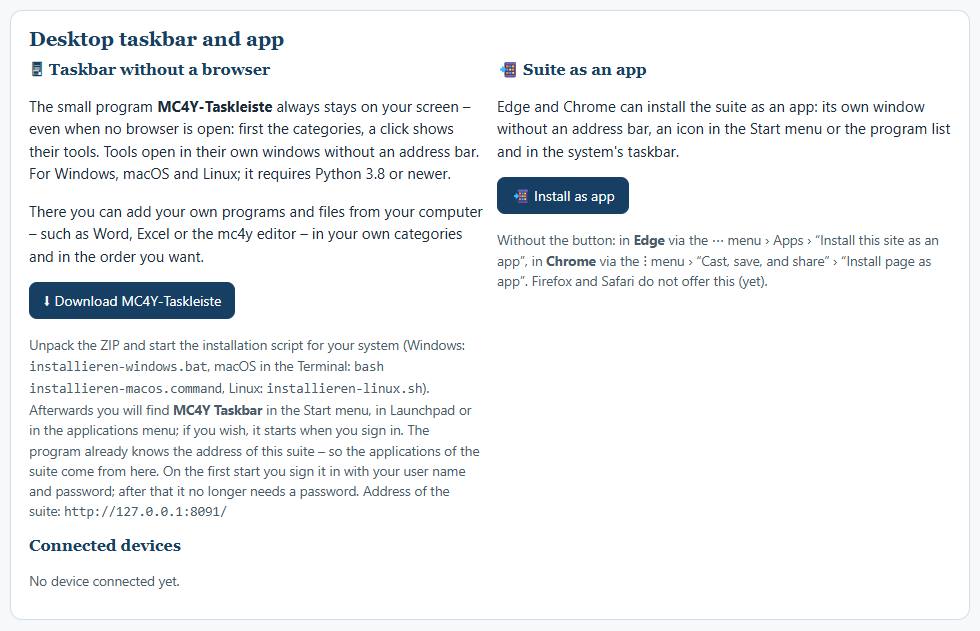
The most convenient way is to download it in the suite: click your name at the top, section “Desktop taskbar and app”, then the download button. Downloaded this way, it already knows your suite’s address. On Windows the graphical installer sets it up straight away (step “Tools”), on the Mac the suite’s installation script does.
- Windows: unpack the package (beforehand “Properties” › “Unblock”) and double-click “installieren-windows”. If Python is missing, the script offers
winget, for your user account only. Target:%LOCALAPPDATA%\Programs\MC4Y-Taskleiste, shortcut “MC4Y Taskleiste” in the Start menu and in the startup folder; switch it on and off under Settings › Apps › Startup. - Mac: in Terminal,
bash installieren-macos.command. Use Python from python.org (“macOS 64-bit universal2 installer”); the Apple Python that comes with macOS is not enough. Start at sign-in via a LaunchAgent, from macOS 13 also under Login Items. - Linux:
sh installieren-linux.sh; install Python and tkinter beforehand with the package manager, for examplesudo apt install python3 python3-tk. The script creates the menu entry and autostart in the user folder.
At the first start the taskbar asks for the suite’s address, user name and password; it does not store the password but receives a device key of its own. If the computer does not know the suite’s certificate, it says so and helps you store it. Removing: “deinstallieren-windows”, deinstallieren-macos.command or deinstallieren-linux.sh. The taskbar is tested on Windows 11 and on Ubuntu in WSL with a virtual screen, not on a real Mac and not on the Linux desktops GNOME, KDE or XFCE.
Setting up the CMDB agent and crawler
The agent reports a computer’s equipment to your suite’s CMDB – system, memory, drives, operating system, installed programs. The crawler searches your own network for further devices (ping, open standard ports, SNMP if desired); one crawler per network is enough. Both transfer inventory data only, no user data. I describe them in detail in the post Agents and crawler.
Creating a key in the suite
In the suite, open the “CMDB” under “Business Support Tools” and there the tab “📡 Discovery”. In the box “🔑 Set up agents and crawlers”, under “Create setup key”, choose what the key is for (“Agents and crawlers”, “agents only” or “crawlers only”), how often the devices report, how long the key is valid and for how many devices. This requires full access to the CMDB.
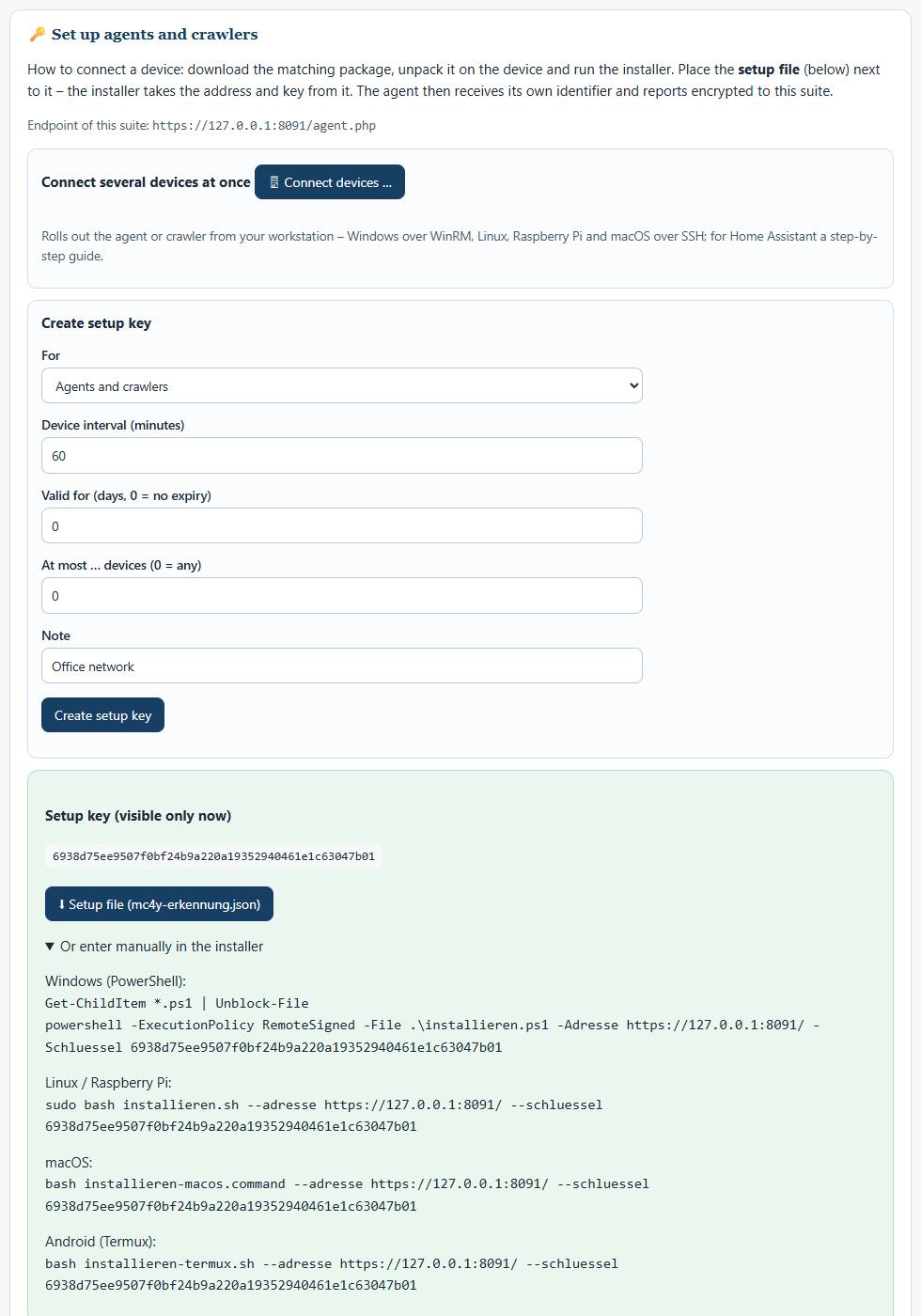
The key is visible only now. Download the setup file mc4y-erkennung.json straight away; it contains the suite’s address, key and certificate. You enter networks for the crawlers in the box “🌐 Networks for the crawlers” (CIDR, IPv4 or IPv6, at most 1,024 addresses per network).
Installing the agent: Windows, Linux and macOS
The simplest way is the graphical installer: choose “Report this device to the CMDB (agent/crawler)”, enter the suite’s address and the setup key, tick the agent and, if you wish, the crawler. If the setup file lies next to it or in “Downloads”, it fills in the fields itself.
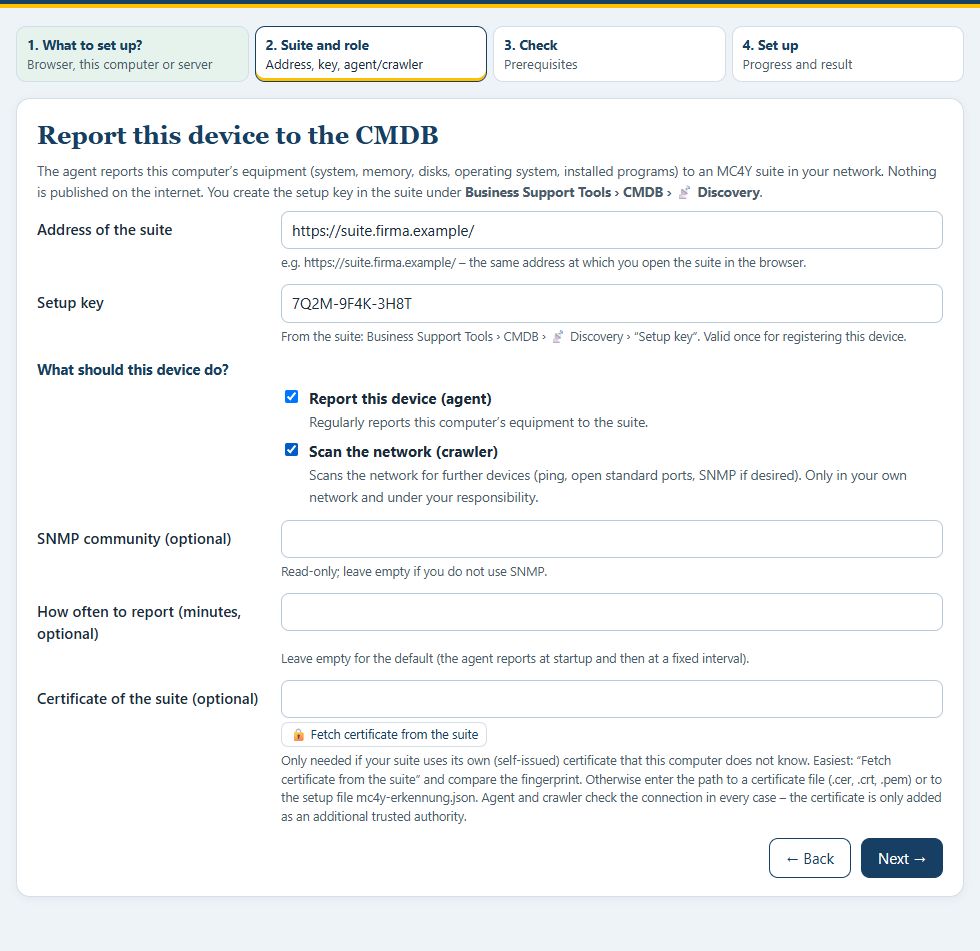
Without the graphical installer, from the package mc4y-erkennung.zip:
- Windows 10/11 and Server from 2016: double-click “Agent-installieren.bat” or “Crawler-installieren.bat”. The agent runs as the scheduled task “MC4Y-CMDB-Agent” under SYSTEM, at boot and every 5 minutes; if Python is missing, the script installs it machine-wide via
wingetwithout asking. - Linux and Raspberry Pi:
sudo sh installieren.sh --adresse https://suite.firma.example/ --schluessel <key>, the crawler with--crawler, a preview with--probelauf. This creates a systemd servicemc4y-cmdb-agent, without systemd a cron entry. - macOS 12 and newer:
bash installieren-macos.command, the crawler with--crawler; the service runs under launchd. Python 3 from python.org is required.
Checking: sudo python3 /opt/mc4y-cmdb-agent/mc4y_agent.py --pruefen (Linux). Removing: deinstallieren.ps1 or sudo sh deinstallieren.sh, with --einstellungen-loeschen also the settings; the entry in the CMDB stays. For many computers at once there is the distributor mc4y-verteiler.zip, which reaches Windows via WinRM and Linux, Raspberry Pi and macOS via SSH.
Agent and crawler are tested on Windows 11 and on Ubuntu in WSL including uninstalling; I have not run Raspberry Pi, macOS, Android, Home Assistant or the distributor for real.
Renewing the agent on an Ubuntu VM: route A and route B
Since agent 1.1 the Linux agent reports as software only explicitly installed packages, everything else as the component “system packages”. Anyone replacing an older agent on an Ubuntu VM has two routes. Beforehand the suite must be at version 0.4.58 or newer, otherwise the new agent creates every package individually again.
- Route A – create afresh: in the CMDB, open the computer and move it to the recycle bin with 🗑; in the preview, leave deleting the software and signing off the agent ticked. On the VM,
sudo sh deinstallieren.sh --einstellungen-loeschen, then with a new keysudo sh installieren.sh --adresse … --schluessel …. Result: a fresh entry with only the explicitly installed programs. - Route B – install over it: install the new agent over the old one; it keeps its identifier and the entry stays the same. Afterwards, in the CMDB under “Group rules”, the clean-up button removes the orphaned software entries (its dry run shows them beforehand).
I have tested both routes on Ubuntu in WSL (route A 20 of 20, route B 14 of 14 checks, also from the delivered package). On a real VM and with the Windows or macOS agent they are not tested.
How do I check that everything works?
- Open the suite’s address: you see the sign-in page.
- Restart the computer and open the address once more: the suite starts by itself.
- In the suite, open “Administration” › “System check”.
- Under “Administration” › “Backup”, click “Back up now” and then “Check” in the new row.
- On a server, do the same from a workstation and, if wanted, from a phone.
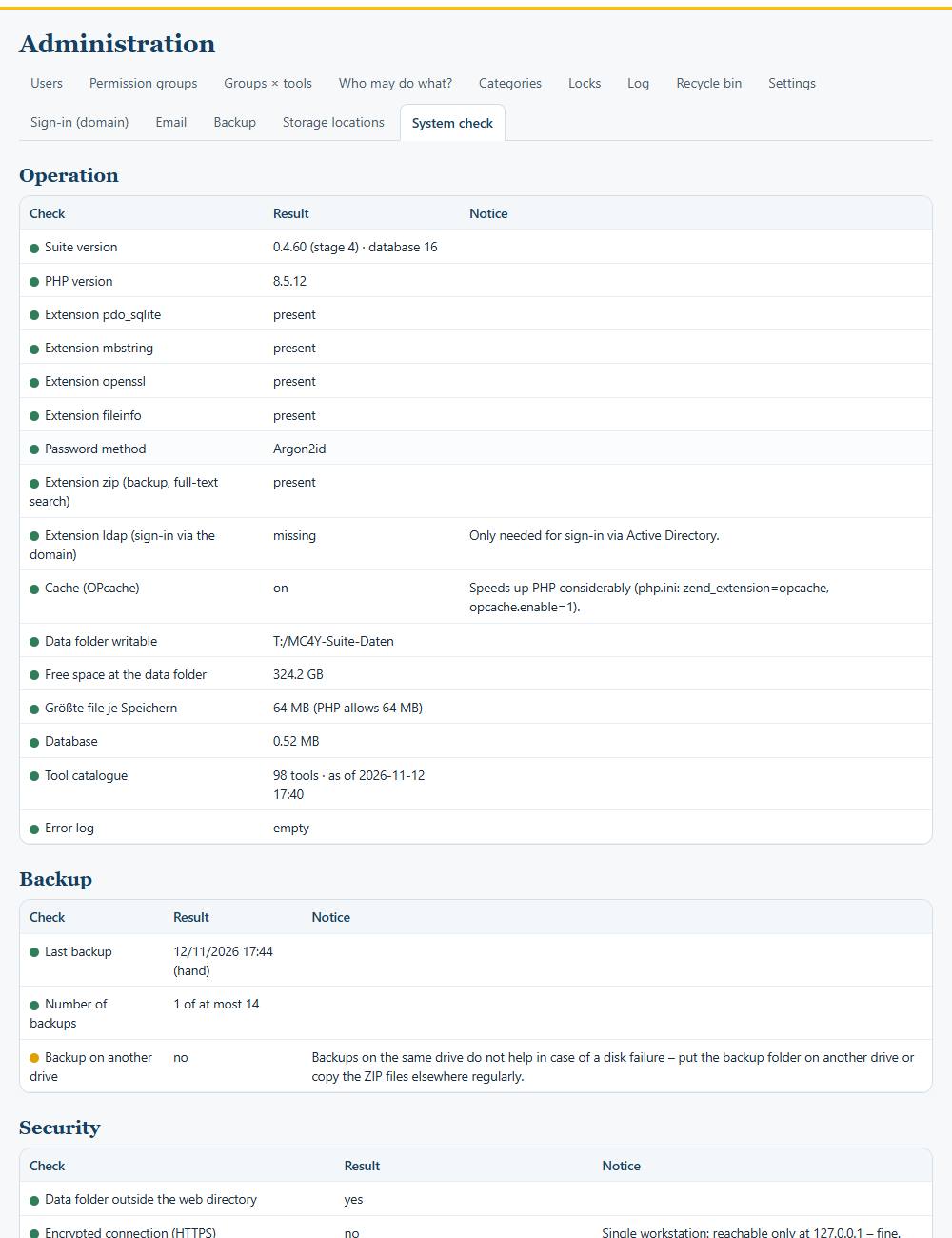
The system check has three groups: operation, backup and security. Green is fine, yellow a recommendation, red you should fix. It turns red, for example, if a required PHP extension is missing (pdo_sqlite, mbstring, openssl, fileinfo, zip); yellow if OPcache is off, the last backup is older than two days or the backups are on the same drive as the data. The row for the error log reports whether the suite has recorded errors. On the command line, php app/cli.php system --lang en shows the same.
Error patterns and their remedies
On Windows
- Blue window “Windows protected your PC”: “More info” › “Run anyway”; in future, before unpacking, “Properties” › “Unblock”.
- The black window closes straight away: the package has not been unpacked. Choose “Extract All…” and start “Installer-starten” in the unpacked folder.
- “Next →” stays grey: a red hint appears under a field; choose a different folder or another drive.
- “Port 8090 … is in use”: enter 8091, for example, next to “Port”; the address is then
http://127.0.0.1:8091/. - PHP does not start: the Visual C++ runtime
vc_redist.x64.exefrom Microsoft is missing. - “The suite is not set up yet” or “The installation is incomplete”: usually after a run that was cut short (antivirus, a declined prompt). Run the installation again; the storage setup dialog does not help for an installation with a service account.
- Your antivirus program speaks up: which files go into quarantine is your decision in your antivirus program; then repeat the installation.
On Linux
- “port 80 is in use by …”: see the section on the Linux server – stop the other web server, switch with
--webserveror use--ohne-umleitung. - “Permission denied” when starting
./installer-starten.sh: putbashin front; nothing may be started directly on network shares and USB sticks. - The package lies in a folder that only your account can see: copy it to the disk with
cp -abeforehand (the script names the command). - “… is not in the sudoers file”: your account may not install anything; use an administrator account.
- PHP too old (for example Debian 12 with PHP 8.2 or Ubuntu 24.04 with PHP 8.3): the script names ways to newer packages but does not set up third-party sources. Simpler: a newer version of the system (Debian 13 or Ubuntu 26.04).
On the Mac
- “No such file or directory”: you are not in the package folder;
cd, space, drag the folder into Terminal, Return. - “Sorry, try again.”: the password was wrong.
- “… is not in the sudoers file”: your account is not an administrator.
- “Operation not permitted”: System Settings › “Privacy & Security” › “Files and Folders” › under “Terminal”, switch on the “Downloads Folder”.
- PHP could not be downloaded: check the internet connection; without internet, put the file named in the message into a folder
voraussetzungenin the package. - Python for the taskbar is missing: the suite runs anyway; install Python from python.org and run
bash install/macos/installieren.command --aktualisieren --taskleiste --lang en.
In the browser and on the network
- “Your connection is not private”: this computer does not know the certificate – make it known (see the certificate section) and use the server’s full name.
- “User name or password incorrect”: every suite has its own accounts; the account on your own PC does not apply on the server. After five failed attempts an account is temporarily locked.
- The address shows “This site can’t be reached”: wait a minute and reload, otherwise restart the computer. If that does not help, the installation log
installation_<date>.logis in the program folder. - The phone does not find the server: use the IP address or the QR code under “Other devices”; on Windows Server,
Erreichbarkeit-pruefen.bathelps.
Reference: Windows and Windows Server
This part collects everything for Windows to look up: every route without the graphical installer, all script parameters, the messages with remedies and every location an installation creates.
Windows: step by step without the graphical installer
This covers the routes via the scripts themselves – for specialists, for servers without a browser and for cases where the graphical installer does not fit.
Preparation: unpacking the package and starting scripts
All scripts are in the package under install\windows and, after installation, in the program folder under install\windows. The scripts write English or German: by default in the display language of Windows, otherwise according to the environment variable MC4Y_SPRACHE, and explicitly with -Sprache en or -Sprache de.
- Download
mc4y-suite.zip. - Right-click the file › “Properties” and, under “Security”, tick “Unblock” if it is offered. Then “OK”.
- Right-click the file › “Extract All…” › “Extract”.
- Open a Command Prompt in the unpacked folder
MC4Y-Suite-<version>. Do not start the scripts from a Nextcloud or other cloud folder: hidden files such as.htaccessget lost that way.
The .bat files (installieren.bat, installieren-server.bat, deinstallieren.bat …) first unblock all *.ps1 in their folder with Unblock-File and start the script of the same name with -ExecutionPolicy RemoteSigned. Everything you type after the name of the .bat is passed on to the script. If administrator rights are missing, the script restarts itself in a new window with the Windows prompt (User Account Control) and passes the language on.
The package may sit on a network share. In that case give the path as \\server\share\…; the scripts convert a mapped drive letter into this form themselves. The data folder and the backups, however, must be on a local NTFS or ReFS drive.
Installing a single workstation with installieren.bat
This sets up the suite on a Windows 10/11 computer without the graphical installer. Afterwards it is reachable only on this computer at http://127.0.0.1:8090/.
- Download the package “VS17 x64 Non Thread Safe” (PHP 8.4 or later) from
https://windows.php.net/download/and note the checksum (SHA256) next to it. If a PHP already exists inC:\PHP, skip this step. - Optional, to try it out: type
install\windows\installieren.bat -Probelauf. The dry run needs no administrator rights, shows every action with “[Dry run]” and ends with “Dry run finished - nothing was changed.” - Type:
install\windows\installieren.bat -PhpZip C:\Downloads\php-8.x.y-nts-Win32-vs17-x64.zip -PhpSha256 <checksum> -Sprache en - Answer the Windows prompt with “Yes”. A new window opens.
- The window shows “Set up storage: Where should the content of the suite be stored (database, documents, versions, backups)?” and the drives with their free space.
- At “Program folder [C:\Program Files\MC4Y-Suite]” press Enter or type another folder, e.g.
E:\MC4Y-Suite. - At “Data folder [<suggestion>]” press Enter or type a folder. The suggestion is
C:\ProgramData\MC4Y-Suite-Daten; if the program is on another drive,<drive>:\MC4Y-Suite-Daten. - At “Folder for the daily backups [empty = inside the data folder; another drive is better]” type a folder on another drive or press Enter.
- Wait until “Done. The suite is running at http://127.0.0.1:8090/” appears. Below it, the password of the account
mc4y-systemuseris shown once; you only need it if you set up the task again by hand. - At “Press Enter to close” press Enter.
- In the browser that has opened, create the first account.
The questions in steps 5 to 8 are skipped with -Daten (then -Programm and -SicherungOrdner or their defaults apply), with -Aktualisieren, -Probelauf and -OhneWarten. Without questions, for example: installieren.bat -Programm E:\MC4Y-Suite -Daten E:\MC4Y-Suite-Daten -SicherungOrdner F:\MC4Y-Suite-Sicherungen.
Installing a server on the server with installieren-server.bat
This sets up the suite on a Windows Server with IIS while you are signed in to the server itself. It is tested only on Windows Server 2022.
- Copy the package to the server and unpack it (as in the preparation).
- Have the PHP package “VS17 x64 Non Thread Safe” and Microsoft’s
vc_redist.x64.exeready, for example inC:\Pakete. - Optional:
install\windows\installieren-server.bat -Probelaufshows what would happen. - Type:
install\windows\installieren-server.bat -PhpZip C:\Pakete\php-8.x.y-nts-Win32-vs17-x64.zip -PhpSha256 <checksum> -VcRedist C:\Pakete\vc_redist.x64.exe. The runtime is only run if PHP needs it. - Answer the Windows prompt with “Yes”.
- The window shows “Set up storage: …”, the drives and “Program folder: C:\Program Files\MC4Y-Suite (other location: call the script with -Programm <folder>, e.g. -Programm E:\MC4Y-Suite)”.
- At “Data folder [<suggestion>]” press Enter or type a folder.
- At “Folder for the daily backups [empty = in the data folder; preferably another drive]” type a folder or press Enter.
- Wait. The first time, the script installs the IIS role services. At the end it lists “Ways to the suite (measured from the server):”.
- Write down the code from “Setup code for the first account: <code>”. It is shown only in the window, not in the log.
- At “Press Enter to close” press Enter.
- Register the certificate
<program>\zertifikat\mc4y-suite.ceras trusted on the workstations and create the first account with the setup code athttps://<server name>/. The next steps are also inKURZANLEITUNG.txt(the quick guide) in the program folder.
Server by remote maintenance: prerequisites
With auf-server-installieren.ps1 you install from a workstation without signing in to the server. The script builds a package, connects via WinRM and runs installieren-server.ps1 on the server.
- The server accepts WinRM on port 5985 (Windows Remote Management). The connection uses Kerberos (authentication Negotiate).
- You give the server by its full name, e.g.
server.firma.example. From this name the script builds the account formname@firma.exampleif you enter onlynameorCOMPANY\name. - You know an account with administrator rights on the server. The password goes only to Windows; the script neither stores nor logs it.
- There is no .bat for this script. So unblock the scripts yourself first, otherwise
RemoteSigneddoes not run the downloaded file. - This script has no dry run. A dry run on the server is shown there by
installieren-server.bat -Probelauf.
Server by remote maintenance: steps
- Open PowerShell in the unpacked package.
- Type:
Get-ChildItem install\windows\*.ps1 | Unblock-File - Type:
powershell -ExecutionPolicy RemoteSigned -File install\windows\auf-server-installieren.ps1 -Server server.firma.example -PhpZip <zip> -PhpSha256 <checksum> -VcRedist <vc_redist.x64.exe> -Sprache en - In the sign-in window “Install the MC4Y Productivity Suite on <server>: account of an administrator of the server (e.g. COMPANY\Administrator)” enter account and password. With
-Benutzer anna.muster@firma.examplethe account is pre-filled. - Wait at “Connecting to <server> as <account> (WinRM, Kerberos; this may well take a minute)”.
- If the suite is already installed on the server, the script asks “The suite is already installed on the server. Update the program files (the data stays)? (y/n)”. Type
yto update. - For a new installation without
-Datenit shows the drives of the server and asks “Data folder on the server [C:\ProgramData\MC4Y-Suite-Daten]”. Press Enter or type a folder. - At “Folder for the daily backups [empty = in the data folder; a different drive is better]” type a folder or press Enter.
- Wait. At the end you see “Done: https://<name>/ (<version>)” and “Setup code for the first account: <code>”.
- If your computer does not trust the certificate yet, the script asks “Trust this certificate on THIS computer for your user account? Windows will ask once more afterwards. (y/n)”. Compare the thumbprint shown, type
yand confirm the Windows prompt. - Press Enter. Otherwise the window closes after three minutes (“The window closes in 3 minutes - Enter closes it at once.”).
The log, quick guide, certificate and the transcript of the window are then in Documents\MC4Y-Suite-Installationen\<short name>_<time>.
Updating (Windows: step by step without the graphical installer)
Always start the script from the new, unpacked package, never from the program folder. Content, accounts and settings are kept.
- Single workstation:
install\windows\installieren.bat -Aktualisieren. The script reads program folder, PHP and port from the task “MC4Y-Suite”, and the data folder fromkonfig.phporinstallation.json– also on other drives. It stops the task, backs up the database (with CMDB and solution database) to<data folder>\_update-sicherung\<time>_vor-<version>, replacesapp,publicandinstalland sets up missing tasks. The account, the task “MC4Y-Suite” andkonfig.phpstay. PHP stays where it runs. - Server:
install\windows\installieren-server.bat -Aktualisieren. The script reads the program folder from the IIS website and PHP from the FastCGI entry. It stops the application pool, backs up the database as above and rewrites php.ini, IIS settings and tasks.konfig.php, the data folder and the certificate stay. - Remote maintenance:
auf-server-installieren.ps1 -Server server.firma.example -Aktualisieren, or answer the question in step 6 withy.
With -DatenNeu <folder> and -SicherungenNeu <folder> the script then also moves the data storage or the backups (see “Moving”). The last ten update backups are kept; the script removes older ones.
Moving: data storage and backups
For the data folder and the backup folder there is datenordner-verschieben.ps1 (single workstation and server). It finds the running installation itself and obtains administrator rights.
- Type:
powershell -ExecutionPolicy RemoteSigned -File "<program folder>\install\windows\datenordner-verschieben.ps1" -Ziel E:\MC4Y-Suite-Daten -Sicherungen F:\MC4Y-Suite-Sicherungen -Sprache en. Both details also work on their own. - Answer the Windows prompt with “Yes”.
- Without details the script asks “New data folder (e.g. E:\MC4Y-Suite-Daten; empty = only the backups)” and, if left empty, “New folder for the backups”.
- Check what is shown (content, free space, number of backups).
- At “Type YES to move (the suite is briefly unavailable meanwhile)” type
YES(orJA). - Wait for “Done. The suite works with the data in <folder> …” and press Enter.
- Delete the previous folder only once everything works. The script leaves it unchanged.
Moving: program folder on the server
Only the server installation can move its program folder and its PHP; installieren.ps1 has no switch for this.
- Unpack the package.
- Type:
install\windows\installieren-server.bat -Umziehen -Programm E:\MC4Y-Suite. To move PHP as well, add-PhpZiel E:\PHP -PhpZip <zip> -PhpSha256 <checksum>and, if you like,-AltesPhpEntfernen. - Answer the Windows prompt with “Yes”.
- The script backs up the database, takes over
konfig.php, the data folder and the certificate and sets up the website at the new location. Only once the suite answers there does it remove the old FastCGI entries and the old program folder. Before that it copies its logs and quick guide to<program>\frueher. - By remote maintenance:
auf-server-installieren.ps1 -Server server.firma.example -Umziehen -Programm E:\MC4Y-Suite -PhpZiel E:\PHP.
The data folder does not move with it. Move it with datenordner-verschieben.ps1 or directly with -DatenNeu.
Uninstalling (Windows: step by step without the graphical installer)
The data folder is always kept – unless you use -DatenLoeschen and type LOESCHEN.
- Open
install\windowsin the unpacked package or in the program folder. - Double-click
deinstallieren.bat(single workstation) ordeinstallieren-server.bat(server). - Answer the Windows prompt with “Yes”.
- Check the lines “Program:” and “Data:”. Without details the script uses the running installation, also outside
C:. - At “Uninstall the suite? (y/n)” type
yand press Enter.yandjboth mean yes; any other input cancels (“Cancelled.”). - Only with
-DatenLoeschen: at “To delete permanently, type LOESCHEN (German for DELETE)” type exactlyLOESCHEN(capitals, the same in both languages). Any other input leaves the data folder in place. - At “Press Enter to close” press Enter.
-Probelauf only shows what would happen. On the server, -ZertifikatLoeschen also removes the certificate created by the installation; on a single workstation, -KontoBehalten keeps the account mc4y-systemuser.
Restoring a backup, password code, resetting
- Restoring a backup:
powershell -ExecutionPolicy RemoteSigned -File "<program folder>\install\windows\wiederherstellen.ps1" -Sicherung <name> -Sprache en. Without-Sicherungthe script lists the backups and asks “Name of the backup (e.g. mc4y-sicherung_2026-10-17_02-30-00_auto.zip)”. It checks the backup, asks “Type YES to restore” (YESorJA), stops the suite, restores and starts it again. - Reset code for an account: double-click
Kennwort-zuruecksetzen.bat, answer the Windows prompt with “Yes”, type the name at “Account login name”. The code appears only in the window. Then “Press Enter to close”. - Emptying a single workstation after a test: double-click
zuruecksetzen.bat, answer the Windows prompt with “Yes”, typeLOESCHENat “To reset, type LOESCHEN (German for DELETE)”. Without-Daten,C:\ProgramData\MC4Y-Suite-Datenapplies; without-Port, port 8090. - Updating PHP by hand:
php-aktualisieren.ps1 -PhpOrdner C:\PHP -Aufgabe "MC4Y-Suite"(single workstation) or-PhpOrdner C:\PHP -AppPool "MC4Y-Suite"(server). Without-PhpZipthe script fetches the latest 8.5 build from php.net and checks it with SHA-256. The installation scripts call it themselves at the end, unless you give-OhnePhpUpdate.
Retrofitting HTTP access (older server installation)
On older server installations, you reach the suite via HTTP only by its name; http://<IP address>/ shows the IIS default website there. On a phone, however, the IP address is the reliable way. HTTP-Zugang-einrichten.bat adds what new installations get automatically: HTTP and HTTPS via IP address and name. I built the script so that it measures, shows and asks first.
- On the server, start
install\windows\HTTP-Zugang-einrichten.batwith a right-click and “Run as administrator”. - If
This script needs administrator rights - a new window opens.appears, confirm the User Account Control prompt. - Check the header lines: program folder, names, IP addresses and the value
'https'from konfig.php. - Read the measurement under
How the server answers NOW (measured from the server):. Green lines lead to the suite, yellow ones do not. - Check the plan under
This would be changed:andThis stays unchanged:and the yellow notes on the certificate and HSTS. - Answer
Set it up like this now? [Y/N]:withY. Any other answer ends withNothing changed. - Wait until the script has backed up, set up and measured again after three seconds. It reports the backup with
Backed up: konfig.php and installation.json to <folder>. - Read the result:
Done. All ways lead to the suite.or a yellow note. - Press
Cif you want to copy the report to the clipboard. Enter closes the window.
If you only want to see what would happen, start HTTP-Zugang-einrichten.bat -Probelauf. With -Ja there is no question. If everything is already set up, the script only refreshes the addresses in installation.json and does not ask. If the plan shows NOT: with “own content on port 80”, the IP address stays with the other website. With -Port80Uebernehmen the suite takes it over anyway.
Retrofitting HTTP access: undoing it
Every run leaves a record in the program folder. You use it to take the run back. While undoing, the script itself does not create a backup.
- Start
HTTP-Zugang-einrichten.bat -Rueckgaengigwith a right-click and “Run as administrator”. - Check the list under
Undo: run of <time> (<file>). - Answer
Undo now? [Y/N]:withY. - Wait for
Undone.
With -Rueckgaengig -Probelauf you only see what would be taken back. The script removes the firewall rule MC4Y-Suite-HTTP if the same run created it, and switches it off again if that run had switched it on. A second -Rueckgaengig takes back the run before.
Checking reachability from a phone
If a phone does not reach the suite, Erreichbarkeit-pruefen.bat names the cause and the solution. It changes no settings; it reads settings and logs and measures.
- Look up the IP address on the phone: Wi-Fi settings, connected network.
- On the server, start
install\windows\Erreichbarkeit-pruefen.batwith a right-click and “Run as administrator”. - At
IP address (empty = check the server only):enter the phone’s address, for example192.0.2.10. Without an entry the script only checks the server. - Read the sections
1. Measured from the server:and2. Windows Firewall (inbound, effective rules):. If the phone is in the same network,3. Does the server reach the device in the network?follows. - As soon as
NOW open on the phone, one after the other:appears, open the two addresses shown on the phone, one after the other. - Wait for the end of
Watching for <seconds> seconds (Enter = done earlier), or press Enter when you are done. - Under
RESULT, read the numbered causes and the lines withSolution. - Press
Cif you want to copy the report to the clipboard. Enter closes the window.
With -Geraet 192.0.2.10 there is no question about the address. -Sekunden changes the observation time (default 60). -OhneBeobachten skips steps 5 and 6.
Viewing and repairing the domain sign-in
If the suite reports that the domain controller does not answer as expected (“Connect error”) and all accounts are linked to domain accounts, nobody gets into the administration any more. AD-reparieren.bat changes the settings directly in the suite database, without any sign-in. Without parameters it only shows.
- On the server, start
install\windows\AD-reparieren.batwith a right-click and “Run as administrator”. - Check the details: program folder, database, PHP, php.ini,
Suggestions in konfig.php:,Settings in the database:andAccounts (login | domain account | role):. - Under
Ports on <server>:check whether 389 and 636 areopen. - Close the window with any key.
- If the suite runs on the domain controller itself, open PowerShell as administrator in the folder
install\windowsand run.\ad-reparieren.ps1 -Lokal(orAD-reparieren.bat -Lokal). - For a different domain controller, run for example
.\ad-reparieren.ps1 -Server server.firma.example -Tls ldaps. - Check the lines
Backup: <folder>andset: …and the new display of the settings.
There is no confirmation question: with a change parameter the script changes at once, but it copies the database first. If necessary, -Aus switches the sign-in via the domain off and -An on again. -Loesen admin removes the link of an account; then set a password with .\kennwort-zuruecksetzen.ps1 admin. If the script does not find the installation, give the folder, for example -Programm E:\MC4Y-Suite. At the end it reminds you: “Connect error” with LDAPS almost always means that PHP rejects the certificate of the domain controller.
Windows: all parameters per script
Each table lists every option from the script’s param block, with the default from the code.
The same for all scripts
Every script chooses its language like this: -Sprache en or -Sprache de, otherwise the environment variable MC4Y_SPRACHE, otherwise the display language of Windows (German only if the display language is German, English otherwise). The option names stay German in both languages (-Probelauf = dry run, -Aktualisieren = update). If a script obtains administrator rights itself, it passes all details and the language on to the new window.
Watch out for the name -Sicherungen: in installieren.ps1 it is a number (how many update backups are kept), in all other scripts a folder. Unambiguous are the names -SicherungenVorUpdate (number; another name for -Sicherungen in installieren.ps1) and -SicherungOrdner (folder; another name for -Sicherungen in installieren-server.ps1, auf-server-installieren.ps1 and datenordner-verschieben.ps1).
installieren.ps1 (installieren.bat): locations and PHP
| Parameter | Value | Default | Meaning |
|---|---|---|---|
-Programm | folder, e.g. E:\MC4Y-Suite | %ProgramFiles%\MC4Y-Suite | Program folder. Without it, the script asks for it during a new installation. When updating, the working folder of the task “MC4Y-Suite” applies. |
-Daten | folder | %ProgramData%\MC4Y-Suite-Daten | Data folder. With this option the script asks no questions. Local, NTFS or ReFS, not inside the program folder, empty or already a data folder of the suite. |
-SicherungOrdner | folder | empty = <data folder>\sicherungen | Folder for the daily backups; another drive is better. May already contain files. |
-Php | path to php.exe | empty = search | Existing PHP. Without it the script looks for <PhpZiel>\php.exe, C:\PHP\php.exe, %ProgramFiles%\PHP\php.exe and the search path. |
-PhpZip | ZIP file | empty | Official PHP package “VS17 x64 Non Thread Safe” (8.4 or later); unpacked to -PhpZiel. Ignored when updating. |
-PhpSha256 | checksum (64 hex digits) | empty | Required with -PhpZip; otherwise the script stops. |
-PhpZiel | folder | C:\PHP | Target for the PHP package; must be empty. If you choose a program folder on another drive in the dialogue, the script suggests <drive>:\PHP. |
-Port | number | 8090 | Port of the PHP web server on 127.0.0.1. When updating, the port of the task applies. |
-Konto | account name | mc4y-systemuser | Local account the suite runs under. |
installieren.ps1: operation, updating and control
| Parameter | Value | Default | Meaning |
|---|---|---|---|
-SicherungUhrzeit | time HH:MM | 12:30 | Time of the daily backup; catches up if the computer was off. |
-Aktualisieren | – | off | Replace program files only; back up the database first. Account, task, data folder and konfig.php stay. |
-Sicherungen | number | 10 | Number of backups kept in _update-sicherung when updating. Also -SicherungenVorUpdate. |
-DatenNeu | folder | empty | Only with -Aktualisieren: then move the data storage there. |
-SicherungenNeu | folder | empty | Only with -Aktualisieren: then move the backups there. |
-Auswahl | file auswahl.txt | empty | Tools and modules not selected (lines aus public/werkzeuge/<file>.html, aus public/assets/module/<id>.js, aus public/client/mc4y-taskleiste.zip). Kept as auswahl.txt and applied on every update. |
-Probelauf | – | off | Dry run: only shows what would happen; changes nothing, needs no administrator rights, asks no questions. |
-OhneBrowser | – | off | Does not open a browser at the end. |
-OhneWarten | – | off | Does not wait for Enter at the end and asks no storage questions. |
-OhnePhpUpdate | – | off | Do not bring PHP up to the latest 8.5 build at the end. Without this switch the script updates the PHP the suite actually runs with (the folder of -Php or of the task’s PHP), not always -PhpZiel. |
-ErgebnisDatei | file | empty | Result as JSON (for the graphical installer); the password of mc4y-systemuser is then not shown. |
-Sprache | de | en | empty | Language of the output, the log and the shortcut. |
installieren-server.ps1 (installieren-server.bat): locations, PHP and address
| Parameter | Value | Default | Meaning |
|---|---|---|---|
-Programm | folder | %ProgramFiles%\MC4Y-Suite | Program folder. When updating without it: location of the running website. |
-Daten | folder | empty = question | Data folder. Suggestion %ProgramData%\MC4Y-Suite-Daten, with a program on another drive <drive>:\MC4Y-Suite-Daten. Not inside the program folder, not under C:\inetpub. |
-Sicherungen | folder | empty = <data folder>\sicherungen | Folder for the daily backups. Also -SicherungOrdner. |
-Php | path to php.exe | empty = search | Existing PHP; php-cgi.exe must be next to it. |
-PhpZip | ZIP file | empty | PHP package “VS17 x64 Non Thread Safe”; not unpacked if -PhpZiel already contains php.exe. |
-PhpSha256 | checksum | empty | Required with -PhpZip. |
-PhpZiel | folder | C:\PHP | Target for PHP; if -Programm is on another drive, <drive>:\PHP applies. |
-VcRedist | vc_redist.x64.exe | empty | Visual C++ runtime; only run if PHP does not start. |
-HostName | name, e.g. suite.firma.example | full computer name | Name for the address and the certificate (in a domain <computer>.<domain>). |
-Port | number | 443 | HTTPS port of the website. With -Aktualisieren or -Umziehen and without -Port, the previous port stays (from the website’s HTTPS binding, otherwise from installation.json); the log names it as “HTTPS port: … (as before, from the installation)”. |
-Zertifikat | thumbprint | empty = self-signed | Existing certificate from LocalMachine\My or LocalMachine\WebHosting. |
installieren-server.ps1: operation
| Parameter | Value | Default | Meaning |
|---|---|---|---|
-SicherungUhrzeit | HH:MM | 02:30 | Time of the daily backup. |
-SicherungenVorUpdate | number | 10 | Number of update backups kept in _update-sicherung. |
-OhneWindowsAnmeldung | – | off | No Windows authentication; konfig.php gets 'windows_anmeldung' => false. |
-OhneHttp (also -OhneHttpUmleitung) | – | off | No HTTP, HTTPS only; konfig.php gets 'https' => 'erzwingen' instead of 'erlauben'. |
-Port80Uebernehmen | – | off | If the IIS default website has content of its own on port 80, the suite takes over http://<IP address>/ anyway. |
-OhneFirewall | – | off | Do not create firewall rules. |
-OhnePhpUpdate | – | off | Do not bring PHP up to the latest 8.5 build at the end. |
installieren-server.ps1: updating, moving and control
| Parameter | Value | Default | Meaning |
|---|---|---|---|
-Aktualisieren | – | off | Replace program files only; back up the database first; konfig.php stays. |
-Umziehen | – | off | Bring an installation from another program folder to -Programm; not together with -Aktualisieren. |
-AltesPhpEntfernen | – | off | When moving, remove the old PHP folder if no other FastCGI application uses it. |
-DatenNeu | folder | empty | With -Aktualisieren or -Umziehen: then move the data storage. |
-SicherungenNeu | folder | empty | Likewise for the backups. |
-Auswahl | file | empty | As for installieren.ps1; moves along when moving. |
-Probelauf | – | off | Only shows what would happen, including the planned HTTP bindings. |
-Still | – | off | No questions (for remote maintenance); without administrator rights it stops instead of asking. |
-OhneWarten | – | off | Does not wait for Enter at the end. |
-ErgebnisDatei | file | empty | Result as JSON (address, setup code, error). |
-Sprache | de | en | empty | Language of the output, the log and KURZANLEITUNG.txt. |
auf-server-installieren.ps1
| Parameter | Value | Default | Meaning |
|---|---|---|---|
-Server | full name, e.g. server.firma.example | required | Target server (WinRM, port 5985). |
-Benutzer | account, e.g. anna.muster@firma.example | empty | Pre-fills the sign-in window. |
-HostName | name | empty | Passed on as -HostName. |
-Port, -Zertifikat, -SicherungUhrzeit, -OhneWindowsAnmeldung, -OhneHttp, -OhneFirewall | as for installieren-server.ps1 | empty or off | Passed on only when given (otherwise the defaults of installieren-server.ps1 apply). The graphical installer passes its fields for the HTTPS port, the certificate, the sign-in with the Windows account, the firewall and the time of the backup on this way. |
-Programm, -PhpZiel | folders on the server | empty | Locations on the server; without them the running installation, or C:\Program Files\MC4Y-Suite and C:\PHP. |
-Daten, -Sicherungen | folders on the server | empty = question | Data folder and backup folder. Suggestion for the data folder: <drive of the program>:\MC4Y-Suite-Daten if the program is not on the system drive, otherwise C:\ProgramData\MC4Y-Suite-Daten. |
-PhpZip, -PhpSha256 | file, checksum | empty | PHP package; only copied if there is none on the server yet. |
-VcRedist | file | empty | Must be validly signed by Microsoft. |
-Aktualisieren, -Umziehen, -AltesPhpEntfernen, -DatenNeu, -SicherungenNeu, -Auswahl | as for installieren-server.ps1 | off or empty | Passed on to installieren-server.ps1. |
-Ablage | folder | Documents\MC4Y-Suite-Installationen | One folder per run is created here for transcript, log, quick guide and certificate. |
-OhneWarten | – | off | Does not keep the window open at the end. |
-Sprache | de | en | empty | Passed on to the server. |
This script has no -Probelauf.
deinstallieren.ps1 and deinstallieren-server.ps1
| Parameter | Value | Default | Meaning |
|---|---|---|---|
-Programm | folder | %ProgramFiles%\MC4Y-Suite | Both: if there is no suite there, the running installation applies (IIS website or task “MC4Y-Suite”). |
-Daten | folder | %ProgramData%\MC4Y-Suite-Daten | Single workstation only; without it, taken from konfig.php. The server always reads the data folder from konfig.php. |
-Konto | account name | mc4y-systemuser | Single workstation only: account to remove. |
-KontoBehalten | – | off | Single workstation only: do not remove the account and its profile. |
-ZertifikatLoeschen | – | off | Server only: remove certificates with the friendly name “MC4Y-Suite” from WebHosting, My and Root. |
-DatenLoeschen | – | off | Both: also delete the data folder, after you type LOESCHEN. |
-Probelauf | – | off | Both: only show; no question. |
-Sprache | de | en | empty | Both; the confirmation word stays LOESCHEN. |
datenordner-verschieben.ps1 and wiederherstellen.ps1
There is no .bat for either. Both find the running installation themselves and obtain administrator rights, also for -Probelauf.
| Parameter | Value | Default | Meaning |
|---|---|---|---|
-Ziel | folder | empty | Moving: new data folder (empty or new, local, NTFS/ReFS). |
-Sicherungen | folder | empty | Moving: new backup folder; existing backups are copied into it. Also -SicherungOrdner. |
-Sicherung | name or path | empty = list and question | Restoring: backup to restore, e.g. mc4y-sicherung_2026-10-17_02-30-00_auto.zip. |
-Programm | folder | %ProgramFiles%\MC4Y-Suite | Both: program folder; without konfig.php there, the running installation applies. |
-Probelauf | – | off | Both: only check and show. Restoring already checks the backup. |
-Ja | – | off | Both: without the question for YES. |
-OhneWarten | – | off | Both: do not wait for Enter at the end. |
-Sprache | de | en | empty | Both; YES and JA are accepted. |
zuruecksetzen.ps1 and kennwort-zuruecksetzen.ps1
| Parameter | Value | Default | Meaning |
|---|---|---|---|
-Daten | folder | data folder of the running installation (from konfig.php), otherwise %ProgramData%\MC4Y-Suite-Daten | Reset: data folder to empty. If the script finds none, it names the folder it checked and points to -Daten. |
-Port | number | port from the task “MC4Y-Suite”, otherwise 8090 | Reset: port of the single-workstation suite for stopping and checking. |
-Probelauf | – | off | Reset: only show. |
-Anmeldename | login name | empty = question | Password: account the reset code is created for. |
-Programm | folder | %ProgramFiles%\MC4Y-Suite | Password: program folder; without konfig.php there, the running installation applies. |
-Pause | – | off | Password, internal: wait for Enter at the end (set by the script itself when it restarts elevated). |
-Sprache | de | en | empty | Both; the confirmation word stays LOESCHEN. |
kennwort-zuruecksetzen.ps1 has no dry run.
php-aktualisieren.ps1
The script swaps the program files in a PHP folder for a verified Windows build; php.ini stays. The old folder is kept as <folder>-alt-<time>.
| Parameter | Value | Default | Meaning |
|---|---|---|---|
-PhpOrdner | folder with php.exe | empty | PHP folder to update, e.g. C:\PHP; without it the swap stops. |
-PhpZip | ZIP file | empty = fetch from php.net | New package. Without it the script fetches the latest build of the series -Zweig (NTS, VS17, x64) with its checksum from sha256sum.txt. |
-PhpSha256 | checksum | empty | Required with -PhpZip. |
-Zweig | e.g. 8.5 | 8.5 | PHP series that is maintained. |
-AppPool | name | empty | Server: application pool stopped before and started after (MC4Y-Suite). |
-Aufgabe | name | empty | Single workstation: scheduled task stopped before and started after (MC4Y-Suite). |
-Server | full name | empty = this computer | Swap via WinRM on this server. |
-Benutzer | account | empty | Pre-fills the sign-in window. |
-Probelauf | – | off | Only check and show the plan. |
-Protokoll | file | empty | Transcript of the output into this file. |
-Sprache | de | en | empty = display language | Language of the messages. |
suite-betrieb.ps1
suite-betrieb.ps1 deliberately has no param block. It is dot-sourced by deinstallieren.ps1, deinstallieren-server.ps1, datenordner-verschieben.ps1, wiederherstellen.ps1 and kennwort-zuruecksetzen.ps1. It finds the running installation (IIS website “MC4Y-Suite” or task “MC4Y-Suite”), stops and starts the suite (it waits up to ten minutes for a running backup) and calls the suite’s command line app\cli.php. Only its messages become visible (see “Messages and remedies”).
http-zugang-einrichten.ps1 (HTTP-Zugang-einrichten.bat)
The .bat first removes the internet block mark from all PowerShell scripts in its folder. Then it starts http-zugang-einrichten.ps1 with all arguments; pause follows only with an exit code other than 0 (for example after a declined Windows prompt). The script keeps its window open itself. Without administrator rights it restarts itself via User Account Control and passes on the exit code of the elevated run. Exit codes: 0 = done, cancelled or dry run; 1 = error; 2 = not all ways lead to the suite.
| Parameter | Value | Default | Meaning |
|---|---|---|---|
-Probelauf | – | off | Dry run: only measure and show, change nothing. Also works together with -Rueckgaengig. |
-Ja | – | off | Set up without a question; also applies to -Rueckgaengig. |
-Rueckgaengig | – | off | Undo the last run that has not been undone yet: bindings, konfig.php and the firewall rule (created → removed, switched on → switched off); installation.json is written anew. Backs up konfig.php and installation.json first. |
-Port80Uebernehmen | – | off | The suite takes over the IP address on port 80 even if another website with its own content receives all port 80 requests without a matching name. |
-OhneFirewall | – | off | Do not create or switch on a firewall rule. |
-Programm | folder, e.g. E:\MC4Y-Suite | parent folder of the path of the IIS website “MC4Y-Suite” | Program folder of the suite with konfig.php and installation.json. |
-Sprache | de or en | environment variable MC4Y_SPRACHE, otherwise the Windows display language | Language of the output; the beginning is enough, e.g. en-US. |
-OhneWarten | – | off | Do not keep the window open at the end. |
erreichbarkeit-pruefen.ps1 (Erreichbarkeit-pruefen.bat)
The .bat works like the previous one: remove the block mark, then start erreichbarkeit-pruefen.ps1 with all arguments; only with an exit code other than 0 does pause follow (so that, for example, “Cancelled” after a declined Windows prompt stays readable). The script keeps its window open itself and, without administrator rights, restarts itself via User Account Control; it passes on the exit code of the elevated run. It changes no settings. Exit codes: 0 = done, 1 = error.
| Parameter | Value | Default | Meaning |
|---|---|---|---|
-Geraet | IPv4 address, e.g. 192.0.2.10 | empty: the script asks for the address | IP address of the phone or device that does not reach the suite. |
-Sekunden | whole number | 60 | How long the script watches whether requests from the device arrive. |
-OhneBeobachten | – | off | Do not watch; the result then notes that nothing was observed. |
-Sprache | de or en | environment variable MC4Y_SPRACHE, otherwise the Windows display language | Language of the output; the beginning is enough, e.g. en-US. |
-OhneWarten | – | off | Do not keep the window open at the end. Without -Geraet, this also skips the question about the address; the script then checks the server only. |
ad-reparieren.ps1 (AD-reparieren.bat)
The .bat removes the block mark, starts ad-reparieren.ps1 with all arguments and waits for a key press at the end (pause). The script does not restart itself with administrator rights; so start it as administrator – otherwise it stops at once with “ERROR: please start PowerShell as administrator …”. Without change parameters it only shows. With a change parameter it changes without a question, but copies the database first.
| Parameter | Value | Default | Meaning |
|---|---|---|---|
-Server | name or IP address, e.g. server.firma.example | empty | Set the domain controller (setting ad_server). |
-Tls | keine, starttls or ldaps | empty | Set the encryption (setting ad_tls); keine means none. |
-Lokal | – | off | Domain controller 127.0.0.1 and encryption keine – right if the suite runs on the domain controller. Takes precedence over -Server and -Tls. |
-Aus | – | off | Switch the sign-in via the domain off (ad_aktiv = 0). |
-An | – | off | Switch the sign-in via the domain on (ad_aktiv = 1). Together with -Aus, -An wins. |
-Loesen | login name, e.g. admin | empty | Remove the link between this account and its domain account. Then set a password with kennwort-zuruecksetzen.ps1 <account>. |
-Programm | folder, e.g. E:\MC4Y-Suite | search, among others in <drive>:\MC4Y-Suite and %ProgramFiles%\MC4Y-Suite | Program folder of the suite; it must contain app\cli.php. For the IIS website the search takes the folder above public. |
-Ini | file, e.g. E:\MC4Y-Suite\php\php.ini | <program>\php\php.ini, otherwise the php.ini next to php.exe | php.ini with pdo_sqlite; the note on “could not find driver” names the file used. |
-Sprache | de or en (also de-DE, en-US) | MC4Y_SPRACHE, otherwise the Windows display language | Language of the output. |
http-zugang-teil.ps1
This file has no param block and is not started on its own. It holds the shared building blocks and is dot-sourced by installieren-server.ps1, http-zugang-einrichten.ps1 and erreichbarkeit-pruefen.ps1. It must therefore be in the same folder. Among other things, it contains the planning of the bindings, the firewall rule MC4Y-Suite-HTTP, reading and setting 'https' in konfig.php, the section “zugang” in installation.json, the test request to the suite, the firewall assessment, the diagnosis as well as the report, the Y/N question and the window. Loading it changes nothing.
installer-dienst.ps1 and Installer-starten.bat
You start the graphical installer by double-clicking Installer-starten.bat in the unpacked package. The file unblocks the scripts in the folder install\windows and starts the helper installer-dienst.ps1. It passes on everything after the file name, e.g. Installer-starten.bat -Sprache en. If the helper ends with an error, the window stays open with pause; otherwise it closes by itself.
I built the helper so that it listens only on 127.0.0.1. It accepts requests from the browser only with the random key that follows #t= in the address. Every start creates a new key.
| Parameter | Value | Default | Meaning |
|---|---|---|---|
-Sprache | de or en | display language of Windows | Language of the black console window. Any Windows language other than German gives English. The installation scripts write in the language set in the browser. |
-Port | number, e.g. 8100 | 0 | Port of the helper on 127.0.0.1. 0 means: Windows picks a free port. |
-OhneBrowser | – | off | Does not open the browser (for tests). |
-PortDatei | file, e.g. E:\Test\port.json | empty | Writes port and key as JSON to this file (for tests). |
-Auftrag | path to auftrag.json | empty | internal: runs an installation job as a separate process without administrator rights. The helper sets the value itself. |
-Erhoeht | path to erhoeht.json | empty | internal: part with administrator rights. The helper starts it itself via User Account Control. |
The helper always starts installieren.ps1 (this computer, plus -OhneBrowser) or installieren-server.ps1 (server, plus -Still) with -OhneWarten and -Sprache. When checking the prerequisites, the script runs with -Probelauf and without administrator rights. When installing, it runs elevated with -ErgebnisDatei; the helper passes deselected tools with -Auswahl, downloaded PHP with -PhpZip and -PhpSha256, and the Visual C++ runtime for the server with -VcRedist. For remote maintenance it starts auf-server-installieren.ps1 with -Server, -Ablage, -OhneWarten and -Sprache.
Windows: messages and remedies
The messages appear as the scripts write them; inserted values are shown as <folder>, <port> and so on.
How to read the messages
If an installation script stops, the cause is shown in red after “ERROR: ”, followed by “Log: <file>” (with remote maintenance “Transcript: <file>”). Yellow lines are notes or warnings; the script carries on. If a script calls a Windows program (icacls, secedit, php), an error reads “<program> reports error <code>: <output>”. The full output is then in the log.
installieren.ps1: folders and storage
The script shows these reasons in yellow at the question (you then type another folder) or stops with “Data folder <folder>: <reason>” or “Backup folder <folder>: <reason>”.
| Message | Cause | Remedy |
|---|---|---|
| Please specify a folder. | Empty input. | Give a folder. |
| Please specify a local path with a drive letter (e.g. D:\MC4Y-Suite-Daten). This folder has to be local: … | No path of the form X:\…, e.g. a share \\server\…. The service account has no network drives, the database needs file locking. | Choose a local folder; only the package may sit on a share. |
| Please specify a local path with a drive letter (e.g. E:\MC4Y-Suite). | Program folder not of the form X:\… or containing ... | Type a complete local path. |
| The path must not contain "..". | Relative part in the path. | Give the full path. |
| Drive <X>: does not exist. | Drive missing or not ready. | Choose an existing drive (the script lists them). |
| Drive <X>: is <file system> - access rights require NTFS or ReFS. | E.g. FAT32 or exFAT. | Choose an NTFS or ReFS drive. |
| The folder must not be inside the program folder. | Data folder below the program folder. | Choose a folder outside it. |
| There is a file at this location. | The path is a file. | Choose another name. |
| The folder is not empty and is not a data folder of the suite. Please choose an empty or new folder. | Other files and no system\suite.sqlite. | Give an empty or new folder. |
installieren.ps1: package, call and updating
| Message | Cause | Remedy |
|---|---|---|
| The package at <source> cannot be read from here. It is on a network share, and this step runs with administrator rights, which may not apply there. … | The administrator account cannot reach the share. | Open the share to this account, or copy the package e.g. to C:\Temp\MC4Y-Suite and start it there. |
| The source <source> cannot be read - please unpack the package completely. | Package missing or not unpacked. | Unpack the ZIP completely. |
| Program file missing in the source: <file> - please unpack the complete package. | Incomplete package. | Download and unpack afresh. |
| The data folder must not be inside the program folder. | As above, check after the questions. | Give another data folder. |
| Please start the script from the new, unpacked package - not from the program folder of the installation. | Called from <program>\install\windows. | Start from the unpacked package. |
| -DatenNeu and -SicherungenNeu only apply together with -Aktualisieren (for a new installation: -Daten or -SicherungOrdner). | Options without -Aktualisieren. | Add -Aktualisieren or use -Daten. |
| New data folder <folder>: The folder is not empty - please choose an empty or new folder. / … That is already the data folder. / … It must not be inside the current data folder. | Unsuitable target for -DatenNeu. | Choose an empty folder outside the current one. |
| New backup folder <folder>: It must not be inside the new data folder. | -SicherungenNeu below -DatenNeu. | Choose a separate folder. |
| No existing installation found (task MC4Y-Suite is missing) - please install without -Aktualisieren. | Task “MC4Y-Suite” missing. In a dry run only “Warning: …”, because it may be invisible without administrator rights. | Install without -Aktualisieren. |
| konfig.php is missing in <program> - is the program folder correct? | Wrong program folder. | Give -Programm. |
| Backup of the database failed - program files were NOT replaced. | Copy of suite.sqlite missing. | Check space and rights in the data folder, start again. |
| Port <port> is in use. Please choose another one with -Port (e.g. 8091). | Another program uses the port (a warning in a dry run). | -Port 8091; the address is then http://127.0.0.1:8091/. |
installieren.ps1: PHP, start and completion
| Message | Cause | Remedy |
|---|---|---|
| <PhpZiel> already exists and is not empty - nothing overwritten. Without -PhpZip the existing PHP is used. | -PhpZip with an occupied target. In a dry run: “<PhpZiel> already contains a PHP - please use it or choose an empty folder.” | Omit -PhpZip or choose another -PhpZiel. |
| Please specify the checksum (SHA256) of the PHP package with -PhpSha256 - it is shown on windows.php.net next to the download. | -PhpSha256 missing. | Give the checksum. |
| Checksum of the PHP package does not match: <SHA-256> | File damaged or wrong checksum. | Download again, compare the checksum. |
| PHP was not found. Please download the package "VS17 x64 Non Thread Safe" (PHP 8.4 or later) from https://windows.php.net/download/ and run this script with -PhpZip <file> -PhpSha256 <checksum from the download page> - or with -Php <path to php.exe>. | No PHP found. | As in the message. |
| PHP <version> (<path>) is too old - the suite needs PHP 8.4 or newer (PHP 8.2 only receives security updates until the end of 2026, 8.3 until the end of 2027). What to do next: bring this PHP to the latest PHP 8.5 with install\windows\php-aktualisieren.ps1 -PhpOrdner <folder> (with checksum) - or give a package from 8.4 with -PhpZip and -PhpSha256 (https://windows.php.net/download/). | PHP older than 8.4. | php-aktualisieren.ps1 or a new package from 8.4. |
| These extensions are missing in php.ini: <list> - please enable the lines extension=... there (remove the semicolon). | pdo_sqlite, mbstring, openssl, fileinfo or sodium missing. | Enable the lines in php.ini. |
| Note: Argon2id is missing in this PHP - passwords are secured with bcrypt. | PHP without Argon2id. | Not required. |
| Warning: extension zip is missing - without it there is no backup. Please enable the line extension=zip in <php.ini>. | zip not loaded. | Enable the line. |
| Note: When updating, PHP stays where it runs (<php.exe>) - the PHP package is not unpacked. | -PhpZip when updating. | – |
| The suite does not respond at <address> - log: <file>. Please check the task MC4Y-Suite in Task Scheduler. | No answer within 30 seconds. | Check the task “MC4Y-Suite” in Task Scheduler; read the log. |
| PHP update skipped (suite keeps running the previous version): <reason> | Fetching from php.net or the swap failed. | Later php-aktualisieren.ps1. |
| Moving the data storage or the backups failed (messages above) - the program files are updated, the suite works with the previous locations. | datenordner-verschieben.ps1 stopped. | Read the messages above; repeat the move on its own. |
installieren-server.ps1: call, folders and moving
The folder check is the same as in installieren.ps1. Two reasons differ: “Please specify a local path with a drive letter (e.g. D:\MC4Y-Suite-Daten) - the application pool cannot use network drives.” and “The data folder must not be inside <program or C:\inetpub>.” The messages about source, package and program folder are the same too.
| Message | Cause | Remedy |
|---|---|---|
| Administrator rights required. | -Still without administrator rights. | Start as administrator. |
| -DatenNeu and -SicherungenNeu only apply together with -Aktualisieren or -Umziehen (for a new installation: -Daten or -Sicherungen). | Options without either. | Add one, or use -Daten. |
| The suite is already installed in <old>. To move it to <new>, please specify -Umziehen (the data stays), to update it at its previous location -Aktualisieren -Programm "<old>". | The website points to another program folder. | As in the message. |
| Please do not specify -Umziehen and -Aktualisieren together. | Both options. | Omit one. |
| There is no complete suite in <old> (app\start.php, konfig.php) - move cancelled. | Old location incomplete. | Check the old location. |
| The old konfig.php in <old> names no data folder. / konfig.php names no data folder. | Entry daten missing. | Add the entry. |
| When moving, the data folder stays (<data>). To move the data: install\windows\datenordner-verschieben.ps1 | -Daten when moving. | Omit -Daten; use -DatenNeu. |
| The old and the new program folder must not be inside each other. | Nested locations. | Choose a separate folder. |
| <program> is not empty and contains no suite - nothing overwritten. | Target occupied. | Choose an empty folder. |
| Note: -Umziehen - no installation found at another location | Nothing to move. | – |
| Note: IIS configuration not readable (<reason>) | WebAdministration cannot be loaded. | Check the IIS management tools. |
| Backup folder <folder>: <reason> | Unsuitable backup folder (a folder with other files is allowed). | Choose another folder. |
| Note: On a domain controller the script creates no account and changes no policies; … | The server is a domain controller. | – |
installieren-server.ps1: PHP and IIS
| Message | Cause | Remedy |
|---|---|---|
| Please specify the checksum (SHA256) of the PHP package with -PhpSha256. | -PhpSha256 missing. | Give it. |
| The checksum of the PHP package does not match: <SHA-256> | Wrong package. | Download again. |
| PHP was not found. Please specify the package "VS17 x64 Non Thread Safe" (PHP 8.4 or later) from https://windows.php.net/download/ with -PhpZip and -PhpSha256. | No PHP (in a dry run: “Warning: PHP is still missing (dry run).”). | As in the message. |
| php-cgi.exe is missing next to <php.exe> - IIS needs the "Non Thread Safe" package. | Wrong package. | Use the NTS package. |
| PHP does not start - the Visual C++ runtime is probably missing (vcruntime140.dll, 14.40 or newer). | Runtime missing (yellow). | See next row. |
| Please install the Visual C++ runtime (https://aka.ms/vs/17/release/vc_redist.x64.exe) or specify it with -VcRedist. | Runtime missing, no -VcRedist. | -VcRedist <file>. |
| vc_redist reports error <code> / PHP does not start even with the runtime: <output> | Runtime cannot be installed or PHP is broken. | Read the log; use another PHP package. |
| php.ini-production is missing in <PHP folder> | Incomplete PHP. | Use the official package. |
| PHP <version> (<path>) is too old - the suite needs PHP 8.4 or newer (PHP 8.2 only receives security updates until the end of 2026, 8.3 until the end of 2027). What to do next: bring this PHP to the latest PHP 8.5 with install\windows\php-aktualisieren.ps1 -PhpOrdner <folder> (with checksum) - or give a package from 8.4 with -PhpZip and -PhpSha256 (https://windows.php.net/download/). | PHP older than 8.4. | php-aktualisieren.ps1 or a new package from 8.4. |
| PHP does not load these extensions: <list> | pdo_sqlite, mbstring, openssl, fileinfo, sodium or zip missing. | Use the official package (the suite’s php.ini enables them). |
| The IIS role services could not be installed. | Install-WindowsFeature failed. | Look in Server Manager. |
| Note: Windows reports that a restart is needed. | After the role services. | Restart the server. |
| Note: the IIS feature "HTTP Redirection" is missing and could not be turned on (…) - calendar programs then need the full calendar address (My account > Network drive and calendar). | The role service Web-Http-Redirect or IIS-HttpRedirect could not be installed (for example because no Windows installation source was reachable). The installation continues. | Add “Web Server › Common HTTP Features › HTTP Redirection” in Server Manager and run again with -Aktualisieren – or enter the full address in calendar programs. |
| NOT set up: the IIS module "HTTP Redirection" is not loaded - calendar programs need the full calendar address (My account > Network drive and calendar). | Step “Short address for calendar programs”: the HttpRedirectionModule is missing in IIS. | as above; the rest of the installation is complete. |
installieren-server.ps1: certificate, start and moving
| Message | Cause | Remedy |
|---|---|---|
| Certificate <thumbprint> exists neither in LocalMachine\My nor in LocalMachine\WebHosting. | Wrong thumbprint in -Zertifikat. | Check the thumbprint or import the certificate. |
| Note: the certificate stays in LocalMachine\My (<reason>) | Moving it to the WebHosting store failed. | – |
| The suite does not respond at <address>: <reason> - Log: <file> | No answer after about 20 attempts. | Read the log; with IIS error 500 run again with -Aktualisieren. |
| Note: <reason> - check repeated without certificate validation | Own certificate the server does not trust yet. | Register the certificate chain on the server. |
| Yellow lines under “Ways to the suite (measured from the server):” | A way (IP or name, HTTP or HTTPS) does not lead to the suite. | Erreichbarkeit-pruefen.bat or HTTP-Zugang-einrichten.bat. |
| The data folder is inside the old program folder - the old folder is kept. | Move with data inside the old program folder. | Move the data first, check the old folder yourself. |
| <folder> stays - it is still used by another FastCGI application. | -AltesPhpEntfernen, PHP still in use. | – |
| Moving the data storage or the backups failed (messages above) - … | As with installieren.ps1. | As there. |
| Role services cannot be queried without administrator rights. / Note: konfig.php cannot be read without administrator rights - the data folder stays unchanged. | Dry run without administrator rights. | For details start as administrator. |
auf-server-installieren.ps1: sign-in and WinRM
| Message | Cause | Remedy |
|---|---|---|
| Cancelled - no credentials. | Sign-in window cancelled. | Start again. |
| Sign-in to the server failed (0x8009030e): the account <account> was not found or is misspelt (or has no or the wrong domain) - … | No Kerberos ticket for this account, usually a typo. | Use the call shown with -Benutzer name@domain; only then check the network causes. |
| Sign-in to the server failed (0x8009030e): there is a valid Kerberos ticket for the account <account> on this computer - so the account name is not the problem. | Server not given by its full name, or the network. | Give the full name; read the address list below. |
| Sign-in to the server refused (0x8009030c): account <account> - wrong password, or the account is locked, disabled or expired. … | Password or account status. | Check the password or ask whoever manages the domain. |
| No connection via WinRM to <server>. | Port 5985 not reachable; below it, per address, “Port 5985: reachable / not reachable”. | If only IPv4 is reachable: allow WinRM over IPv6 on the server as well (firewall rule “Windows Remote Management (HTTP-In)”, listener with IPv6Filter *) – or start installieren-server.bat on the server. |
| This account has no administrator rights on the server. | Account without admin rights. | Use another account. |
Every such message ends with “WinRM reports: <text>”. Pressing C (or K) puts the message on the clipboard.
auf-server-installieren.ps1: package, locations and result
| Message | Cause | Remedy |
|---|---|---|
| The package at <source> cannot be read. Please check whether the network share is reachable for your account, or copy the package to a folder on this computer and start the script from there. | Share not readable. | As in the message. |
| Please also give -PhpSha256 for the PHP file (checksum from windows.php.net). | Checksum missing. | Give it. |
| The Visual C++ runtime is not validly signed by Microsoft: <file> | Invalid signature. | Download the file from Microsoft again. |
| Copying <app, public or install> failed (robocopy <code>). | Package not readable. | Unpack the package again. |
| The suite runs on the server in <old>, the chosen folder is <program>. To move it, give -Umziehen; to update it in its current location, give -Aktualisieren without -Programm. | Different program folder. | As in the message. |
| Nothing to move: the suite already runs in <program>. | -Umziehen without a new location. | Give -Programm. |
| For PHP in <PhpZiel> please give the PHP package with -PhpZip and -PhpSha256. | Moving PHP without a package. | Give the package. |
| Please do not give -Umziehen and -Aktualisieren together. / -DatenNeu and -SicherungenNeu only apply together with -Aktualisieren or -Umziehen. | Unsuitable options. | Correct the options. |
| Cancelled. | Question about updating answered with n. | – |
| Installation on the server failed: <reason> | installieren-server.ps1 stopped; reason as above, or “The installation script did not write a result.” | Read the log in the storage folder. |
| not fetched: <file> / not added: <reason> | Quick guide or certificate not copied, or certificate not registered. | Fetch it from the server or register it by hand. |
Operating scripts: finding the installation and uninstalling
The scripts that use suite-betrieb.ps1 (moving, restoring, password code) report the first four rows when looking for the installation; the others come from uninstalling.
| Message | Cause | Remedy |
|---|---|---|
| No installation found in <program> (konfig.php is missing). Please give the program folder with -Programm. | No suite there, nor via IIS or task. | Give -Programm. |
| konfig.php does not name a data folder. | Entry daten missing. | Add it or repeat the installation. |
| Found neither the website "MC4Y-Suite" (IIS) nor the scheduled task "MC4Y-Suite" (single workstation). | Suite not set up. | Check the installation. |
| php.exe of the installation not found (<path>). | PHP moved or deleted. | Restore or reinstall PHP. |
| Note: <reason> | Uninstalling: one step failed; the others carry on. | Remove the rest by hand. |
| Note: <program> does not look like the suite - not deleted. | No app\start.php. | Check the folder yourself. |
| WARNING: The data folder <data> contains all documents, users and logs of the suite. | -DatenLoeschen (server: “… users, backups and logs …”). | Confirm with LOESCHEN only if intended; otherwise “The data folder is kept.” |
datenordner-verschieben.ps1: checking and moving
| Message | Cause | Remedy |
|---|---|---|
| Nothing to do: neither a new data folder nor a new backup folder was given. | Both inputs empty. | -Ziel or -Sicherungen. |
| Please give a local path with a drive letter for the <data folder/backup folder> (e.g. E:\MC4Y-Suite-Daten). … | No local path. | Choose a local folder. |
| <folder> is already the <data folder>. / The <data folder> must not be inside <folder>. / The new data folder must not contain the current one. | Target identical, inside the data or program folder, or above it. | Choose a separate folder. |
| The new data folder is not empty: <target> | Target contains files. | Choose an empty folder. |
| There is not enough space on the target drive. / There is not enough space on the drive for the backups. | Less free space than content plus reserve. | Free up space. |
| The backup folder must not be inside the new data folder. | Nested. | Choose another folder. |
| Note: data and backups are on the same drive - a different drive for the backups is better. | Same drive. | Recommendation. |
| Cancelled - nothing changed. | YES/JA not typed. | – |
| robocopy reports error <code>: … / Copy incomplete: <n> of <m> files, … / Checksum of <database> differs. / Copy of <file> incomplete. | Copy failed; the suite runs again with the old folder (“The suite keeps working with the previous data folder (konfig.php was not switched).”). | Fix the cause, empty the new folder, start again. |
| The suite did not accept the backup folder: <output> | The suite’s command line refuses. | Read the output. |
| Note: installation.json not updated (<reason>) | File not writable. | Only the display in the graphical installer is affected. |
| The suite does not answer yet - please check under Administration > System check. | No answer after the start. | Look at the system check. |
wiederherstellen, zuruecksetzen, kennwort-zuruecksetzen
| Message | Cause | Remedy |
|---|---|---|
| The backup is damaged or incomplete - nothing was changed. | Check against the checksums failed. | Choose another backup. |
| All changes made in the suite since this backup will be lost (the current state is put aside). | Warning before restoring (red). | Type YES only if intended. |
| Restore failed - see the message above. The previous content has been restored or is in the folder _vor-wiederherstellung_. | The command line reports an error. | Read the message; content in <data folder>\_vor-wiederherstellung_<time>. |
| The suite does not answer yet - please check again in a minute (System check in Administration). | Slow start. | Wait, system check. |
| No data folder of the suite found: <data> | Reset: no system folder (also when the data is not in C:\ProgramData). | Give -Daten <folder>. |
| WARNING: All users, groups, documents, earlier versions and the log of the suite will be deleted. | Warning before emptying. | Confirm with LOESCHEN only if intended. |
| The suite does not respond as expected yet. Please check again after restarting the computer. | After emptying, no “not set up” answer. | Restart the computer. |
| No login name given. | Password: empty input. | Start again, type the name. |
php-aktualisieren.ps1 (Windows: messages and remedies)
At the end it says “DONE. <message>” or “ERROR: <message>”.
| Message | Cause | Remedy |
|---|---|---|
| No matching PHP <series> build (NTS VS17 x64) found on php.net - aborting. | List on php.net without a matching build. | Check -Zweig or give -PhpZip. |
| The PHP series <series> is not set up - the suite needs PHP 8.4 or newer. What to do next: start without -Zweig (default 8.5) or give -Zweig 8.4. | -Zweig names no series from 8.4 on. | As in the message. |
| The package <file> is not set up - the suite needs PHP 8.4 or newer. What to do next: start without -PhpZip (the script fetches the latest PHP 8.5 with checksum) or give a package from 8.4. | -PhpZip with a package below PHP 8.4. | As in the message. |
| PHP is already current (<version>). Nothing to do. | Already current. | – |
| Refusing to install without -PhpSha256 (no unverified package). | -PhpZip without a checksum. | Give the checksum. |
| PHP package not found: <file> | Wrong path. | Check the path. |
| Package SHA-256 mismatch (expected <a>, got <b>) - aborting, nothing changed. | File damaged. | Download again. |
| PHP folder not found or has no php.exe: <folder> | -PhpOrdner missing or wrong. | Give the right folder. |
| New build incomplete (php.exe/ext missing). | Incomplete package. | Download again. |
| The PHP folder is locked (a process still running?). Nothing changed, services restarted. | File in use. | End the processes, start again. |
| PHP did not run as expected after the swap - old state restored. | The new build does not start; the broken folder stays as PHP-fehlerhaft-<time>. | Check the Visual C++ runtime. |
| Note: no php.ini in the old folder. | No php.ini to carry over. | Irrelevant for the server installation (the suite has its own php.ini). |
| Cancelled - no credentials. | With -Server: sign-in window cancelled. | Start again. |
http-zugang-einrichten.ps1: aborts
The script shows errors in red with the prefix “ERROR:” and ends with exit code 1. At the end it always names the path to the report.
| Message | Cause | Remedy |
|---|---|---|
| This script needs administrator rights - a new window opens. | Started without administrator rights. | Confirm the User Account Control prompt. The script restarts itself with the same parameters. |
| Cancelled: <error text> | User Account Control was declined, or the restart failed. | Start the .bat with a right-click and “Run as administrator”. The window closes right after this message. |
| ERROR: IIS (WebAdministration) is not available on this computer - this script only applies to the server installation under IIS. | IIS is missing on this computer. | Run it only on the server with the IIS installation of the suite. |
| ERROR: The IIS website "MC4Y-Suite" does not exist on this server - is the suite installed here? | There is no IIS website “MC4Y-Suite”. | Run it on the server where the suite is installed. |
| ERROR: konfig.php is missing in <program folder> | The program folder was detected or given wrongly. | Give the folder, e.g. -Programm E:\MC4Y-Suite. |
| ERROR: konfig.php does not have the expected form (return [ ... ];) - please add by hand: 'https' => 'erlauben' | konfig.php contains neither an entry 'https' nor a line return [. | Add the entry by hand. When setting up, the backup already exists at this point. |
| ERROR: <system message> | A command for IIS, the firewall or a file failed. | Read the report. The script writes its record after every step; -Rueckgaengig takes back what has already been done. |
| ERROR: There is no record http-zugang_*.json in <program folder> - there is nothing to undo. | -Rueckgaengig without an earlier run. | – |
http-zugang-einrichten.ps1: notes
Notes appear in yellow. They need no action if the stated consequence is acceptable.
| Message | Cause | Remedy |
|---|---|---|
| Nothing changed. | The question was not answered with Y, YES, J or JA, or there was no console. | Start again and enter Y, or use -Ja. |
| NOT: <address> - the website "<website>" has its own content on port 80; so that it stays reachable, the suite does not take over the IP address (it does with -Port80Uebernehmen). The suite is reachable via HTTPS and via the name. | Another website with its own content receives all port 80 requests without a matching name. | If the suite should get the IP address anyway, start with -Port80Uebernehmen. |
| NOT: <address> - the website "<website>" already has exactly this binding; it stays as it is | Another website has exactly this binding. | – (The script never changes other websites.) |
| Note: via <addresses> the browser always warns with https:// (the certificate does not name this address). http:// works there without a warning. A new certificate changes the fingerprint - this script therefore does not replace it. | The certificate does not name these addresses. | Use http:// for these addresses, or confirm the warning in the browser. |
| Note: konfig.php has 'hsts' => true. Browsers that already opened the suite via https://<name>/ only open the name encrypted. HTTP via the IP address works anyway. | HSTS is switched on in konfig.php. | Use HTTP via the IP address. |
| Everything is already set up - only the addresses in installation.json were refreshed. | There is nothing to change. | – |
| Dry run finished - nothing was changed. To set it up, start the script without -Probelauf. | Started with -Probelauf. | Start without -Probelauf. |
| Dry run finished - nothing was changed. | Started with -Rueckgaengig -Probelauf. | Start without -Probelauf. |
| Copying did not work - the report is also in <report file> | The clipboard was not available. | Take the report from the file named. |
http-zugang-einrichten.ps1: result
After setting up, the script measures all ways again. A certificate warning with https:// does not count as an error here.
| Message | Cause | Remedy |
|---|---|---|
| Done. All ways lead to the suite. | All measured addresses lead to the suite. | – |
| Not all ways lead to the suite: <addresses> stays with the website "<website>" because it has its own content. If the suite should get this address anyway: start the script again with -Port80Uebernehmen (the content of that website is then only reachable via its names). | Another website with its own content keeps the IP address on port 80. Exit code 2. | Start again with -Port80Uebernehmen if the other website can do with its names. |
| Not all ways lead to the suite (see above). Undo: start this script with -Rueckgaengig. | The new measurement shows addresses that do not lead to the suite. Exit code 2. | Read the measurement lines above (see “Measurement lines of both scripts”); if needed, -Rueckgaengig. |
| Still not reachable from the phone? Erreichbarkeit-pruefen.bat (in the same folder) names the cause. | Note after every setup. | Start Erreichbarkeit-pruefen.bat. |
| To undo: http-zugang-einrichten.ps1 -Rueckgaengig | Note after every setup. | Start it like this if needed. |
| Undone. | -Rueckgaengig has finished. | – |
Measurement lines of both scripts
http-zugang-einrichten.ps1 and erreichbarkeit-pruefen.ps1 request every address from the server and describe the answer in a short sentence. Green means: the suite answers. Both always check the certificate; they never switch TLS off.
| Message | Cause | Remedy |
|---|---|---|
| suite responds | The address leads to the suite. | – |
| suite responds but demands HTTPS (konfig.php: 'https' => 'erzwingen') | konfig.php enforces HTTPS. | Run HTTP-Zugang-einrichten.bat. |
| redirects to <target> | The address redirects, for example to HTTPS on older installations. | Run HTTP-Zugang-einrichten.bat. |
| certificate does not match this address or is not trusted: <error text> | The certificate does not name this address, or the server does not trust it. | Use http:// for this address. |
| another website responds (<status>, "<title>") | Another website answers, for example the IIS default website. The title only appears if there is one. | Run HTTP-Zugang-einrichten.bat. |
| no connection: <error text> | No answer came from this address. | Read the error text. |
erreichbarkeit-pruefen.ps1: aborts and notes
The script shows errors in red with “ERROR:” and ends with exit code 1. It never changes settings.
| Message | Cause | Remedy |
|---|---|---|
| The check needs administrator rights (to read the IIS and firewall logs) - a new window opens. | Started without administrator rights. | Confirm the User Account Control prompt. |
| Cancelled: <error text> | User Account Control was declined. | Start as administrator. The window closes right after this message. |
| ERROR: IIS (WebAdministration) is not available on this computer - the check applies to the server installation under IIS. A single-workstation suite is only reachable on this computer. | No IIS, for example on a single workstation. | Check on the server. |
| ERROR: The IIS website "MC4Y-Suite" does not exist on this server. | The suite is not on this server. | Check on the suite’s server. |
| ERROR: That is not an IPv4 address: <input> (example: <example address>) | The input is not an IPv4 address. | Enter the address from the phone’s Wi-Fi settings, e.g. 192.0.2.10. |
| ERROR: This server has no IPv4 address in the network. | The server only has addresses 127.x or 169.254.x, so it got no address from the network. | Check the server’s network connection. |
| ERROR: <system message> | Another exception. | Read the report. |
| Addition to the line “Firewall:”: - group policy does NOT allow local rules | A group policy forbids local firewall rules. | Change the rules in the group policy. |
| Device: <IP> - in a DIFFERENT network than the server | The address is in none of the server’s networks. | See the result “different network”. |
| rules not readable: <error text> | The firewall could not be queried. | – |
| no rule for these ports | No enabled inbound rule for port 80 or the HTTPS port. | See the result “Windows Firewall”. |
erreichbarkeit-pruefen.ps1: firewall verdicts
In section 2, the script assesses for each port (80 and the HTTPS port) whether the Windows Firewall lets a request through. The line reads Port <port> from the device <IP>: <verdict>, without a device Port <port> in profile <profile>: <verdict>.
| Message | Cause | Remedy |
|---|---|---|
| let through (firewall off for this profile) | The firewall is off in the active profile. | – |
| let through (rule "<rule>") | An allow rule matches. | – |
| let through (default: allow inbound) | The profile allows all inbound traffic. | – |
| BLOCKED by rule "<rule>" | A block rule matches. | See the result “Windows Firewall”. |
| BLOCKED - the rule "<rule>" only applies to <scopes> | The rule’s remote scope excludes the device. | See the result “Windows Firewall”. |
| BLOCKED - the rule "<rule>" only applies in profile <profiles>, the connection is "<profile>" | The rule applies in a different network profile. | See the result “Windows Firewall”. |
| unclear - the rule "<rule>" names the scope as a keyword (<scopes>) | The remote scope is a keyword, for example “Intranet”; the script cannot assess it. | – |
| BLOCKED - no rule lets port <port> in | No allow rule for this port. | See the result “Windows Firewall”. |
erreichbarkeit-pruefen.ps1: network and observation
Section 3 uses ping and the neighbour table to check whether the server reaches the device in the same network. Section 4 watches the IIS log and, if it is switched on, the firewall log.
| Message | Cause | Remedy |
|---|---|---|
| NO - no answer in the network (is the phone screen on? Wi-Fi connected?) | The device does not answer in the network. | Keep the phone screen on, check Wi-Fi, check again. |
| NO - in <seconds> seconds no request from the device arrived | The IIS log contains no request from the device. | Open both addresses on the phone during the observation; read the result. |
| firewall log: <count> dropped requests from the device | The firewall log shows dropped requests to port 80 or the HTTPS port. | See the result “Windows Firewall”. |
| (The firewall log of dropped packets is off - not evaluated; the check does not switch it on.) | The firewall does not log dropped packets. | – (The check deliberately does not switch the log on.) |
erreichbarkeit-pruefen.ps1: results for server and suite
Under “RESULT”, the script numbers the causes (<n>.). Several solutions read literally: Solution: start install\windows\HTTP-Zugang-einrichten.bat on this server (shows beforehand what it changes). The tables abbreviate this as “HTTP access solution”.
| Message | Cause | Remedy |
|---|---|---|
| <n>. Even from the server, <URL> does not lead to the suite: <result text> | http://<server IP>/ does not lead to the suite even from the server. | HTTP access solution. |
| <n>. The requests of the device arrive but end up at the website "<website>" instead of the suite. | The requests appear in the log of another website. | HTTP access solution. |
| <n>. The requests arrive at the suite but are redirected to https:// (konfig.php 'erzwingen'). | konfig.php enforces HTTPS. | HTTP access solution, plus the sentence: It already works via https://. |
| <n>. The requests of the device arrive and the suite answers - the network is fine. | Network and suite are fine. | If the device still shows nothing, it is the browser: with https:// a certificate warning appears first ("Advanced" > "Proceed to ..."); compare the fingerprint (page "Other devices" of the suite). Type the address exactly as shown there. |
| No cause found: network, firewall and suite are fine. | Checked with a device, no cause. | – |
| Everything is fine from the server. No device was checked - for a specific device, start the check with its IP address. | Checked without a device. | Check again with the device’s IP address. |
| Whether the Windows Firewall lets port … through for this device cannot be said for sure: the rule "…" names the scope as a keyword (…). – then in yellow “No other cause found (network and suite are fine) - please check the firewall rule above.” or, without a device, “Nothing else stood out from the server. No device was checked - for that, start the check with its IP address.” | The firewall rule names the remote scope as a keyword (e.g. LocalSubnet). The verdict “unclear” counts neither as blocked nor as “fine”. | Check the rule in “Windows Defender Firewall with Advanced Security” › Inbound Rules (remote scope), then check again with the device’s IP address. |
erreichbarkeit-pruefen.ps1: results for the Windows Firewall
These causes start with <n>. Windows Firewall of the server:; the table shows the text after it. The solution is on the line below.
| Message | Cause | Remedy |
|---|---|---|
| The network connection of the server is classified as "<profile>", but the rule "<rule>" for port <port> only applies in profile <profiles>. | The rule applies in a different network profile. | Solution (PowerShell as administrator): Set-NetFirewallRule -Name '<rule name>' -Profile <profiles>,<current profile> |
| Addition for the profile “public”: Note: a server in the domain belongs in the profile "domain". If it shows "public", network detection did not find the domain at startup - restarting the service "Network Location Awareness" (NlaSvc) often helps. | The connection is classified as “public”. | Restart the service “Network Location Awareness” (NlaSvc). |
| The rule "<rule>" only lets port <port> in from <scopes> - the device <IP> is not included. | The remote scope excludes the device. | Solution (PowerShell as administrator; adjust the device network if needed): Set-NetFirewallRule -Name '<rule name>' -RemoteAddress <scopes>,<a.b.c>.0/24 |
| The rule "<rule>" explicitly blocks port <port>. | A block rule. | Solution: check the rule in "Windows Defender Firewall with Advanced Security" > Inbound Rules. |
| No rule of the Windows Firewall lets port <port> in. | No allow rule. | Port 80: HTTP access solution. Otherwise: Solution: installieren-server.ps1 -Aktualisieren creates the rule MC4Y-Suite-HTTPS again. |
| Instead of the solution: This rule comes from a group policy - change it there (Group Policy Management > Windows Defender Firewall). | The rule comes from a group policy. | Change it in the group policy. |
| <n>. The firewall log shows dropped requests from the device - the Windows Firewall (or another protection program) does not let them through. | The rules allow the requests, but the log shows dropped ones. | – (The script names no solution here.) |
erreichbarkeit-pruefen.ps1: results for network and device
| Message | Cause | Remedy |
|---|---|---|
| <n>. The device (<IP>) is in a different network than the server (<networks>). Usually this is a guest Wi-Fi. | The device is outside the server’s networks. | Solution: connect the device to the company Wi-Fi - or allow access to <server IP> port 80 and <port> in the router or firewall between both networks. |
| <n>. The server does not reach the device in the same network. This is typical for a Wi-Fi that separates devices from each other ("client isolation", "AP isolation"). | Client isolation in the Wi-Fi, or a sleeping phone. | Solution: first keep the phone screen on and check again (sleeping phones do not answer). If it stays like this: switch off client isolation for the company Wi-Fi in the access point or router. |
| <n>. Server and device reach each other in the network and the firewall allows the requests - still no request from the device arrived. | Something on the way holds the request back. | Then something on the way holds the request back: a VPN or "Private Relay" on the phone, a proxy in the Wi-Fi settings, a protection feature of the access point - or the address was mistyped. Solution: VPN off on the phone, proxy "None", copy the address exactly, check again. |
| <n>. Whether the requests of the device arrive was not observed (-OhneBeobachten). | Started with -OhneBeobachten. | Check again without this switch. |
ad-reparieren.ps1: aborts
The script shows errors in red and ends with exit code 1. The .bat then waits for a key press, so the message stays readable.
| Message | Cause | Remedy |
|---|---|---|
| ERROR: no installation found. Please give -Programm <folder>. | None of the searched folders contains app\cli.php. | Give the folder, e.g. -Programm E:\MC4Y-Suite. |
| ERROR: <program folder>\konfig.php is missing. | konfig.php is missing in the program folder. | Give the right program folder. |
| ERROR: php.exe not found. | Neither the entry php in installation.json nor <program folder>\php\php.exe, E:\PHP\php.exe or C:\PHP\php.exe leads to php.exe. | – |
| ERROR: database not found: <data folder>\system\suite.sqlite | The data folder from 'daten' in konfig.php (otherwise the environment variable MC4Y_SUITE_DATEN) is wrong. | Check the entry 'daten' in konfig.php. |
| ERROR: accessing the suite database failed. | The PHP helper returned no data. Its output is shown in grey below. | If it contains “could not find driver”, pdo_sqlite is missing in the php.ini in use. The script uses <program folder>\php\php.ini, otherwise the php.ini next to php.exe. |
PowerShell message about -Tls or -Sprache | The value is not in the allowed set. | Use keine, starttls, ldaps or de, en. |
ad-reparieren.ps1: changes and notes
| Message | Cause | Remedy |
|---|---|---|
| Backup: <folder> | Before every change, the script copies the database. | – |
| set: domain controller = <server> | -Server or -Lokal. | – |
| set: encryption = <encryption> | -Tls or -Lokal. | – |
| Sign-in via the domain switched off. | -Aus. | – |
| Sign-in via the domain switched on. | -An. | – |
| ERROR: no account with the login name <account> | -Loesen with an unknown name. The script carries on. | Take the login name from the account list. |
| Link removed: <account> <domain account> | -Loesen succeeded. | – |
| Now set a password: .\kennwort-zuruecksetzen.ps1 <account> | The account no longer signs in via the domain. | Run the command. |
| (none - the suggestions from konfig.php apply) | The database contains no settings ad_…. | – |
| 389: no connection (likewise 636) | The domain controller does not answer on this port within 3 seconds. | If the suite runs on the domain controller itself: -Lokal. |
| Most common case: the suite runs on the domain controller itself. Then this is right: .\ad-reparieren.ps1 -Lokal ("Connect error" with LDAPS almost always means: PHP rejects the certificate of the domain controller.) | Note at the end of every run. | Start it like this if needed. |
Graphical installer: window and connection
Here I list the messages of the helper that require you to act. Lines of the black console window are shown in typewriter font, messages in the browser in normal font.
| Message | Cause | Remedy |
|---|---|---|
If no browser opens: select this address, copy it with the right mouse button and paste it into the browser: | Note at start-up. Below it is the address http://127.0.0.1:<port>/installer.html#t=<key>. | If no browser opens: copy the whole address including #t=… and paste it. Without #t=… the installer can only plan. |
Two hours without a request - the installer is closing. | No request came from the browser for two hours. | Start Installer-starten.bat again. |
| Error text from PowerShell, then the window pauses | The helper could not start, e.g. because the port given with -Port is in use. | Start without -Port or with another port. |
| Invalid key – please open the installer via “Installer-starten.bat”. | The key in the address (#t=…) does not belong to this run of the helper. Every start creates a new one. | Open the installer via Installer-starten.bat, or paste the complete address from the black window. |
| The helper is not responding (<status>). | 403: the page was not opened via 127.0.0.1 or localhost with the helper's port (protection against DNS rebinding). 405 or 413: invalid or too large request (over 4 MB). | Use the address from the black window. |
| Not possible without the helper. | installer.html was opened without #t=… (“Planning without helper”). | Start via Installer-starten.bat. |
| Error message of the browser (wording depends on the browser) | The helper is no longer running, e.g. after two hours without a request or because the black window was closed. | Start Installer-starten.bat again. |
| Unknown job. | The job number does not belong to this run of the helper. | – |
| Unknown action. | The browser requests an action the helper does not know. | – |
You end the helper with “Close installer” in the browser. The black window then closes by itself.
Graphical installer: checking prerequisites
In the “Prerequisites” step the helper checks without administrator rights. For this it runs the installation script once as a dry run. As long as one of the following messages is shown, “Install” stays locked. If prerequisites are to be downloaded, also tick “I agree that these prerequisites will be downloaded and installed.”
| Message | Cause | Remedy |
|---|---|---|
| The dry run of the installation script reports an error – details below under “What the installation script will do”. | The output of the dry run contains “FEHLER:” or “ERROR:”, or the script ended with an error code. If the dry run takes longer than 180 seconds, the same message appears – below it the lines up to then and finally “Cancelled after 180 s (timeout).” | Read “What the installation script will do (dry run)”, fix the cause, then “↻ Check again”. |
| This target system cannot be installed on this computer. | The chosen target system does not match this Windows computer. | Choose a matching target system in the first step. |
| The discovery files (folder “erkennung”) are missing from this package – please start the installer from the complete package mc4y-suite.zip. | erkennung\windows\installieren.ps1 is missing from the package. | Unpack the complete mc4y-suite.zip and start from there. |
| This cannot continue: Port <port>: is in use – please choose another port. | The port is already in use on this computer (checked only for a single workstation, new installation). | Enter another port in the “Storage locations” step. |
| This cannot continue: Windows Remote Management (WinRM): <server> does not respond on port 5985 – please check the name or switch on WinRM on the server (Enable-PSRemoting). | Remote maintenance: the server does not accept a connection on port 5985 within 2.5 seconds. | Check the name, or run Enable-PSRemoting on the server. |
| Please take care of this first yourself: <prerequisite> – then “Check again”. | A prerequisite shows “✋ please do it yourself” (see next section). | Do it, then “↻ Check again”. |
Graphical installer: prerequisites – PHP, Python and account
These texts appear in the “What happens” column of the list. The first two lock “Install”, the last two are notes.
| Message | Cause | Remedy |
|---|---|---|
| No connection to windows.php.net: please put the package “VS17 x64 Non Thread Safe” (8.4 or later) together with its .sha256 file into the “voraussetzungen” folder of the package. | There is no working PHP in the PHP folder. The “voraussetzungen” folder contains no PHP package with .sha256, and the list on windows.php.net could not be reached. | Put the package and .sha256 into the “voraussetzungen” folder or establish the connection, then “↻ Check again”. |
| For the desktop taskbar: please install Python 3.8 or later from python.org (with “tcl/tk”) – or deselect the taskbar in the “Tools” step. The suite itself does not need Python. | No Python 3.8 or later with tkinter found, and winget is not available. | As in the message, then “↻ Check again”. |
| php.exe is in <folder> but does not start yet – usually the Visual C++ runtime is missing (it is installed below as well). | php.exe is present but does not start. | – |
| Your account is not an administrator: Windows asks for the account and password of an administrator. | Your account is not a member of the Administrators group. | Have the account and password of an administrator ready. |
Graphical installer: installation run – download
If a run fails, the browser shows “Not completed:” with the message and opens the log. With “📋 Copy report” you pass on the log and the details without passwords. The helper downloads prerequisites only from windows.php.net (with a SHA-256 checksum) and from Microsoft (with a signature check).
| Message | Cause | Remedy |
|---|---|---|
| PHP: no download source reachable (windows.php.net) and no package in the folder “voraussetzungen”. | windows.php.net could not be reached during the download, and the “voraussetzungen” folder contains no PHP package with .sha256. | Establish the connection, or put the package and .sha256 into the “voraussetzungen” folder. |
| PHP: the checksum does not match (<SHA-256>). | The checksum of the package differs from the value on windows.php.net or in the .sha256 file. | Check the package and .sha256 in the “voraussetzungen” folder. |
| Visual C++ runtime: the signature from Microsoft is missing or invalid. | vc_redist.x64.exe (from “voraussetzungen” or from aka.ms) is not validly signed by Microsoft. | Check vc_redist.x64.exe in the “voraussetzungen” folder. |
| Error text from Windows about the download | The download from windows.php.net or aka.ms failed (time limit 15 minutes). | Check the connection, then “← Back to the prerequisites” and start again. |
Graphical installer: installation run – installing
After “Install”, Windows asks for administrator rights (User Account Control). With remote maintenance, a window for signing in to the server opens instead.
| Message | Cause | Remedy |
|---|---|---|
| The Windows prompt for administrator rights was declined – nothing was changed. | The User Account Control prompt was declined. | “← Back to the prerequisites”, start again and confirm the prompt. |
| The installation script did not write a result (see log). | After the part with administrator rights the result file is missing, e.g. because the Visual C++ runtime failed. | Read the log. |
| ERROR: The Visual C++ runtime reports error <code>. | Log line: vc_redist.x64.exe did not end with 0, 1638 or 3010. | – |
| Installation failed: <reason> | The installation script reports an error. With remote maintenance this is the first error line from the window on the server. | Read the reason and the log. |
| The installation on the server is not complete (see log). | Remote maintenance: the window on the server reports neither success nor an error line. | Look at the log and the folder in Documents\MC4Y-Suite-Installationen. |
| The dry run reports an error (see log). | “Dry run only”: the script reports an error or ended with an error code. | Read the log. |
Graphical installer: taskbar and agent/crawler
The helper sets up the desktop taskbar only after the suite, without administrator rights. If it fails, the suite is installed all the same: the browser shows the result (address, setup code), the step “Taskbar” is marked as failed and the reason is in the log.
| Message | Cause | Remedy |
|---|---|---|
| Python is missing for the desktop taskbar. | No Python found, and the check did not plan an installation via winget. | Install Python 3.8 or later with tkinter, or deselect the taskbar in the “Tools” step. |
| Python could not be installed – please install it from python.org and set up the taskbar later via the suite (“Your account” › “Desktop taskbar”). | Even after the installation via winget no Python can be found. | As in the message. |
| The package does not contain the file public\client\mc4y-taskleiste.zip. | The package is incomplete. | Use the complete mc4y-suite.zip. |
| The taskbar package does not contain installieren.py. | The taskbar package is incomplete. | Use the complete mc4y-suite.zip. |
| The desktop taskbar could not be set up (see log). | The taskbar setup program ended with an error. | Read the log; set up the taskbar later in the suite (“Your account” › “Desktop taskbar”). |
| The discovery files are missing from the package (erkennung\windows). | erkennung\windows\installieren.ps1 for agent/crawler is missing. | Use the complete mc4y-suite.zip. |
| Setup failed: <reason> | The setup script reports an error, e.g. “Task was not created: MC4Y-CMDB-Agent” (the scheduled task is missing afterwards). | Read the reason and the log. |
| Setup failed – the log below gives the reason. | As above, but without a reason. | Read the log. |
| Setup is not complete (see the log). | After the part with administrator rights the result is missing. | Read the log. |
Graphical installer: suite certificate – file
For agent and crawler you enter a certificate file (.cer, .crt, .pem) or the setup file mc4y-erkennung.json in the field “Certificate of the suite (optional)”. If it cannot be used, the message is preceded by “Certificate of the suite:”. For a pre-filled setup file it is preceded by “The certificate in this file is not used:”.
| Message | Cause | Remedy |
|---|---|---|
| The file <file> does not exist. | Path empty or not a file. | Correct the path. |
| The file <file> cannot be read. | Windows refuses read access. | – |
| The file <file> is not a readable certificate (expected: .cer, .crt, .pem or mc4y-erkennung.json). | Not a plain certificate (PEM or DER). Files with a private key (.pfx) and certificate bundles are rejected. | Enter the suite's certificate as .cer, .crt or .pem. |
| The setup file <file> contains no certificate. | The certificate is missing from mc4y-erkennung.json. | Fetch the certificate from the suite or enter a certificate file. |
| The certificate in <file> does not match its fingerprint – it is not used. | The fingerprint in the setup file does not match the certificate in it. | Download the setup file from the suite again. |
| The setup file <file> belongs to the suite <suite>, not to <address>. | The address in the file differs from the address entered. | Use the matching file or address. |
Graphical installer: suite certificate – fetch and store
With “🔒 Fetch certificate from the suite” the helper reads the certificate while the connection is being set up. It never accepts the connection. Nothing is stored before you confirm.
| Message | Cause | Remedy |
|---|---|---|
| Please enter the address of the suite above first (e.g. https://suite.firma.example/). | Field empty or not a complete address. | Enter the address. |
| The address does not start with https:// – without encryption there is no certificate. Please enter the https address of the suite. | Address with http://. | Enter the https address. |
| The name <name> cannot be resolved – please check the address (spelling, network or VPN). | The name is unknown on the network. | As in the message. |
| <name> refuses the connection on port <port> – no web server is running there. Please check the address and port. | Connection refused. | Check the address and port. |
| <name> does not answer on port <port> – the device is off or not on the network, or a firewall blocks the port. | No connection within 8 seconds, or another network error. | Check the device, network and firewall. |
| <name> answers on port <port>, but not encrypted (no TLS) – are the address and port right? (<text from Windows>) | The other side shows no certificate. | Check the address and port. |
| Please fetch the certificate from the suite first. | “Store certificate” without fetching it first in this run. | Fetch first, then store. |
| Nothing is stored without confirmation – please compare the fingerprint and tick the box. | Neither the box ticked nor a fingerprint entered. | Compare the fingerprint with the suite and tick the box. |
| The fingerprint entered does not match the fetched certificate – nothing was stored. | The entry in “Fingerprint from the suite (optional)” differs. | Do not store it; clarify with whoever looks after the suite. |
| The certificate file could not be written. (<text from Windows>) | Writing to the certificate store folder failed. | Read the text from Windows. |
| The certificate could not be fetched. | Other error. | – |
Graphical installer: suite certificate – warnings
These notes appear for the fetched certificate or when comparing the fingerprint.
| Message | Cause | Remedy |
|---|---|---|
| Caution: the certificate is not valid for the name <name> in the address. Agent and crawler will then refuse the connection even with the certificate – please enter the address above with the name the certificate is issued to (Issued to). | The name in the address and the name in the certificate differ. | As in the message. |
| Caution: the certificate has expired or is not yet valid (valid until <date>). The connection fails anyway – whoever looks after the suite has to renew it. | Validity period exceeded or not yet reached. | Have the suite's certificate renewed. |
| Caution: this certificate was issued by another authority (<issuer>). On its own it may not be enough to check the connection – better store the certificate of that issuing authority (for a company certification authority, its root certificate). | Not self-issued, and this computer does not trust the chain. | Enter the certificate of the issuing authority as a file. |
| Your user account on this computer already knows the certificate. Agent and crawler, however, run as a service under their own account – store it anyway. | Self-issued certificate that your account already trusts. | Store it anyway. |
| ✗ does NOT match – do not store it; another device may be in between. | The fingerprint you entered differs from the fetched one. | Do not store it; clarify with whoever looks after the suite. |
| incomplete – the fingerprint has 64 characters (32 pairs) | Entry too short. | Enter the complete fingerprint from the suite. |
Graphical installer: folder check – unsuitable folders
The helper checks every folder field immediately, without administrator rights. Red means: this will not work. The free space of the drive follows the message.
| Message | Cause | Remedy |
|---|---|---|
| Please enter a full path (e.g. E:\MC4Y-Suite or /opt/mc4y-suite). | No path with a drive letter (network paths such as \\server\share do not count), invalid characters or ... | Enter a path with a drive. |
| Drive <drive>: does not exist on this computer. | Drive missing or not ready. | Choose an existing drive. |
| The drive is <file system> – the access rights need NTFS or ReFS. | Drive with another file system (does not apply to “Browser only”). | Choose a drive with NTFS or ReFS. |
| Must not be inside the program folder. | Data, backups or PHP lie inside the program folder. | Choose another folder. |
| That is already the current location – leave the field empty to keep it. | Move: new data folder equals the previous one. | Empty the field. |
| Must not be inside the previous data folder. | Move: new data folder lies inside the previous one. | Choose another folder. |
| Please not under inetpub – websites are kept there. | Server: data folder under inetpub. | Choose another folder. |
| There is a file at this location. | The path is a file. | Choose a folder. |
| The folder is not empty – please choose an empty or new folder. | Folder with other content (no suite data or suite program). | Choose an empty or new folder. |
| The folder contains other files and no PHP – please choose an empty folder. | PHP folder without php.exe but with content. | Choose an empty folder. |
Graphical installer: folder check – warnings
Yellow means: it works, but please check whether this is intended.
| Message | Cause | Remedy |
|---|---|---|
| protected folder (readable only with administrator rights) – probably a data folder of the suite | Content cannot be read without administrator rights. Allowed only for data and backups, otherwise red. | Check whether it is the suite's data folder. |
| Data folder of a suite – will continue to be used | The folder contains system\suite.sqlite. | Check whether this data should continue to be used. |
| Folder with content – backups are added | The backup folder is not empty. | – |
| Program folder of a suite – will be replaced (data is kept elsewhere) | The folder contains app\start.php. | Check whether the folder should be replaced. |
| php.exe present but does not start (is the Visual C++ runtime missing?) – being checked | php.exe does not start. | Look at the “Prerequisites” step. |
| MC4Y tools are already here – they will be updated | “Browser only”: the folder contains mc4y-werkzeuge.json. | – |
| Folder with other files – the tools are added | “Browser only”: folder with other content. | – |
Windows: files, tasks and locations
I describe the single workstation and the server separately; at the end you find what uninstalling removes and what stays.
Single workstation: folders and files
The defaults apply to drive C:. If you choose another drive for the program, the script suggests data and PHP on the same drive, e.g. E:\MC4Y-Suite-Daten and E:\PHP.
| Location | Content | Created by / removed by |
|---|---|---|
Program folder, default C:\Program Files\MC4Y-Suite | app, public, install, LIESMICH.md, konfig.beispiel.php; replaced on every update. The account mc4y-systemuser may read. | installieren.ps1 / deinstallieren.ps1 |
<program>\konfig.php | 'daten' (data folder) and 'zeitzone' => 'Europe/Berlin'. Only administrators and SYSTEM change it, mc4y-systemuser reads. Kept on update. | installation (not when updating) / with the program folder |
<program>\installation.json | Type einzelplatz, version, program, data, backups, PHP, address, port, time – no secrets, readable by users. | every run; datenordner-verschieben.ps1 enters new locations / with the program folder |
<program>\installation_<time>.log | Log of the run; before that in %TEMP%\mc4y-suite-installation_<time>.log. | every run / with the program folder |
<program>\auswahl.txt | Tools and modules not selected. | -Auswahl / with the program folder |
Data folder, default C:\ProgramData\MC4Y-Suite-Daten | Database system\suite.sqlite, CMDB cmdb\cmdb.sqlite, solution database loesungen\loesungen.sqlite, documents, setup code system\einrichtungscode.txt. Access only for administrators, SYSTEM and mc4y-systemuser (inheritance off). | installieren.ps1 / kept; only -DatenLoeschen with LOESCHEN deletes it |
<data folder>\_update-sicherung\<time>_vor-<version> | Copy of suite.sqlite (with -wal, -shm), cmdb\, loesungen\ before every update; the last ten are kept. | -Aktualisieren / the script removes older ones; the rest stays with the data folder |
Backup folder, default <data folder>\sicherungen | Daily backups mc4y-sicherung_*.zip. A separate folder (-SicherungOrdner) gets the rights of the data folder and is entered in the suite. | installation or task “MC4Y-Suite-Sicherung” / kept |
PHP folder, default C:\PHP | PHP from -PhpZip with php.ini (extensions fileinfo, ldap, mbstring, openssl, pdo_sqlite, sodium, zip; date.timezone = Europe/Berlin, post_max_size = 80M, memory_limit = 256M). Users read, administrators and SYSTEM change. | installieren.ps1 / kept after uninstalling |
<PHP folder>-alt-<time> | Old state after a PHP swap. | php-aktualisieren.ps1 / kept until you delete it |
Single workstation: account, tasks and shortcuts
The single-workstation suite runs under its own local account and can only be reached at 127.0.0.1. The script creates no firewall rule.
| Location | Content | Created by / removed by |
|---|---|---|
Local account mc4y-systemuser | Full name “MC4Y Suite system account”, random password (never expires). Not in the group “Users”; sign-in at the screen, via Remote Desktop and over the network blocked, running as a task allowed. Every new installation sets a new password. | installieren.ps1 / deinstallieren.ps1 with its profile (unless -KontoBehalten); the entries in the sign-in rights stay behind without effect |
| Task “MC4Y-Suite” | At system start as <computer>\mc4y-systemuser: php.exe -S 127.0.0.1:<port> -t "<program>\public" "<program>\app\router.php"; no time limit, after a crash up to 999 restarts at one-minute intervals. | installation / uninstallation |
| Task “MC4Y-Suite-Sicherung” | Daily at -SicherungUhrzeit (default 12:30) as SYSTEM: app\cli.php sicherung --auto; catches up, at most 4 hours. | installation, on update only if missing / uninstallation |
| Task “MC4Y-Suite-CMDB-Aufraeumen” | Sundays 03:30 as SYSTEM: app\cli.php cmdb-aufraeumen; at most 1 hour. | as above |
| Task “MC4Y-Suite-Mail” | Every 5 minutes as SYSTEM: app\cli.php mail --still; does nothing while sending is switched off in the administration. | as above |
Shortcut MC4Y Productivity Suite.url or MC4Y-Produktivitaetssuite.url | On the public desktop and in the Start menu of all users, target http://127.0.0.1:<port>/. Named in the language of the run; the one in the other language is removed. | installation / uninstallation (both names) |
Server: folders and files
On the server the installation creates no user account. PHP runs under the virtual identity IIS AppPool\MC4Y-Suite.
| Location | Content | Created by / removed by |
|---|---|---|
Program folder, default C:\Program Files\MC4Y-Suite | app, public (folder of the website), install, LIESMICH.md, HANDBUCH.md, konfig.beispiel.php, installation.json (type server, plus name, port, certificate), installation_<time>.log, auswahl.txt. | installieren-server.ps1 / deinstallieren-server.ps1 |
<program>\konfig.php | 'daten', 'zeitzone', 'https' => 'erlauben' (with -OhneHttp: 'erzwingen'), 'hsts' => false, 'windows_anmeldung', 'ad' with suggestions for domain, NetBIOS name, server and TLS. The application pool may only read. | installation; taken over from the old location when moving / with the program folder |
<program>\php\php.ini | The suite’s own php.ini (rewritten on every run): upload 100 MB, memory_limit = 512M, run time 600 s, errors only to the log, OPcache, temp folder <data folder>\tmp. | every run / with the program folder |
<program>\KURZANLEITUNG.txt | Quick guide: address, locations, certificate with fingerprint, all measured ways for other devices, next steps. | every run / with the program folder |
<program>\zertifikat\mc4y-suite.cer and <program>\public\zertifikat\mc4y-suite.cer | Public part of the certificate, also available at https://<name>/zertifikat/mc4y-suite.cer. | installation / with the program folder |
<program>\frueher | After a move: old logs and KURZANLEITUNG-alt.txt. | -Umziehen / with the program folder |
Data folder, default C:\ProgramData\MC4Y-Suite-Daten | As on a single workstation, plus tmp. Access only for administrators, SYSTEM and the application pool. Not inside the program folder, not under C:\inetpub. | installation / kept (unless -DatenLoeschen) |
<data folder>\_update-sicherung\<time>_vor-<version> | Databases before an update or move; the last -SicherungenVorUpdate (10) are kept. | -Aktualisieren, -Umziehen / kept |
PHP folder, default C:\PHP (with the program on E:: E:\PHP) | PHP with php-cgi.exe; users and the application pool read. | installation / kept; when moving, removed only with -AltesPhpEntfernen |
%TEMP%\mc4y-suite-server_<time>.log | Log during the run; afterwards copied to the program folder. | every run / stays in the temp folder |
Server: IIS objects
| Location | Content | Created by / removed by |
|---|---|---|
| IIS role services | Web-Server, Web-Default-Doc, Web-Static-Content, Web-Http-Errors, Web-Http-Logging, Web-Filtering, Web-CGI, Web-Mgmt-Console, Web-Scripting-Tools, Web-Windows-Auth (unless -OhneWindowsAnmeldung); since 18 November 2026 also Web-Http-Redirect (“HTTP Redirection”, Windows 10/11: IIS-HttpRedirect) in a step of its own – if it fails, the installation continues. | installation, only missing ones / kept |
| “Default Web Site” | If IIS was newly installed, the script stops it and switches off its auto-start. | installation / uninstalling does not switch it back on |
| Application pool “MC4Y-Suite” | Without .NET, identity ApplicationPoolIdentity (IIS AppPool\MC4Y-Suite), user profile is loaded. | installation / uninstallation |
| FastCGI application | <PHP>\php-cgi.exe with the argument -d mc4y_suite=1; at most 8 processes, time limits 600 s; environment PHPRC=<program>\php, PHP_FCGI_MAX_REQUESTS=10000. | installation / uninstallation; the old entry when moving |
| Website “MC4Y-Suite” | Folder <program>\public; HTTPS binding on -Port (443), with SNI for -HostName if the port is in use; HTTP bindings for names and IP addresses (unless -OhneHttp). | installation / uninstallation including SSL bindings |
| Settings of the website | Handlers PHP-MC4Y (*.php, GET, HEAD, POST) and PHP-MC4Y-DAV (dav.php, all methods); IIS WebDAV off for this website only; start page index.php; error pages passed through from PHP; MIME type .webmanifest; anonymous with the identity of the pool. | every run / uninstallation |
| Location “MC4Y-Suite/.well-known/caldav” | HTTP redirect (301, “Permanent”) to /dav.php/, so that calendar programs find the calendars via the server name – only if the IIS module “HttpRedirectionModule” is loaded; kept in the IIS configuration (applicationHost.config), not in public\web.config. | every run / uninstallation |
MC4Y-Suite/windows-anmeldung.php | Anonymous off, Windows authentication on (unless -OhneWindowsAnmeldung). | installation / uninstallation |
Server: certificate, firewall and tasks
| Location | Content | Created by / removed by |
|---|---|---|
Certificate in Cert:\LocalMachine\WebHosting (otherwise My) | Self-signed, friendly name “MC4Y-Suite”, CN=<HostName>, 5 years, RSA 2048, SHA-256; names: full name, short name and first IPv4 address. An earlier one with the same name, more than 30 days left and a private key is reused. With -Zertifikat, your own one from My or WebHosting. | installation / only deinstallieren-server.ps1 -ZertifikatLoeschen |
Cert:\LocalMachine\Root of the server | Public part, so that the server trusts itself. | installation / -ZertifikatLoeschen |
Firewall rule MC4Y-Suite-HTTPS (display name “MC4Y-Suite (HTTPS)”) | Inbound TCP -Port, profiles domain and private. | installation (unless -OhneFirewall) / uninstallation |
Firewall rule MC4Y-Suite-HTTP | Inbound TCP 80 (domain, private). | installation (unless -OhneFirewall, -OhneHttp) / uninstallation |
| Task “MC4Y-Suite-Sicherung” | Daily 02:30 (-SicherungUhrzeit) as SYSTEM: php.exe -c "<program>\php\php.ini" "<program>\app\cli.php" sicherung --auto; at most 4 hours. | every run / uninstallation |
| Task “MC4Y-Suite-CMDB-Aufraeumen” | Sundays 03:30 as SYSTEM: cmdb-aufraeumen. | every run / uninstallation |
| Task “MC4Y-Suite-Mail” | Every 5 minutes as SYSTEM: mail --still. | every run / uninstallation |
Workstation: storage of remote maintenance
| Location | Content | Created by / removed by |
|---|---|---|
Documents\MC4Y-Suite-Installationen\<short name>_<time> (-Ablage) | fenster.txt (transcript of the window, including the setup code), status.json, installation_<time>.log, KURZANLEITUNG.txt, mc4y-suite.cer. | auf-server-installieren.ps1 / kept |
%TEMP%\mc4y-suite-paket_<time> | The package built, mc4y-suite.zip. | script / script at the end |
On the server C:\Windows\Temp\mc4y-suite-paket_<time> | Package, PHP package, runtime, auswahl.txt, ergebnis.json. | script / script at the end; leftovers of earlier runs on the next run |
Cert:\CurrentUser\Root of the workstation | Certificate of the suite, only after your “y” and the confirmation by Windows. | script / by hand |
Server: HTTP access, bindings and firewall
HTTP-Zugang-einrichten.bat only changes the website “MC4Y-Suite”, its IIS bindings for HTTP and a firewall rule of its own. It only reads the certificate, the HTTPS binding, the application pool and all other websites.
| Location | Content | Created by / removed by |
|---|---|---|
IIS website “MC4Y-Suite”, HTTP binding <IP>:80: | HTTP via every IPv4 address of the server (without 127.x and 169.254.x) | created by HTTP-Zugang-einrichten; removed by -Rueckgaengig |
IIS website “MC4Y-Suite”, HTTP binding *:80:<name> | HTTP via the names: name from installation.json, fully qualified domain name, short name | created by HTTP-Zugang-einrichten; removed by -Rueckgaengig |
own binding <IP>:80: for an address the server no longer has | outdated binding, e.g. after an address change | removed by HTTP-Zugang-einrichten; re-created by -Rueckgaengig |
| other websites, including the IIS default website | bindings and content; an <IP>:80: binding of the suite takes precedence in IIS over their *:80: | only read, never changed |
| HTTPS binding of the suite | HTTPS port (otherwise port from installation.json, otherwise 443) | installieren-server.ps1; only read here |
SSL binding IIS:\SslBindings\0.0.0.0!<port> or IIS:\SslBindings\!<port>!<name> | fingerprint of the certificate | only read |
certificate in Cert:\LocalMachine\WebHosting, otherwise Cert:\LocalMachine\My | SHA-256 fingerprint, names and IP addresses, expiry date | only read, never replaced |
firewall rule name MC4Y-Suite-HTTP, display name “MC4Y-Suite (HTTP)” | inbound, TCP 80, allow, profiles domain and private | created or switched on by HTTP-Zugang-einrichten (not with -OhneFirewall) and installieren-server.ps1; -Rueckgaengig removes it if the same run created it and switches it off if that run had switched it on |
firewall rule name MC4Y-Suite-HTTPS, display name “MC4Y-Suite (HTTPS)” | inbound, TCP <HTTPS port>, allow, profiles domain and private | installieren-server.ps1; HTTP-Zugang-einrichten does not change it |
Server: konfig.php and installation.json
| Location | Content | Created by / removed by |
|---|---|---|
<program folder>\konfig.php, key 'https' | 'erlauben' = HTTP and HTTPS equal, no redirect; not set = 'erzwingen' (HTTPS enforced) | HTTP-Zugang-einrichten sets 'erlauben' (replaces the entry or inserts it after return [); -Rueckgaengig restores the old value, 'erzwingen' if nothing was set before |
<program folder>\konfig.php, keys 'hsts' and 'daten' | HSTS note; data folder for the backup | only read |
<program folder>\konfig.php, keys 'daten', 'ad', 'server' | data folder and suggestions for the domain sign-in | only read by ad-reparieren |
<program folder>\installation.json, section zugang | namen, ips, http_namen, http_ips, https_port, stand – the addresses for the page “Other devices” (adressen.php) | written by HTTP-Zugang-einrichten on every run without dry run and without “no”, also with -Rueckgaengig; other fields stay; if the file is missing, it creates it |
<program folder>\installation.json, fields host, port, php | name of the suite, HTTPS port, path to php.exe | only read |
Server: backups of HTTP access and AD repair
<time> stands for the date and time of the run in the form YYYY-MM-DD_hh-mm-ss. None of the scripts removes backups.
| Location | Content | Created by / removed by |
|---|---|---|
<data folder>\_update-sicherung\<time>_http-zugang\ | konfig.php and installation.json before setting up | HTTP-Zugang-einrichten after the “yes”; not with -Rueckgaengig |
<program folder>\frueher\<time>_http-zugang\ | the same, if the data folder is unknown or missing | HTTP-Zugang-einrichten |
<program folder>\http-zugang_<time>.json | record for -Rueckgaengig: created and removed bindings, 'https' before and after, state of the firewall rule, backup folder | HTTP-Zugang-einrichten, rewritten after every step; -Rueckgaengig renames it to …_rueckgaengig.json |
%TEMP%\mc4y-http-zugang_<time>.log and copy <program folder>\http-zugang_<time>.log | report of the run | HTTP-Zugang-einrichten; no copy with -Probelauf |
%TEMP%\mc4y-erreichbarkeit_<time>.log | report of the check | Erreichbarkeit-pruefen |
<data folder>\_update-sicherung\<time>_vor-ad-reparatur\ | suite.sqlite, plus suite.sqlite-wal and suite.sqlite-shm if present | ad-reparieren before every change |
%TEMP%\mc4y-ad-<GUID>.php | short-lived PHP helper for the database access | created by ad-reparieren and deleted at the end |
Server: settings of the AD repair in the database
ad-reparieren.ps1 only changes the following entries in <data folder>\system\suite.sqlite. It reads the data folder from 'daten' in konfig.php, otherwise from the environment variable MC4Y_SUITE_DATEN.
| Location | Content | Created by / removed by |
|---|---|---|
table einstellungen, key ad_server | domain controller | ad-reparieren with -Server or -Lokal (creates or overwrites) |
table einstellungen, key ad_tls | keine (none), starttls or ldaps | ad-reparieren with -Tls or -Lokal |
table einstellungen, key ad_aktiv | 0 = sign-in via the domain off, 1 = on | ad-reparieren with -Aus or -An |
table benutzer, fields ad_name and ad_sid | link between an account and its domain account | ad-reparieren clears both with -Loesen <account> |
| php.exe and php.ini | php.exe from installation.json, otherwise <program folder>\php\php.exe, E:\PHP\php.exe, C:\PHP\php.exe; php.ini from <program folder>\php\, otherwise next to php.exe | only used |
| domain controller, ports 389 and 636 | connection test, 3 seconds each | only checked |
Workstation: locations of the graphical installer
The helper keeps its working files under your user account. It listens only on 127.0.0.1 and does not change any firewall rules. When it ends, it deletes only the working folders of finished jobs; everything else stays.
| Location | Content | Created by / removed by |
|---|---|---|
%TEMP%\mc4y-installer\YYYYMMDD-HHMMSS-<number>\ | Working folder per job: auftrag.json (your details and the plan; for agent/crawler also the address and the setup key in plain text), status.json, protokoll.txt, auswahl.txt (deselected tools), startseite.html (“Browser only”), erhoeht.json, erhoeht.txt (transcript of the part with administrator rights), ergebnis.json | The helper, when a job starts. It deletes the folder when it ends, if the job is finished. If the job is still running, the folder stays. |
| the same working folder | downloaded packages: PHP package (.zip), vc_redist.x64.exe; also installieren.py (desktop taskbar) and mc4y-suite.cer (agent/crawler) | The helper; removed as above. |
%TEMP%\mc4y-installer-plan-auswahl.txt | deselected tools for the dry run | The helper, at every prerequisite check with deselected tools. Deleted again after the dry run. |
%LOCALAPPDATA%\MC4Y\Installer\Zertifikate\mc4y-suite_<name>_<port>.cer | fetched certificate of the suite (PEM) for agent and crawler | The helper, on “Store certificate”. Stays. |
Workstation: package folder, documents and desktop
You put some files next to the installer yourself; others are created in your documents or on the desktop.
| Location | Content | Created by / removed by |
|---|---|---|
<package>\voraussetzungen\ | optional for computers without internet: PHP package “VS17 x64 Non Thread Safe” (php-8.…-nts-Win32-vs17-x64.zip) with a .sha256 file of the same name, vc_redist.x64.exe | You put the files there. The helper only reads or copies them. |
<package>\mc4y-installation.json | answer file from “Planning without helper”; pre-fills the details (without the account) | You put it next to Installer-starten.bat. The helper reads it only there. |
<package>\mc4y-erkennung.json or Downloads\mc4y-erkennung.json | setup file of the suite for agent/crawler (address, key, certificate); the installer names the file and its date | You download it from the suite. The helper only reads it. |
Documents\MC4Y-Suite-Installationen\<server>_YYYY-MM-DD_HH-MM-SS\ | Remote maintenance: transcript of the window fenster.txt, status.json and further files from auf-server-installieren.ps1; <server> = name up to the first dot | Parent folder: the helper; subfolder: auf-server-installieren.ps1. Stays. |
Desktop: MC4Y-Werkzeuge.url | shortcut to index.html in the target folder | The helper, on the “Browser only” route with “Shortcut on the desktop”. Stays. |
| target folder for “Browser only” | tools (*.html), index.html, logo-mc4y.jpg, mc4y-werkzeuge.json | The helper. Deselected tools that it copied there earlier are removed on the next run. |
<package>\install\windows\*.ps1 | scripts of the package | Installer-starten.bat and the helper only remove the Windows internet mark. |
What uninstalling removes and what stays
When uninstalling, I deliberately leave everything in place that holds your content or that other programs might need.
| Location | Content | Created by / removed by |
|---|---|---|
| Single workstation: removed | Tasks “MC4Y-Suite”, “MC4Y-Suite-Sicherung”, “MC4Y-Suite-Mail”, “MC4Y-Suite-CMDB-Aufraeumen”; both shortcuts on the desktop and in the Start menu; program folder (only if it contains app\start.php); account mc4y-systemuser with its profile (unless -KontoBehalten). | deinstallieren.ps1 |
| Single workstation: kept | Data folder with _update-sicherung and backups, a separate backup folder, the PHP folder, the account’s entries in the sign-in rights (without effect). | you yourself, or -DatenLoeschen with LOESCHEN for the data folder |
| Server: removed | Website “MC4Y-Suite” with its SSL bindings and IIS settings (also for windows-anmeldung.php and werkzeuge), application pool, FastCGI entries with -d mc4y_suite=1, tasks “MC4Y-Suite-Sicherung”, “MC4Y-Suite-Mail”, “MC4Y-Suite-CMDB-Aufraeumen”, firewall rules MC4Y-Suite-HTTPS and MC4Y-Suite-HTTP, program folder. | deinstallieren-server.ps1 |
| Server: kept | Data folder, PHP, IIS role services, Visual C++ runtime, the certificate (unless -ZertifikatLoeschen), the state of the “Default Web Site”. | you yourself |
| Workstation: kept | Remote-maintenance storage in Documents\MC4Y-Suite-Installationen, a registered certificate in CurrentUser\Root. | you yourself |
A step that fails does not stop the uninstallation: the script reports it in yellow as “Note: …” and carries on with the next one.
Reference: Linux and macOS
Here you find, for Linux and macOS, every route step by step, all script options, the messages with remedies and the services, files and locations.
Linux: step by step
The Linux scripts are in the package under install/linux/ and, after the installation, in the program folder, normally /opt/mc4y-suite/install/linux/. According to install/linux/README.txt they have been tested only on Ubuntu 26.04.1 LTS in the Windows Subsystem for Linux (WSL): dry run, single workstation, server with Apache and with nginx (HTTPS), uninstalling. Not tested are all other distributions, updating, restoring a backup, moving the data folder, resetting a password and the graphical installer as a complete installation. I therefore recommend looking at every procedure with --probelauf (dry run) first. The dry run changes nothing. For a new installation it needs no root; for all other procedures start it with sudo, because only root and the system account may read konfig.php.
After unpacking, the execute permission is often missing. So always put bash in front of a script. The package must be on the computer's own disk: root cannot see folders mounted by the file manager (paths under /run/user/…/gvfs/). The script then stops and names the copy command, for example cp -a "<folder>" ~/mc4y-package && cd ~/mc4y-package.
All scripts write English or German, depending on the system language (LANGUAGE, LC_ALL, LC_MESSAGES, LANG). With --lang en you see the texts quoted here. The option names are German; type them exactly as shown.
Single workstation (this computer only)
You need an account with sudo rights, systemd and internet for missing packages. Afterwards the suite can only be reached on this computer at http://127.0.0.1:8090/.
- Download
mc4y-suite.zip, unpack it (file manager › “Extract Here”) and open the folder until you seeinstaller-starten.shand the foldersapp,installandpublic. - Right-click an empty spot and then click “Open in Terminal”.
- Type:
sudo bash install/linux/installieren.sh --einzelplatz --lang en - At “[sudo] password for …”, type your password. No characters appear.
- At “Data folder [/var/lib/mc4y-suite-daten]:”, press Enter. You can also type an empty or new folder.
- If packages are missing, you see “Required packages: …” and “Install these packages now? [Y/n]”. Press Enter. Likewise at “Install the recommended packages? [Y/n]”. On RHEL and derivatives, “Enable the PHP module stream php:<version>? [Y/n]” may come first.
- Read the “Summary” and press Enter at “Run the installation now? [Y/n]”.
- At the end it says “Done. The suite is running at http://127.0.0.1:8090/”. Open the address in the browser and create the first account on the page “Set up the suite”. On the same computer this works without a setup code.
How to check it: the address shows the sign-in page, also after a restart. In the suite, most rows under “Administration” › “System check” are green. If xdg-open exists, the script also creates the menu entry “MC4Y Productivity Suite”. If port 8090 is in use, it stops; then use --port 8091.
Server with Apache
The script sets up server operation only on Debian/Ubuntu (apt) and RHEL/Rocky/AlmaLinux/Fedora (dnf or yum); on other systems it stops. You need a name under which the workstations reach the server (DNS entry) and preferably your own certificate. Otherwise the script creates a self-signed one (valid for 825 days).
- Copy the package to the server, unpack it and change to the package folder in the terminal.
- Dry run:
sudo bash install/linux/installieren.sh --host suite.firma.example --probelauf --lang en - Installation:
sudo bash install/linux/installieren.sh --host suite.firma.example --lang en. Without--hostthe script uses the full computer name (hostname -f). Give your own certificate with--zertifikat <crt> --schluessel <key>. - “Data folder [/var/lib/mc4y-suite-daten]:” – press Enter or type your own folder. Avoid
/home: PHP-FPM or SELinux often block it. - Confirm “Install these packages now? [Y/n]” (Apache, PHP-FPM, extensions) and “Install the recommended packages? [Y/n]” with Enter.
- Check the summary (address, certificate, web server entry, PHP-FPM pool) and press Enter at “Run the installation now? [Y/n]”.
- If ufw or firewalld is active, the script asks “The firewall (ufw) is active. Open the ports 80 443 (tcp) for other computers? [y/N]”. Here “no” is the default – type y if other computers should get access.
- At the end you see “Done. The suite is running at https://suite.firma.example/”, the SHA-256 fingerprint of the self-signed certificate and the “Setup code for the first administrator”. Write the code down: it appears only on screen, not in the log.
- Open the address on a workstation. Allow the certificate warning only when the fingerprint matches. Create the first account with the setup code.
Port 80 redirects to HTTPS. With --https erlauben (allow), port 80 also serves the suite; the sign-in page there points to HTTPS. If another program uses port 80 or the HTTPS port, the script stops and names cause and remedy. Under SELinux it sets the file contexts itself; sign-in via Active Directory additionally needs setsebool -P httpd_can_connect_ldap 1.
Server with nginx
The procedure is the same as with Apache. You only add --webserver nginx.
- Dry run:
sudo bash install/linux/installieren.sh --webserver nginx --host suite.firma.example --probelauf --lang en - Installation:
sudo bash install/linux/installieren.sh --webserver nginx --host suite.firma.example --lang en - Answer the questions as with Apache (data folder, packages, “Run the installation now?”, firewall).
- Note the fingerprint and the setup code and create the first account.
On Debian/Ubuntu the script writes /etc/nginx/sites-available/mc4y-suite and links it into sites-enabled. If sites-enabled is missing and conf.d exists, it uses /etc/nginx/conf.d/mc4y-suite.conf. On RHEL the entry is always in conf.d. Before reloading, the script checks with nginx -t; on an error it restores the previous state.
If Apache is already running, the script warns beforehand: “Apache is already running – if it uses port 80 or 443, nginx cannot start.” If an existing installation switches from Apache to nginx, the script removes the old Apache entry but leaves Apache running and names systemctl disable --now apache2 (or httpd). Both web servers have been tested only on Ubuntu 26.04.1 in WSL, including the cases “port 80 in use”.
With the graphical installer (installer-starten.sh)
The graphical installer is a page in the browser. A small helper (install/installer_dienst.py) runs for it as your user and only on 127.0.0.1. It needs python3. As a complete installation it has not been tested on Linux.
- Open a terminal in the unpacked package and type, without sudo:
bash installer-starten.sh - The terminal shows “Address: http://127.0.0.1:<port>/” and below it a long address with
#t=…. The browser opens by itself; otherwise copy the long address into it. Leave the terminal open. - At “What to set up?”, choose the tile “Linux”.
- Step “New or update”: the helper reads
/etc/mc4y-suite/installation.confand so detects an existing installation. Under “For whom?” choose “Just for me on this computer (recommended)” or “As a server for a team (for experts)”. - Step “Storage locations”: program, data storage and “Daily backups”. In server mode, web server, “Name on the network”, HTTPS port, HTTPS, certificate, key and the box “Open the ports in ufw or firewalld” are added; for a single workstation, the port.
- Step “Tools”: tools you deselect end up as
auswahl.txtin the program folder. - Step “Prerequisites”: the helper runs
installieren.shwith--probelaufand shows which packages are missing. - Step “Install”: with a graphical desktop,
pkexecasks for your password, otherwisesudoin the terminal (“Please enter your password for sudo in the terminal in which the installer is running …”). The helper callsinstallieren.shwith--still --ja. - At the end the installer shows “Installation complete.”, the address and, in server mode, the setup code. Click “Close installer”.
On a server without a screen, the terminal names the command for an SSH tunnel: ssh -L <port>:127.0.0.1:<port> <server>. If no request comes for two hours, the helper closes.
Updating (Linux: step by step)
- Download and unpack the new package – not into the program folder.
- In the NEW package, run:
sudo bash install/linux/installieren.sh --aktualisieren --lang en(if you like, first with--probelauf). - The script shows package, program, data folder, mode and “Version: <old> → <new>”.
- Press Enter at “Run the update now? [Y/n]”.
- The script stops the suite (the single-workstation service or only its own PHP-FPM pool), backs up the database to
<data folder>/_update-sicherung/<time>_vor-<version>, replacesapp,publicandinstall, starts the suite and checks it.
Account, data, konfig.php, pool, web server entry and services stay. The last 10 database backups are kept (--update-sicherungen <n>). With --konfiguration-erneuern the script writes the pool, the web server entry, the services and timers anew; the previous version goes to /etc/mc4y-suite/alt.
When updating without --https, the HTTPS mode from konfig.php applies (also to the newly written web server entry); konfig.php then stays unchanged. With --https erzwingen|erlauben|proxy|aus, --aktualisieren switches the mode: it changes only the line 'https' in konfig.php (in server mode also 'https_port'), checks the result with php -l, keeps the previous version as /etc/mc4y-suite/alt/konfig.php.<time> and rewrites the web server entry – even without --konfiguration-erneuern. The summary names the mode in the line “HTTPS: …”. (Up to suite 0.4.60 the script did not read the mode, and --https had no effect when updating.) Installing again without --aktualisieren (with the same folders) writes konfig.php anew if you give --https, --zeitzone or --hsts; the old version stays as konfig.php.bak-<time>.
--daten, --sicherungsordner, --server and --einzelplatz do not apply when updating; the script says so in a note.
Moving the data folder
- Dry run:
sudo bash /opt/mc4y-suite/install/linux/datenordner-verschieben.sh /srv/mc4y-daten --probelauf --lang en - Without
--probelaufthe script shows “Previous: <folder> (<size>)” and “New: <folder> (free: …)”. The new location needs the size of the data folder plus 10 % plus 100 MB free. - Press Enter at “Stop the suite and copy the data folder now? [Y/n]”.
- The script stops the suite, copies (
rsync -aH, otherwisecp -a), compares the number and size of the files and the SHA-256 checksum of the database, sets ownermc4y-systemuserand permissions 700, enters the new location inkonfig.php(old version askonfig.php.bak-<time>) and adjusts the pool or the single-workstation service. - If the backup folder is inside the old data folder, it moves along.
- At the end it says “Done. The suite now works with <new folder>.” and the delete command for the old folder.
The new folder must not exist yet or must be empty. The script never deletes the old folder; you do that yourself after checking. This procedure has not been tested on Linux.
Restoring a backup
- List the existing backups:
sudo runuser -u mc4y-systemuser -- php /opt/mc4y-suite/app/cli.php sicherungen --lang en - Restore:
sudo bash /opt/mc4y-suite/install/linux/wiederherstellen.sh mc4y-sicherung_2026-10-17_02-30-00_auto.zip --lang en– or the path to a ZIP file. - The script checks the backup (
cli.php pruefen). If the system account may not read the file, it copies it to<data folder>/sicherungen/. - It explains that the suite will be stopped and asks “Restore now? [y/N]”. Here “no” is the default – type y.
- The previous content moves to
<data folder>/_vor-wiederherstellung_<time>. At the end it says “Done. The suite responds again (<version>).”
If restoring fails, the script asks “Start the suite again anyway? [y/N]” (even with --ja only after an explicit answer). Anyone working at that moment loses unsaved changes. This procedure has not been tested on Linux.
Resetting a password
- On the computer running the suite, type:
sudo bash /opt/mc4y-suite/install/linux/kennwort-zuruecksetzen.sh anna.muster --lang en. Without a login name the script asks “Account login name:”. - The script shows a recovery code. It appears only in this window, not in the log, is valid for 30 minutes and works only once.
- Give the code only to the account owner.
- They click “Forgot password?” on the sign-in page and enter login name, code and a new password.
Domain accounts (sign-in with the Windows password) change their password on a Windows computer of the domain. This procedure has not been tested on Linux.
Uninstalling (Linux: step by step)
- Dry run:
sudo bash /opt/mc4y-suite/install/linux/deinstallieren.sh --probelauf --lang en - Uninstall:
sudo bash /opt/mc4y-suite/install/linux/deinstallieren.sh --lang en - The script shows program folder, data folder (“is kept”) and system account (“will be deleted”).
- At “Uninstall the MC4Y Productivity Suite? [y/N]”, type y and press Enter.
- At the end it says “Done. Log: /tmp/mc4y-suite-deinstallieren.…”.
The data folder stays. If it should go, add --daten-loeschen. You then see “WARNING: The data folder <folder> contains all documents, users, logs and backups of the suite.” and “To delete it permanently, type LOESCHEN (German for DELETE):”. Only typing LOESCHEN deletes – also with --ja. PHP, the web server and the firewall rules stay. With --konto-behalten the system account stays.
macOS: step by step
The Mac scripts are in the package under install/macos/ and, after the installation, under /Library/Application Support/MC4Y-Suite/install/macos/. According to install/macos/README.txt the single-user installation has been tried out on a real Mac (October 2026). Server mode (--server) has not been tested. Uninstalling, restoring and resetting a password are “not yet tried out on real devices” according to their script headers; so is the graphical installer.
Always start the scripts in the Terminal with bash …, never by double-click: on double-click macOS blocks files from the internet, and packages from cloud folders often lose their execute permission. The scripts obtain administrator rights themselves via sudo. They use the preferred language of macOS; with --lang en you see the texts quoted here. You need macOS 12 (Monterey) or newer, an Intel Mac or a Mac with Apple silicon. You do not need Homebrew or Xcode.
Single-user with installieren.command
- Download
mc4y-suite.zipand double-click it in the Finder under “Downloads”. You see a folder such as “MC4Y-Suite-0.4.68”. - Press cmd + Space, type “Terminal” and press Return.
- Type
cdand a space, drag the folder from the Finder into the Terminal and press Return. If macOS asks about access to “Downloads”: “OK”. - Type:
bash install/macos/installieren.command --lang en - You see “The installation needs administrator rights. Please type the password you use to sign in to the Mac, and then press the Return key. No characters appear while you type – that is normal.” and “Password:”. Type your Mac password.
- The script shows system, package and, for example, “PHP: suite PHP 8.4.23 for Intel Mac – will be downloaded during the installation (approx. 15 MB, Homebrew is not needed; without automatic security updates)”.
- At “Data folder [/Library/Application Support/MC4Y-Suite-Daten]:”, press Return.
- After the summary: at “Set up the desktop taskbar for <user> as well? [Y/n]”, press Return (= yes). If it already exists, the question is “Update the desktop taskbar of <user> as well? [Y/n]”.
- At “Start the taskbar automatically when you sign in to your Mac? [Y/n]”, press Return – or type n.
- At “Run the installation now? (Return = yes) [Y/n]”, press Return.
- Wait 1 to 5 minutes. First the script downloads and checks PHP.
- You see “Done. Address: http://127.0.0.1:8090/”; the browser shows “Set up the suite”. Create the first account (no code).
- Then start the taskbar: cmd + Space, type “MC4Y”, choose “MC4Y Taskbar”. Sign in with the same user name.
- The Terminal says “Press Return to close …”. Press Return and close the Terminal with cmd + Q.
From now on the suite starts every time the Mac starts up. The installation creates the program “MC4Y Suite” in “Applications”; it opens the suite in the browser.
With the graphical installer (installer-starten.command)
On the Mac the graphical installer needs Python 3 (3.6 or newer). The start script looks for it at /usr/local/bin/python3, in the Python framework from python.org and at /opt/homebrew/bin/python3. It only uses /usr/bin/python3 if Apple's command line tools are already installed. For most people installieren.command is the simpler way. This way has not been tested on a real Mac.
- Do steps 1 to 3 as above.
- Type:
bash installer-starten.command - If Python is missing, the script names two ways: continue without the graphical installer with
bash install/macos/installieren.command, or install Python from python.org. - In the browser choose “The suite on this Mac” and go through the steps “New or update” (with “For whom?”: “Just for me on this computer (recommended)”), “Storage locations” (program, data storage, daily backups, port), “Tools”, “Prerequisites” and “Install”.
- When installing, macOS asks for your password in a window of its own. If that does not work, sudo asks in the Terminal.
- The helper calls
installieren.commandwith--still --ja --ohne-browser --ohne-warten --ohne-taskleiste. It sets up the desktop taskbar itself if you chose it – with start at sign-in. - If you gave a backup folder, the helper creates it afterwards and enters it via the command line of the suite.
- At the end: “Installation complete.” and “Close installer”.
Updating (macOS: step by step)
- Download the new package and do steps 1 to 3 of the single-user guide. Change into the folder of the new package – its name contains the version number:
cd ~/Downloads/MC4Y-Suite-0.4.68. The number changes with every package; if an older folder “MC4Y-Suite-…” is still in “Downloads”, take the one with the highest number. - In the folder of the new package, type
bash install/macos/installieren.command --aktualisieren --lang enand type your password. - The script shows system, package, program, data folder and “Version: <old> → <new>” as well as “Launcher: “MC4Y Suite” in /Applications is renewed” (or “… is created”).
- It asks about the desktop taskbar (set up or update as well) and about the start at sign-in.
- Press Return at “Run the update now? (Return = yes) [Y/n]”.
- The script stops the suite, backs up the database to
<data folder>/_update-sicherung(the last 10 stay), replaces the program files, rewrites the service, backup, CMDB cleanup and e-mail sending, starts and checks.
Content, accounts and konfig.php stay. For PHP: the previous PHP stays; the script brings the suite's own PHP to the package version and then removes earlier versions. With --php-quelle eigen (own) or --php-quelle homebrew you switch the source. If the new PHP lacks Argon2id, accounts with an Argon2id password can no longer sign in – the script points this out. Add the taskbar later with bash install/macos/installieren.command --aktualisieren --taskleiste --lang en.
Server framework (--server, not tested)
Server mode on macOS is a basic framework and has not been tested. For several users on a network I recommend a Linux or Windows server; those ways are better tried out. It needs Homebrew with nginx and PHP-FPM and always uses the PHP from Homebrew.
- Dry run:
bash install/macos/installieren.command --server --host suite.firma.example --probelauf --lang en - Installation: the same without
--probelauf; type your password. - If PHP 8.4 or newer is missing: “Install or update PHP with Homebrew now (as user <user>)? [Y/n]”. If nginx is missing: “nginx is missing. Install it with Homebrew now (as <user>)? [Y/n]”.
- Data folder, summary and “Run the installation now? (Return = yes) [Y/n]” as for single-user mode.
- The script writes a self-signed certificate to
/etc/mc4y-suite/tls, the pool<Homebrew>/etc/php/<version>/php-fpm.d/mc4y-suite.confand the entry<Homebrew>/etc/nginx/servers/mc4y-suite.conf. It checks withphp-fpm -tandnginx -t, but reports errors only as a note. - Start the services yourself as root:
sudo brew services restart phpandsudo brew services restart nginx. PHP-FPM must run as root so that the pool works under the system account. - Open
https://<name>/. Read the setup code withsudo cat "<data folder>/system/einrichtungscode.txt".
Port 80 redirects to HTTPS; with --https erlauben it also serves the suite unencrypted. The script does not open any firewall ports.
Restoring a backup (macOS: step by step)
- Type
bash "/Library/Application Support/MC4Y-Suite/install/macos/wiederherstellen.command" --lang enand type your password. - Without a name the script shows “Existing backups:” and asks “Name or path of the backup:”. You can also add the name right away.
- The script checks the backup. If the system account may not read the file, it copies it to
<data folder>/sicherungen/. - At “Restore now? [y/N]”, type y.
- The previous content moves to
<data folder>/_vor-wiederherstellung_<time>. At the end it says “Done. The suite responds again (<version>).”
If it fails, the script asks “Start the suite again anyway? [y/N]”.
Moving the data folder (by hand)
There is no script for this on macOS yet. install/macos/README.txt describes it like this:
- Stop the suite:
sudo launchctl bootout system/de.my-coaching4you.mc4y-suite - Copy the folder:
sudo ditto <old> <new> - Change the entry
'daten'inkonfig.php. - From an unpacked package run
bash install/macos/installieren.command --aktualisieren. This rewrites the service and starts the suite. - Delete the old folder yourself afterwards.
Resetting a password (macOS: step by step)
- Type
bash "/Library/Application Support/MC4Y-Suite/install/macos/kennwort-zuruecksetzen.command" anna.musterand type your Mac password. Give the login name right away. - The script shows a recovery code. It appears only in this window, is valid for 30 minutes and works only once.
- The person clicks “Forgot password?” on the sign-in page and enters login name, code and a new password.
Do not start it by double-click: macOS then opens the .command file without the rights it needs.
Uninstalling (macOS: step by step)
- Type
bash "/Library/Application Support/MC4Y-Suite/install/macos/deinstallieren.command" --lang en(first with--probelaufif you like). - You see “The uninstallation needs administrator rights. …”. Type your password.
- At “Uninstall the MC4Y Productivity Suite? [y/N]”, type y.
- The script removes services, program, the program “MC4Y Suite”, its own PHP, the logs,
/etc/mc4y-suiteand the hidden system account. - At the end: “Press Return to close …”.
Your content stays in /Library/Application Support/MC4Y-Suite-Daten. If it should go too: add --daten-loeschen and, at “To delete it permanently, type LOESCHEN (German for DELETE):”, type LOESCHEN. The desktop taskbar belongs to your user account and stays. Remove it without a password with bash ~/"Library/Application Support/MC4Y/Taskleiste/deinstallieren-macos.command" --lang en.
Linux: all options per script
All Linux scripts also accept options in the form --name=value. Instead of --lang, the environment variable MC4Y_SPRACHE (de or en) works as well. If a script restarts itself with sudo, it passes the language on with --lang. gemeinsam.sh holds the shared building blocks and has no options of its own.
installieren.sh – mode, network and certificate
| Parameter | Value | Default | Meaning |
|---|---|---|---|
--server | – | yes | server operation: Apache or nginx with HTTPS, own PHP-FPM pool under mc4y-systemuser; only Debian/Ubuntu and the RHEL family |
--einzelplatz | – | – | single workstation: PHP built-in web server as the systemd service mc4y-suite, only at http://127.0.0.1:<port>/ |
--webserver | apache | nginx | apache | web server in server operation |
--host | name, e.g. suite.firma.example | output of hostname -f | name under which users reach the server; allowed: A–Z, a–z, 0–9, dot, hyphen |
--port | number 1–65535 | 443 (server), 8090 (single workstation) | HTTPS port or port of the single workstation; 80 is not allowed in server operation |
--zertifikat | path to the .crt | self-signed | your own certificate; only together with --schluessel |
--schluessel | path to the .key | – | key for the certificate, without a password |
--neues-zertifikat | – | off | create the self-signed certificate anew (otherwise a matching existing one stays) |
--ohne-umleitung | – | off | do not add an entry for port 80 |
--firewall | – | off (question) | open the ports in ufw or firewalld without asking |
--https | erzwingen | erlauben | proxy | aus | value from an existing konfig.php, otherwise erzwingen | entry 'https' in konfig.php: enforce, allow (port 80 also serves the suite unencrypted), proxy (TLS ends before the suite), off |
--hsts | – | off | browsers remember “HTTPS only” for one year ('hsts' => true) |
--zeitzone | e.g. Europe/Berlin | Europe/Berlin | entry 'zeitzone' in konfig.php |
When updating, --webserver, --host, --port and --zertifikat do not apply; the values from /etc/mc4y-suite/installation.conf count there.
installieren.sh – locations, PHP and selection
| Parameter | Value | Default | Meaning |
|---|---|---|---|
--programm | full path without spaces | /opt/mc4y-suite | program folder; not in system folders, not in the package, empty or a suite |
--daten | full path | /var/lib/mc4y-suite-daten or the data folder from an existing konfig.php; otherwise a question | data folder; empty, new or the data folder of an earlier installation (with system/suite.sqlite) |
--sicherungsordner | path | <data folder>/sicherungen | store the daily backups there (recommended: another storage medium); entered via the command line of the suite |
--php | path or program name | php from the search path (Debian server: /usr/bin/php<version>) | use a particular PHP 8.4 or newer; path without spaces |
--php-version | X.Y, e.g. 8.4 | version of the CLI PHP, otherwise the newest PHP-FPM version | mainly Debian/Ubuntu: selects php<X.Y>-fpm and php<X.Y>-cli |
--auswahl | file auswahl.txt | – | tools/modules not chosen, lines aus public/werkzeuge/<file>.html; kept as auswahl.txt in the program folder and applied on every update; data stays |
In auswahl.txt only lines of the form aus <path> work, with paths under public/werkzeuge/…html, public/assets/module/…js or public/client/mc4y-taskleiste.zip.
installieren.sh – updating, run and language
| Parameter | Value | Default | Meaning |
|---|---|---|---|
--aktualisieren | – | off | update: replace only the program files; back up the database to <data folder>/_update-sicherung first; needs /etc/mc4y-suite/installation.conf |
--update-sicherungen | number from 1 | 10 | keep this many database backups made before updates |
--konfiguration-erneuern | – | off | when updating, also write the pool, the additional PHP setting, the web server entry, services and timers anew |
--probelauf | – | off | dry run: only show what would happen; changes nothing; needs no root for a new installation (start it with sudo when updating, otherwise konfig.php cannot be read) |
--still | – | off | no questions; default values, every question counts as “no” – packages therefore only together with --ja |
--ja | – | off | answer all questions with “yes” |
--lang, --sprache | de | en | MC4Y_SPRACHE, otherwise the system language | language of the messages, of KURZANLEITUNG.txt and of the log; anything other than de… gives English |
-h, --hilfe, --help | – | – | show the help and exit |
Without root, the script restarts itself with sudo. Without sudo it stops and names su -c 'bash …/installieren.sh'. If it runs under sh or dash, it restarts itself with bash; bash must be 4.4 or newer.
deinstallieren.sh
| Parameter | Value | Default | Meaning |
|---|---|---|---|
--programm | folder | from installation.conf, otherwise /opt/mc4y-suite | program folder, if /etc/mc4y-suite/installation.conf is missing |
--konto-behalten | – | off | do not delete the system account mc4y-systemuser |
--daten-loeschen | – | off | also delete the data folder – only after typing LOESCHEN, also with --ja; never if it is a system folder |
--ja | – | off | answer the question “Uninstall?” with yes |
--probelauf | – | off | dry run: only show what would happen |
--lang, --sprache | de | en | as installieren.sh | language of the messages |
-h, --hilfe, --help | – | – | help |
wiederherstellen.sh
| Parameter | Value | Default | Meaning |
|---|---|---|---|
(first argument without --) | name, e.g. mc4y-sicherung_2026-10-17_02-30-00_auto.zip, or path to a ZIP file | required | backup to restore; exactly one |
--ja | – | off | “Restore now?” without asking; after a failure it does NOT start the suite by itself |
--probelauf | – | off | dry run: only show what would happen |
--lang, --sprache | de | en | as installieren.sh | language of the messages |
-h, --hilfe, --help | – | – | help |
datenordner-verschieben.sh
| Parameter | Value | Default | Meaning |
|---|---|---|---|
(first argument without --) | new folder, e.g. /srv/mc4y-daten | required | new data folder; must not exist yet or must be empty |
--ja | – | off | without asking |
--probelauf | – | off | dry run: only show what would happen |
--lang, --sprache | de | en | as installieren.sh | language of the messages |
-h, --hilfe, --help | – | – | help |
kennwort-zuruecksetzen.sh
| Parameter | Value | Default | Meaning |
|---|---|---|---|
(first argument without --) | login name, e.g. anna.muster | question | account for which a recovery code is created |
--lang, --sprache | de | en | as installieren.sh | language of the messages |
-h, --hilfe, --help | – | – | help |
There is no dry run here. The script writes no log.
installer-starten.sh and installer_dienst.py
installer-starten.sh checks the location of the package and python3 and then starts python3 install/installer_dienst.py with all arguments. If it runs with sudo, it adds --ohne-browser. The helper has no help output; it ignores unknown arguments.
| Parameter | Value | Default | Meaning |
|---|---|---|---|
--lang, --sprache | de | en | system language (macOS: preferred language) | language of the output in the terminal; the page has its own language choice |
--port | number | 0 = random | port of the helper on 127.0.0.1 |
--portdatei | file | – | writes port and key as JSON to this file |
--ohne-browser | – | off | do not open the browser; the address is in the terminal |
If mc4y-installation.json is in the root of the package, the helper pre-fills the fields with it.
macOS: all options per script
All Mac scripts also accept --name=value. The language is set by --lang or --sprache, otherwise MC4Y_SPRACHE, otherwise the preferred language of the signed-in user (AppleLanguages), otherwise LC_ALL/LC_MESSAGES/LANG. The scripts obtain administrator rights themselves via sudo; sudo bash … works as well. They run with the bash of macOS (3.2).
installieren.command – mode, locations and PHP
| Parameter | Value | Default | Meaning |
|---|---|---|---|
--einzelplatz | – | yes | single-user: PHP built-in web server as a launchd service, only at http://127.0.0.1:<port>/ |
--server | – | – | basic framework, not tested: PHP-FPM pool and nginx entry for Homebrew, self-signed certificate |
--port | number 1–65535 | 8090 (single-user), 443 (server) | port |
--host | name | output of hostname | server mode only |
--zertifikat, --schluessel | paths | self-signed | server mode only; only together |
--https | erzwingen | erlauben | value from an existing konfig.php, otherwise erzwingen | server mode: port 80 redirects (enforce) or also serves the suite unencrypted (allow) |
--programm | folder | /Library/Application Support/MC4Y-Suite | program folder |
--daten | folder | /Library/Application Support/MC4Y-Suite-Daten; otherwise a question | data folder (not under /Users except /Users/Shared, not in system folders or Homebrew) |
--php | path | – | use a particular PHP 8.4 or newer |
--php-quelle | eigen | homebrew | eigen (server: always Homebrew) | the suite's own PHP or PHP from Homebrew; when updating: switch |
--auswahl | file auswahl.txt | – | tools/modules not chosen; kept in the program folder and applied at every update |
In single-user mode --host, --zertifikat and --schluessel do not apply – the script says so in a note. When updating, --host, --port, --zertifikat, --schluessel, --daten and --https do not apply (konfig.php and the nginx entry stay); the script points this out as well.
installieren.command – updating, taskbar and run
| Parameter | Value | Default | Meaning |
|---|---|---|---|
--aktualisieren | – | off | update: replace only the program files; back up the database first |
--update-sicherungen | number from 1 | 10 | keep this many database backups made before updates |
--taskleiste | – | question | set up or update the desktop taskbar without asking |
--ohne-taskleiste | – | – | do not offer the desktop taskbar |
--ohne-autostart | – | question, otherwise start at sign-in | taskbar without start at sign-in |
--probelauf | – | off | dry run; needs no password for a new installation (when updating, start it with sudo bash …, otherwise konfig.php cannot be read) |
--still | – | off | no questions; every question counts as “no”; the browser does not open |
--ja | – | off | answer every question with “yes” (together with --still: the taskbar is set up) |
--ohne-browser | – | off | do not open the browser at the end |
--ohne-warten | – | off | do not wait for the Return key at the end |
--lang, --sprache | de | en | language of macOS | language of the output, of KURZANLEITUNG.txt and of the log |
-h, --hilfe, --help | – | – | help; needs no password |
The script sets up the taskbar only for the user who started it (SUDO_USER) – never for root.
deinstallieren.command
| Parameter | Value | Default | Meaning |
|---|---|---|---|
--programm | folder | from installation.conf, otherwise /Library/Application Support/MC4Y-Suite | program folder, if it is not in the usual place |
--konto-behalten | – | off | keep the system account |
--daten-loeschen | – | off | also delete the data folder, only after typing LOESCHEN |
--ja | – | off | answer “Uninstall?” with yes |
--probelauf | – | off | dry run; needs no password, but then does not show the data folder |
--ohne-warten | – | off | do not wait for the Return key at the end |
--lang, --sprache | de | en | language of macOS | language of the output |
-h, --hilfe, --help | – | – | help |
wiederherstellen.command
| Parameter | Value | Default | Meaning |
|---|---|---|---|
(first argument without --) | name or path of a ZIP file | question with a list of the backups | backup to restore |
--ja | – | off | “Restore now?” without asking |
--probelauf | – | off | dry run; start it with sudo bash …, otherwise konfig.php cannot be read |
--ohne-warten | – | off | do not wait at the end |
--lang, --sprache | de | en | language of macOS | language of the output |
-h, --hilfe, --help | – | – | help |
kennwort-zuruecksetzen.command
| Parameter | Value | Default | Meaning |
|---|---|---|---|
(first argument without --) | login name | question | account for which a recovery code is created |
--lang, --sprache | de | en | language of macOS | language of the messages (up to version 0.4.60 without effect – the output followed the language of macOS) |
-h, --hilfe, --help | – | – | help |
installer-starten.command
installer-starten.command itself only knows --lang or --sprache (default: preferred language of macOS). It passes all arguments on to install/installer_dienst.py; its options are listed above under Linux (--lang, --port, --portdatei, --ohne-browser).
Linux and macOS: messages and remedies
All scripts write errors in red with “ERROR:” in front and then stop. Notes appear in yellow after “Note:”. The tables show the text after this prefix; the script fills placeholders such as <data folder> with the real value. After an abort the script names its log (“Log: /tmp/mc4y-suite-…”). If the suite was stopped, it starts it again first (“The suite was stopped – it is being started again …”). If there is no message of its own, you see “Aborted (exit code <n>, line <l>) – see the messages above.”
Questions end with [Y/n] (Enter = yes) or [y/N] (Enter = no). y, Y, j and J count as yes. --ja answers every question with yes, --still with no. If no input is possible, the answer is “no”.
All Linux scripts (gemeinsam.sh)
| Message | Cause | Remedy |
|---|---|---|
| “The package is in a folder that only your own account can see: <folder> …” | package on a share mounted by the file manager (GVFS, cloud, phone); root cannot see the folder | copy as shown: cp -a "<folder>" ~/mc4y-package && cd ~/mc4y-package, then start again |
| “The package is on a mounted folder (<type>). If root cannot see it, the installation will abort – then copy the package to this computer's own disk.” | FUSE folder, permissions cannot be determined | on an abort, copy the package locally |
| “The package is on a network share (<type>). That works, but it takes longer. …” | CIFS, NFS or similar | on errors, copy locally |
| “The folder is mounted with "noexec": scripts cannot be started with ./ there – always put "bash" in front.” | mount option noexec | use bash … |
| “Even after 90 seconds, processes are still running under mc4y-systemuser (e.g. a backup) – please try again later. The suite is being started again.” | backup or request still running when stopping | start again later |
| “PHP-FPM has not created the socket <socket> yet – see journalctl -u <service>” | PHP-FPM starts slowly or not at all | read journalctl -u <service> |
| “semanage is missing (package policycoreutils-python-utils) – the SELinux context for <folder> is only set temporarily with chcon.” | SELinux active, semanage missing | install the package and run the script again |
| “Without systemd, please make sure yourself that <service> runs at system start.” | no systemd, only service | set the service up for system start yourself |
| “Neither systemd nor service found – please control the service <service> yourself (<action>).” | no service manager detected | start or reload the service by hand |
Data folder rejected (Linux and macOS)
These reasons follow “Data folder <path>:” or “New data folder <path>:”. In the question they appear in red, and the script asks again.
| Message | Cause | Remedy |
|---|---|---|
| “Please give a full path that starts with /.” or “Please give a path.” | relative or empty path | give a path starting with / |
| “The path contains a character that is not allowed (quotation marks, \ $ ` | & < > ; % or control characters).” | special character in the path | choose another name |
| “The path must not contain “.” or “..”.” | dot segments in the path | write the path out |
| Linux: “<path> is a system folder or lies inside one (web directories such as /var/www are excluded too). Suggestion: /var/lib/mc4y-suite-daten” | e.g. /, /var, /usr/…, /tmp, /var/www | take the suggestion |
| macOS: “<path> is not suitable (system folder, user folder or Homebrew). Suggestion: /Library/Application Support/MC4Y-Suite-Daten” | e.g. /Users/<name>, /opt/homebrew, /System | take the suggestion |
| “The data folder must not be inside the program folder …” or “The program folder must not be inside the data folder.” (macOS: “… must not lie inside …”) | folders inside each other | choose separate folders |
| “<path> is a file, not a folder.” | name of a file | another path |
| “The folder is not empty. Please choose an empty or new folder – or the data folder of an earlier installation (with system/suite.sqlite).” | other content | choose an empty folder |
installieren.sh: call and options
| Message | Cause | Remedy |
|---|---|---|
| “This script needs bash 4.4 or newer (installed: <version>).” | bash too old | update the system |
| “Unknown option: <option> (help: --help)” | typing error, unknown option | read --hilfe |
| “<option> needs a value (help: --help).” | value missing or starts with -- | add the value |
| “--update-sicherungen needs a number from 1 upwards.” · “--port needs a number.” · “--port: please give a number from 1 to 65535.” | invalid number | give a number |
| “--https: allowed values are erzwingen (enforce), erlauben (allow HTTP as well), proxy and aus (off).” · “--webserver: allowed values are apache and nginx.” | invalid value | use an allowed value |
| “--zeitzone: please give a time zone such as Europe/Berlin.” · “--php-version: please give it in the form 8.4.” | wrong format | give it as shown |
| “Please give --zertifikat and --schluessel together.” | only one given | give both |
| “Please start as root, e.g.: su -c 'bash <package>/install/linux/installieren.sh'” | no root and no sudo | start as root |
| “A program file is missing from the package: <file> – please unpack the complete package.” | package not completely unpacked | unpack the ZIP again |
| “This script sets up server operation for Debian/Ubuntu (apt) and RHEL/Rocky/AlmaLinux/Fedora (dnf). …” | openSUSE, Arch or another system | set up by hand as in install/linux/README.txt, or --einzelplatz |
| “Single-workstation operation needs systemd (service mc4y-suite).” | no systemd (e.g. a container) | system with systemd, or server operation |
| Note “systemd not found – services are controlled with “service”, the backup runs via cron.” | server without systemd | none; check the services at system start yourself |
installieren.sh: name, program folder and backup folder
| Message | Cause | Remedy |
|---|---|---|
| “Invalid computer name “<name>” – please give it with --host, e.g. --host suite.firma.local” | name empty or with characters not allowed | give --host |
| Note “The computer name is “localhost” – other computers cannot reach the suite like this. Better: --host <name on the network>.” | no network name | give --host |
| “Port 80 is reserved for the redirect to HTTPS – please choose an HTTPS port (default 443).” | --port 80 in server operation | another port |
| Note “--webserver, --host and --zertifikat only apply to server operation.” | these options with a single workstation | leave them out |
| “Please give the program folder as a full path …” · “… must not contain spaces …” · “… contains a character that is not allowed …” | invalid path | e.g. /opt/mc4y-suite |
| “<path> is not suitable as the program folder – suggestion: /opt/mc4y-suite” or “<path> is inside <folder> – not suitable …” | system folder | take the suggestion |
| “Please start the script from the new, unpacked package – not from the program folder of the installation.” | started from /opt/mc4y-suite/install/linux | start from the unpacked package |
| “Package (<package>) and program folder (<folder>) must not be inside each other.” | nested folders | unpack the package elsewhere |
| “<path> is not empty and does not contain a suite – nothing overwritten. …” | other content in the program folder | choose another folder with --programm |
| Note “Data folder under /home: PHP-FPM or SELinux often block /home – …” | server with data under /home | e.g. /srv/mc4y-daten |
| “<path> is not suitable as the backup folder (system folder).” · “The backup folder must not be inside the program folder.” | unsuitable --sicherungsordner | choose another storage medium |
installieren.sh: packages and PHP
| Message | Cause | Remedy |
|---|---|---|
| “The installation cannot continue without these packages. Please install them yourself (or start the script with --ja): <packages>” | package question answered no, or --still without --ja | install the packages or use --ja |
| Note “Package <package> could not be installed.” | package missing in the sources | check the package sources |
| “curl is missing – please install it with the package manager.” | unknown package manager, no curl | install curl |
| “PHP was not found. <note> A particular PHP: --php <path>.” | no PHP | install PHP or use --php |
| “PHP <version> is too old – the suite needs PHP 8.4 or newer (PHP 8.2 only receives security updates until the end of 2026, 8.3 until the end of 2027). <note>” (likewise for PHP-FPM) | e.g. Debian 12 (8.2) or Ubuntu 24.04 (8.3) | Debian/Ubuntu: upgrade the system to Debian 13 or Ubuntu 26.04, or set up PHP 8.4 from packages.sury.org or ppa:ondrej/php (check a third-party source yourself), then --php-version 8.4; RHEL: dnf module switch-to php:8.4 |
| Note “The newest PHP module stream is <version> – too old for the suite (8.4 or newer needed).” | RHEL without a newer module stream | update the system |
| “PHP cannot be started: <path>” · “The path to PHP must not contain spaces: <path>” | broken or unsuitable PHP | another PHP with --php |
| “PHP-FPM was not found (<path>).” | server without PHP-FPM | install the package php-fpm |
| “These PHP extensions are still missing: <list> – please install them with the packages of the distribution or switch them on in php.ini.” | pdo_sqlite, mbstring, openssl, fileinfo, sodium or zip missing | install the extension |
| Notes “OPcache is missing …”, “The extension ldap is missing …”, “The extension posix is missing …” | recommended extension missing | install if needed |
| Note “This PHP lacks Argon2id – passwords are secured with bcrypt.” | PHP without Argon2id | none needed |
installieren.sh: certificate, web server and ports
| Message | Cause | Remedy |
|---|---|---|
| “Certificate not readable: <path>” · “Key not readable: <path>” | wrong path, missing rights | check the path |
| “Certificate and key do not match (or the key is protected by a password – the web server needs it without one).” | wrong pair or password on the key | matching key without a password |
| Note “The certificate does not name <name> – browsers will warn.” | name missing in the certificate | matching certificate |
| “The group of the web server (<group>) does not exist – is <web server> installed?” | web server missing | install the web server |
| “PHP-FPM reports an error in the configuration (see above). The previous state of the pool has been restored.” · likewise “Apache …” or “nginx reports an error …” | check -t or configtest failed | read the output above |
| “<web server> does not start: port <p> is in use by <program>. Remedy: …” | another program on port 80 or the HTTPS port | as named: systemctl disable --now <service>, the other web server, --ohne-umleitung or --port |
| “<service> does not start. Last message: … – details: journalctl -xeu <service>” | web server does not start | journalctl -xeu <service> |
| “PHP-FPM (<service>) is not running – …” · “PHP-FPM did not create the socket <socket> – …” | PHP-FPM does not start | journalctl -u <service> |
| “Port <port> on 127.0.0.1 is in use. Please choose another one with --port (e.g. 8091).” | single-workstation port in use | --port 8091 |
| Note “nginx is already running – …” or “<service> keeps running – … If needed: systemctl disable --now <service>” | second web server active | switch the other web server off |
| Note “The firewall ufw is active. So that other computers can reach the suite: ufw allow 80/tcp; …” | firewall question answered no | run the commands shown |
| Note “SELinux: please allow port <port> yourself: semanage port -a -t http_port_t -p tcp <port>” | opening the port failed | run the command |
installieren.sh: check, completion and updating
| Message | Cause | Remedy |
|---|---|---|
| “The suite does not respond at <address> (checked via 127.0.0.1). Please look at: journalctl -u <PHP-FPM> -u <web server>, the logs of the web server and <data folder>/system/fehler.log” | server does not respond | read the logs named |
| “The suite does not respond at <address>. Please look at: journalctl -u mc4y-suite and <data folder>/system/fehler.log” | single-workstation service does not respond | read the logs named |
| “Backing up the database failed – program files were NOT replaced.” | copy of suite.sqlite empty | check space and rights in the data folder |
| Note “Please enter the backup folder under Administration › Backup: <path>” | entering it failed | enter it in the suite |
| Note “SELinux is active. For sign-in via Active Directory, additionally run: setsebool -P httpd_can_connect_ldap 1” | SELinux on | run it if needed |
| Note “The previous program folder <path> stays – please delete it yourself after checking.” | new program folder chosen | delete the old folder yourself |
| “No existing installation found (/etc/mc4y-suite/installation.conf is missing) – please install without --aktualisieren.” | no installation | without --aktualisieren |
| “konfig.php is missing in <folder> – is the program folder correct (--programm)?” · “<folder>/konfig.php does not name a data folder.” | wrong program folder; or a dry run without sudo when /etc/mc4y-suite/installation.conf is missing too or belongs to another program folder (otherwise the dry run takes the data folder from there) | check --programm; start with sudo |
| “PHP is missing: <path> – please give it with --php.” | previous PHP removed | give --php |
| Note “--sicherungsordner and --daten do not apply when updating …” · “--<mode> does not apply when updating – …” | options the update does not change | datenordner-verschieben.sh or a new installation |
| “Cancelled – the suite was not set up or changed.” | question answered no | none |
deinstallieren.sh and kennwort-zuruecksetzen.sh
| Message | Cause | Remedy |
|---|---|---|
| “--programm needs a folder.” · “<option> needs de or en.” · “Please start as root.” | call error or no sudo | complete the call; start as root |
| Note “/etc/mc4y-suite/installation.conf is missing – the usual locations are searched.” | details missing | for another location, --programm |
| “Unusual program folder “<path>” – nothing changed.” | system folder as program folder | give the correct folder |
| Note “Data folder “<path>” is a system folder – it will not be deleted under any circumstances.” | protection with --daten-loeschen | none |
| Note “<path> does not look like the suite – not deleted.” | no app/start.php | check the folder yourself |
| Note “PHP-FPM (<service>) could not be reloaded – was the pool of the suite the only one? Then: systemctl disable --now <service>” | no pool left | run the command |
| “The data folder is kept: <path>” | LOESCHEN not typed exactly | repeat if needed |
| Note “A backup folder set elsewhere (Administration › Backup) was not touched.” | backups outside the data folder | remove them yourself |
| Password: “No login name given.” · “Please give only one login name.” | empty or double argument | give one name |
| Password: “No installation found (/etc/mc4y-suite/installation.conf is missing).” | no installation | run it on the right computer |
| Password: “The recovery code could not be created (see the message above).” | e.g. unknown login name | read the suite's message above |
wiederherstellen.sh and datenordner-verschieben.sh
| Message | Cause | Remedy |
|---|---|---|
| “Please give the name or path of the backup (help: --help).” · “Please give only one backup.” | none or several arguments | exactly one backup |
| “This is not a ZIP file: <path>” · “File not found: <path>” | wrong file | check the path |
| “The backup is not in order or was not found – nothing changed. Existing backups: cli.php sicherungen” | check failed | another backup |
| Note “Restoring failed (see the message above). The previous content is in a folder _vor-wiederherstellung_<time> in the data folder.” | error while restoring | read the message; fetch the content from there |
| “The suite stays stopped. To start it later: …” | restart answered no | run the command shown |
| “Please give the new data folder (help: --help).” · “The new folder is the previous one.” · “The old and the new data folder must not be inside each other.” | unsuitable target | another folder |
| “There is already a suite database in <path> – please choose an empty or new folder.” | target contains a suite | empty folder |
| “The previous data folder was not found: <path>” | entry in konfig.php missing, folder gone, or a dry run without sudo and without a matching /etc/mc4y-suite/installation.conf | check konfig.php; start with sudo |
| “There is not enough free space at the new location (size of the data folder plus a reserve).” | less than size + 10 % + 100 MB free | larger target |
| “sha256sum is missing (package coreutils).” | tool missing | install coreutils |
| “The copy differs from the original (old: files/bytes <a>, new: <n>). The old folder and konfig.php are unchanged; …” | copy error | check or delete the copy, try again |
| “konfig.php could not be changed (no entry “daten” found?) – the old version has been restored.” | unusual konfig.php | check the entry 'daten' |
| Note “The suite does not respond – please check the services and <folder>/system/fehler.log. To go back: copy <program>/konfig.php.bak-<time> back to konfig.php.” | suite does not respond after the move | as named |
Graphical installer (Linux and macOS)
| Message | Cause | Remedy |
|---|---|---|
| “The graphical installer needs python3, e.g.: sudo apt install python3 or sudo dnf install python3” | Linux without python3 | install python3 or use sudo bash install/linux/installieren.sh |
| “The package is in a folder that only your own account can see: …” | package under /run/user/…/gvfs/ | copy as shown |
| “Note: the installer is running with sudo – please open the browser yourself with the address shown below.” | started with sudo | open the address yourself; better start without sudo |
| “Python 3 is missing on this Mac for the graphical installer.” | no suitable Python | bash install/macos/installieren.command or Python from python.org |
| “Invalid key – please open the installer via “installer-starten.sh” or “installer-starten.command”.” | page opened without the key #t=… | use the long address from the terminal |
| “The dry run reports an error (see log).” | installation script reports “ERROR:” | read the log in the installer |
| “The password prompt was cancelled or the installation was not started – nothing was changed.” | password dialog cancelled | click “Install” again |
| “Installation failed (see log).” | script ended with an error | read the log |
| “The desktop taskbar could not be set up (see log).” | taskbar script failed | set it up later via the suite |
| “Two hours without a request – the installer is closing.” (terminal) | no use | start it again |
installieren.command: PHP and macOS version
| Message | Cause | Remedy |
|---|---|---|
| “This Mac has macOS <version>. The suite needs macOS 12 (Monterey) or newer. What to do next: update macOS (Apple menu › System Preferences › Software Update; on newer versions: System Settings › General › Software Update) – or use the tools “Browser only” (mc4y-werkzeuge.zip), which works on every Mac.” | macOS 11 or older | as named |
| “PHP could not be downloaded. Please check the internet connection and start the installation again. Without internet: download the file <file> from <address> on another computer and put it into the folder “voraussetzungen” of the unpacked package.” | no internet | as named |
| “The PHP file does not have the expected checksum (expected <sha>, received <sha>) – for security reasons it is not used. Please try again later.” | file damaged or changed | try again later |
| “The downloaded PHP does not start on this Mac (macOS <version>, <chip>). Please send the log to support: <log>” | PHP does not start even after ad-hoc signing | send the log |
| “The given PHP (<option>) is missing, does not start or is older than 8.4 – the suite needs PHP 8.4 or newer. What to do next: give a newer PHP (Homebrew: brew upgrade php) – or leave out --php, then the installation uses its own PHP.” | unsuitable --php | as named |
| “PHP 8.4 or newer is missing, and Homebrew is not installed. Without --php-quelle homebrew the installation downloads its own PHP – Homebrew is not needed for that.” | --php-quelle homebrew without Homebrew | start without this option |
| “Without PHP 8.4 or newer it cannot continue. In the Terminal: brew install php (or brew upgrade php).” | Homebrew question answered no | as named |
| “PHP at <path> is still older than 8.4 – the suite needs PHP 8.4 or newer. What to do next: run brew upgrade php in the Terminal – or start the installation without --php-quelle homebrew, then it uses its own PHP.” | PHP from Homebrew still older than 8.4 after installing or updating | as named |
| “PHP <version> at <path> is too old – the suite needs PHP 8.4 or newer (PHP 8.2 only receives security updates until the end of 2026, 8.3 until the end of 2027). What to do next: run brew upgrade php in the Terminal – or start the installation without --php or --php-quelle homebrew, then it uses its own PHP.” | the chosen PHP is older than 8.4 (check before installing) | as named |
| “No PHP 8.4 or newer from Homebrew found – in the Terminal: brew install php or brew upgrade php.” | updating with --php-quelle homebrew without PHP 8.4 or newer from Homebrew | as named |
| “These PHP extensions are missing: <list> – the PHP from Homebrew includes them (“brew reinstall php”).” or “This PHP lacks extensions: <list> – please install without --php …” | required extension missing | as named |
| Note “This PHP does not know the password method Argon2id. Accounts created with another PHP then cannot sign in – …” | PHP change with existing data | give the earlier PHP with --php |
| Note “macOS <version> is too old for the suite PHP – the existing PHP at <path> is used.” | old macOS with an existing PHP 8.4 or newer | none |
| Note “The suite’s own PHP (<version>) does not receive automatic security updates – a newer verified version only comes with a new suite package. With it, the suite can only be reached on this Mac (http://127.0.0.1). If you use Homebrew: --php-quelle homebrew uses the PHP from Homebrew, which “brew upgrade php” keeps up to date.” | the suite’s own PHP | none; if you wish --php-quelle homebrew |
installieren.command: folders, account, server and taskbar
| Message | Cause | Remedy |
|---|---|---|
| “--php-quelle: please use “eigen” (default) or “homebrew”.” · “--https: allowed values are erzwingen (default, enforce) and erlauben (allow HTTP as well).” | invalid value | allowed value |
| “<path> is not suitable as a program folder – suggestion: /Library/Application Support/MC4Y-Suite” | system folder | take the suggestion |
| Note “Data folder on another drive: it must be available when the Mac starts up, otherwise the suite does not start.” | data under /Volumes | keep the drive connected |
| “No free ID between 400 and 499 found for the system account.” | all hidden IDs in use | free an ID |
| “The system account mc4y-systemuser cannot run PHP (<path>) – please check the permissions of the PHP folder (readable for everyone) or install without --php.” | PHP in a private folder | as named |
| “Port <port> is in use on 127.0.0.1. Please choose another one with --port (e.g. 8091).” | port in use | --port 8091 |
| “The suite does not respond at <address>. Please look at /Library/Logs/MC4Y-Suite/server.log and <data folder>/system/fehler.log.” | service does not respond. If the folder /Library/Logs/MC4Y-Suite is missing, macOS does not start the service at all (in Terminal, sudo launchctl print system/de.my-coaching4you.mc4y-suite shows “last exit code = 78: EX_CONFIG”) – this happened with updates using packages up to 0.4.67 | read the logs; if the folder is missing: repeat the update with the current package – from 0.4.68 it creates the folder itself |
| “Server mode on macOS needs Homebrew with nginx and PHP-FPM (https://brew.sh).” · “No server mode without nginx (or use --einzelplatz).” | Homebrew or nginx missing | set up Homebrew, or single-user |
| Note “The suite does not respond (yet) – in server mode, please first start PHP-FPM and nginx as root (see KURZANLEITUNG.txt).” | server services not started yet | sudo brew services restart php and … nginx |
| Note “The desktop taskbar is set up for the signed-in user – please start the script without sudo …” | started directly as root with --taskleiste | start without sudo |
| Note “The desktop taskbar could not be set up (see above) – the suite itself is running. To do it later: install Python, then run again bash install/macos/installieren.command --aktualisieren --taskleiste” | usually missing Python | as named |
| Note “First create your first account in the browser. Then start the taskbar: …” | new suite without an account | account first, then taskbar |
deinstallieren.command, wiederherstellen.command, kennwort-zuruecksetzen.command
| Message | Cause | Remedy |
|---|---|---|
| “The uninstallation needs administrator rights. …” or “Restoring needs administrator rights. …” | started as a normal user | type your Mac password |
| “Unusual program folder “<path>” – nothing changed.” | system folder as program folder | correct folder with --programm |
| Note “Please reload nginx: sudo brew services restart nginx” | server entry removed | run the command |
| “No backup given.” | question left empty | type a name |
| “The backup is not in order or was not found – nothing changed.” | check failed | another backup |
| “The suite stays stopped. To start it later: sudo launchctl bootstrap system /Library/LaunchDaemons/de.my-coaching4you.mc4y-suite.plist” | restart after a failure answered no | run the command; likewise for the backup |
| Password: “No login name given.” · “The recovery code could not be created (see the message above).” | empty, or error of the suite | give a name; read the message |
Linux and macOS: files, services and locations
Linux: program, data and settings
| Location | Content | Created / removed by |
|---|---|---|
/opt/mc4y-suite (--programm) | app, public, install, LIESMICH.md, konfig.beispiel.php; owner root, folders 755, files 644, scripts 755 | installieren.sh; an update replaces app, public, install; deinstallieren.sh deletes the folder if it contains app/start.php |
…/konfig.php | 'daten', 'zeitzone', 'https', 'https_port' (server), 'hsts', 'windows_anmeldung', 'ad'; root:mc4y-systemuser, 640 | installieren.sh (new only with another data folder or --https/--zeitzone/--hsts, old version as konfig.php.bak-<time>); datenordner-verschieben.sh changes 'daten'; kept on updates |
…/auswahl.txt | tools not chosen, lines aus <path> | installieren.sh --auswahl; kept on updates |
…/KURZANLEITUNG.txt, …/installation_<time>.log | quick guide (address, locations, commands); log of the installation (600) | installieren.sh at the end of every installation or update |
/var/lib/mc4y-suite-daten (--daten) | all content: system/suite.sqlite, system/fehler.log, tmp/, sicherungen/, _update-sicherung/; owner mc4y-systemuser, 700 | installieren.sh; kept on uninstalling (except --daten-loeschen and LOESCHEN) |
…/system/einrichtungscode.txt | setup code for the first administrator | the suite; disappears after the first account |
/etc/mc4y-suite/installation.conf | details of the installation (mode, locations, PHP, pool, web server, name, port, certificate, backup type, SELinux, address, version, times); root, 644 | installieren.sh; read by the other scripts; deinstallieren.sh removes /etc/mc4y-suite completely |
/etc/mc4y-suite/tls/mc4y-suite.crt and .key | self-signed certificate (RSA 3072, 825 days, names: host, other computer names, IPv4 addresses); key 600 | installieren.sh (new with --neues-zertifikat or another name); deinstallieren.sh |
/etc/mc4y-suite/alt/ | previous versions of replaced files and certificates, each with a time stamp; 700 | installieren.sh; deinstallieren.sh |
system account mc4y-systemuser | system account with a group of the same name, home /nonexistent, shell nologin, password locked | installieren.sh; deinstallieren.sh (except --konto-behalten) |
Linux: PHP-FPM and web server (server operation)
| Location | Content | Created / removed by |
|---|---|---|
Debian/Ubuntu: /etc/php/<X.Y>/fpm/pool.d/mc4y-suite.conf; RHEL: /etc/php-fpm.d/mc4y-suite.conf | pool [mc4y-suite] under mc4y-systemuser, socket only for the web server group (0660), pm = ondemand (12), uploads 100 MB, request 110 MB, 512 MB, 600 s, error display off, temporary files in <data folder>/tmp; briefly .angehalten while stopped | installieren.sh (anew with --konfiguration-erneuern); datenordner-verschieben.sh; deinstallieren.sh |
Debian: /etc/php/<X.Y>/fpm/conf.d/99-mc4y-suite.ini; RHEL: /etc/php.d/99-mc4y-suite.ini | expose_php = Off | installieren.sh; deinstallieren.sh |
Debian: /run/php/mc4y-suite.sock; RHEL: /run/php-fpm/mc4y-suite.sock | socket of the pool | PHP-FPM |
Apache, Debian: /etc/apache2/sites-available/mc4y-suite.conf (with a2ensite); RHEL: /etc/httpd/conf.d/mc4y-suite.conf | port 80 (redirect, or complete with erlauben), HTTPS port with certificate, only public/, hidden paths blocked, 110 MB, 600 s, AcceptPathInfo On for dav.php, security headers; modules ssl, headers, rewrite, proxy, proxy_fcgi | installieren.sh; deinstallieren.sh removes the entry (the modules stay enabled) |
nginx, Debian: /etc/nginx/sites-available/mc4y-suite + link in sites-enabled (otherwise conf.d/mc4y-suite.conf); RHEL: /etc/nginx/conf.d/mc4y-suite.conf | as Apache; location ^~ /dav.php, /.well-known/caldav redirects to /dav.php/, TLS 1.2/1.3 | installieren.sh; deinstallieren.sh |
| SELinux (RHEL) | contexts httpd_sys_content_t (program), httpd_sys_rw_content_t (data, backup folder), cert_t (tls); another port as http_port_t | installieren.sh; deinstallieren.sh removes the rules for program and tls, the data rule only with --daten-loeschen |
services php<X.Y>-fpm or php-fpm, apache2/httpd/nginx | enabled and reloaded | installieren.sh; stay after uninstalling |
Linux: services, timers and menu entry
| Location | Content | Created / removed by |
|---|---|---|
/etc/systemd/system/mc4y-suite.service | single workstation only: php -S 127.0.0.1:<port> with app/router.php under mc4y-systemuser, 4 simultaneous requests, restart on failure, ProtectSystem=full | installieren.sh; datenordner-verschieben.sh; deinstallieren.sh |
…/mc4y-suite-sicherung.service and .timer | cli.php sicherung --auto daily at 02:30; if the computer was off, it is made up for | installieren.sh; deinstallieren.sh |
…/mc4y-suite-cmdb-aufraeumen.service and .timer | cli.php cmdb-aufraeumen on Sundays at 03:30, made up for | installieren.sh; deinstallieren.sh |
…/mc4y-suite-mail.service and .timer | cli.php mail --still every 5 minutes; does nothing while sending is switched off | installieren.sh (also when updating); deinstallieren.sh |
/etc/cron.d/mc4y-suite, …/mc4y-suite-cmdb, …/mc4y-suite-mail | only without systemd: the same three tasks; output via logger | installieren.sh; deinstallieren.sh |
/usr/share/applications/mc4y-suite.desktop | single workstation with xdg-open only: menu entry “MC4Y Productivity Suite”, opens the address | installieren.sh (also when updating); deinstallieren.sh |
The commands for status, backup and system check are in KURZANLEITUNG.txt, for example runuser -u mc4y-systemuser -- <PHP> /opt/mc4y-suite/app/cli.php status.
Linux: logs and backups
| Location | Content | Created / removed by |
|---|---|---|
/tmp/mc4y-suite-<purpose>.XXXXXX | log of every run (installieren, deinstallieren, wiederherstellen, datenordner-verschieben); 600; the setup code is not in it | the respective script; stays (after an installation also as installation_<time>.log in the program folder) |
journalctl -u <service> | messages of mc4y-suite, PHP-FPM and the web server | systemd |
Apache: mc4y-suite-error.log, mc4y-suite-access.log (Debian in APACHE_LOG_DIR, otherwise in logs/); nginx: /var/log/nginx/mc4y-suite-error.log and -access.log | access and errors of the web server | web server; stay after uninstalling |
<data folder>/sicherungen (or --sicherungsordner) | daily backups as ZIP, e.g. mc4y-sicherung_2026-10-17_02-30-00_auto.zip; imports as import_<time>_<name> | the suite or wiederherstellen.sh; a folder outside the data folder always stays |
<data folder>/_update-sicherung/<time>_vor-<version> | suite.sqlite (+ -wal, -shm), cmdb/, loesungen/; the last 10 | installieren.sh before every update and every new installation over existing data |
<data folder>/_vor-wiederherstellung_<time> | content before restoring | command line of the suite; delete it yourself |
macOS: program, data and PHP
| Location | Content | Created / removed by |
|---|---|---|
/Library/Application Support/MC4Y-Suite | app, public, install, LIESMICH.md, konfig.beispiel.php, konfig.php (root:mc4y-systemuser, 640), auswahl.txt, KURZANLEITUNG.txt, installation_<time>.log; root:wheel | installieren.command; deinstallieren.command |
/Library/Application Support/MC4Y-Suite-Daten | all content, tmp/, sicherungen/, _update-sicherung/; mc4y-systemuser, 700 | installieren.command; stays (except --daten-loeschen and LOESCHEN) |
/Library/Application Support/MC4Y-Suite-PHP/8.4.23/bin/php and HERKUNFT.txt | the suite's own PHP (static-php-cli, set “common”, checked by SHA-256), root:wheel, 755; without sodium, ldap, opcache | installieren.command (download or voraussetzungen/; earlier versions are removed); deinstallieren.command |
/etc/mc4y-suite/installation.conf, tls/, alt/ | details (among them PHP_BIN, PHP_QUELLE), certificate (server only), previous versions | installieren.command; deinstallieren.command |
system account mc4y-systemuser | hidden (IsHidden), ID 400–499, UserShell /usr/bin/false, group of the same name | installieren.command; deinstallieren.command (except --konto-behalten) |
server: <Homebrew>/etc/php/<X.Y>/php-fpm.d/mc4y-suite.conf, <Homebrew>/etc/nginx/servers/mc4y-suite.conf, socket /var/run/mc4y-suite.sock | pool and nginx entry (basic framework) | installieren.command --server; deinstallieren.command |
macOS: launchd, programs and logs
| Location | Content | Created / removed by |
|---|---|---|
/Library/LaunchDaemons/de.my-coaching4you.mc4y-suite.plist | single-user: php -S 127.0.0.1:<port> under mc4y-systemuser, starts when the Mac starts up and after crashes | installieren.command (also when updating); deinstallieren.command |
…mc4y-suite.sicherung.plist | daily backup at 02:30; if the Mac was asleep, macOS catches up when it wakes | as above |
…mc4y-suite.cmdb-aufraeumen.plist | CMDB cleanup on Sundays at 03:30 | as above |
…mc4y-suite.mail.plist | sending e-mails every 300 seconds | as above |
/Applications/MC4Y-Suite.app | opens the address with /usr/bin/open; name “MC4Y Suite” (German “MC4Y-Suite”); registered with LaunchServices | installieren.command at every installation and update; deinstallieren.command, if it comes from the suite |
/Library/Logs/MC4Y-Suite | server.log, sicherung.log, cmdb-aufraeumen.log, mail.log; mc4y-systemuser, 750 | installieren.command; deinstallieren.command |
/etc/newsyslog.d/mc4y-suite.conf | limits server.log and sicherung.log to 1 MB each and 5 older versions | installieren.command; deinstallieren.command |
/tmp/mc4y-suite-<purpose>.XXXXXX | log of every run | the respective script; stays |
~/Applications/MC4Y Taskleiste.app, ~/Library/Application Support/MC4Y/Taskleiste, ~/Library/LaunchAgents/de.my-coaching4you.mc4y-taskleiste.plist | the user's desktop taskbar (“MC4Y Taskbar”) | installation script of the taskbar (called by installieren.command or by the helper); stays; own deinstallieren-macos.command |
What uninstalling removes – and what stays (Linux and macOS: files, services and locations)
| Location | Content | Created / removed by |
|---|---|---|
| Linux: removed | single-workstation service, backup, CMDB and mail timers or cron entries, menu entry, web server entry, pool and additional ini, SELinux rules, program folder, system account, /etc/mc4y-suite including the certificate | deinstallieren.sh |
| Linux: stays | data folder (except --daten-loeschen + LOESCHEN), a backup folder outside it, PHP, the web server and their services, Apache modules, firewall rules, web server logs, the log in /tmp | you yourself, if needed |
| macOS: removed | four LaunchDaemons, log limitation, pool and nginx entry (server), program folder, MC4Y-Suite.app, own PHP, /Library/Logs/MC4Y-Suite, system account and group, /etc/mc4y-suite | deinstallieren.command |
| macOS: stays | data folder (except --daten-loeschen + LOESCHEN), Homebrew and its PHP, the desktop taskbar, the log in /tmp | you yourself; the taskbar with its own script |
If uninstalling on Linux keeps the data folder, it then belongs to a user ID without an account. A new installation takes it over again if you give the same folder.
Reference: command line, settings and data folder
What applies to all systems: web hosting, the suite's command line, the file konfig.php, the layout of the data folder, every row of the system check and the messages around setup and operation.
Web hosting step by step
A web hosting package is enough if the suite is to be reachable via your own domain and you do not run a server of your own. There is no installation script for this: you upload the files, set up the storage in the browser and create cron jobs. I describe every step here.
This route has not been checked with a real provider. The “Set up storage” dialogue is covered by the suite’s interface test.
What the provider must offer
- PHP 8.4 or newer – for the cron jobs as well.
- The extensions
pdo_sqlite,mbstring,openssl,fileinfoandzip;sodiumandopcacheare recommended. - HTTPS for your domain.
- SFTP access: for uploading and for reading one file on the server.
- A folder outside the web directory for the data. Many packages allow a folder one level up.
- Cron jobs in the customer menu.
For personal data, conclude a data processing agreement with the provider.
Steps 1 to 3: configure and upload
- In the customer menu, set PHP 8.4 or newer.
- From the package root, upload the folders
app,publicandinstalland the files.htaccessandkonfig.beispiel.phpvia SFTP. The hidden files are part of it:.htaccessin the package root, inapp,installandpublic, andpublic/.user.ini. - Point the domain to the folder
public. Everything else then lies one level higher and cannot be retrieved.
If the package does not allow a separate document root, the supplied .htaccess files lock the other parts (see “Protection files”). The folder tests does not belong in the web hosting package.
Step 4: set up the storage
Open the address of the suite. As long as konfig.php names no data folder, the start page shows “Set up storage”. On the first call the suite creates the file ablage-einrichtungscode.txt in the program folder. It holds the setup code (12 characters). Only someone with access to the server’s files can read it.
- Open the file via SFTP and copy the code. Upper and lower case do not matter.
- In the field “Data folder”, enter a full path. The suggestion is the folder
mc4y-datennext to the program folder. It must be empty (or the data folder of an earlier installation) and must not lie insidepublicorapp. If it is missing, the suite creates it. - Enter the code and click “Create storage”.
Beforehand the page checks PHP, the extensions, HTTPS and – while konfig.php is missing – whether the program folder is writable. It then writes konfig.php with daten, zeitzone (Europe/Berlin) and 'https' => 'erzwingen'. It puts a locking .htaccess into the data folder and deletes ablage-einrichtungscode.txt.
If PHP may not write to the program folder, the page shows no form. In that case copy konfig.beispiel.php to konfig.php via SFTP, enter the data folder and reload the page. If a konfig.php without a data folder already exists, the setup replaces it; other entries in it are lost.
Step 5: the first account
After “Continue to setup” the suite shows the page “Set up the suite”. From another computer – with web hosting, always – it asks for a second setup code. It is in <data folder>/system/einrichtungscode.txt. The suite creates this file itself and removes it after the setup.
The first account becomes administrator. The password needs at least 10 characters. Afterwards I recommend three steps:
- Open Administration › System check and fix red lines.
- Click Administration › Backup › “Back up now”.
- In the new line, click “Check”.
Step 6: create cron jobs
Create these cron jobs in the provider’s customer menu. Replace /path/to with the program folder. The schedules match those of the Linux installation. The commands are German words: sicherung = backup.
| Task | Schedule (cron) | Command | Note |
|---|---|---|---|
| Daily backup | 30 2 * * * | php -d memory_limit=512M /path/to/app/cli.php sicherung --auto | Required. Afterwards removes older backups beyond the configured number and also sends e-mails that are still waiting. |
| Sending e-mails | */5 * * * * | php /path/to/app/cli.php mail --still | Recommended as soon as sending is switched on. Does nothing while it is off and only writes something when something happened. |
| CMDB cleanup | 30 3 * * 0 | php -d memory_limit=512M /path/to/app/cli.php cmdb-aufraeumen | Optional. Without a cron job it runs at most once a week when someone opens the CMDB. |
Without a cron job for e-mails, notifications only go out when the bell in the portal is polled and with the backup. The backups are on the same web space as the data: download them regularly (Administration › Backup › “Download”).
PHP settings from .user.ini
The file public/.user.ini sets the suite’s limits. PHP reads it when it runs as CGI, FastCGI or PHP-FPM (as with most web hosts, e.g. STRATO). php_value in .htaccess has no effect there. Changes apply after up to 5 minutes.
| Entry | Value | Effect |
|---|---|---|
upload_max_filesize | 100M | largest uploaded file; the system check compares it with “Largest file per save” (suite default 64 MB) |
post_max_size | 110M | largest request overall |
max_execution_time | 600 | run time of a request in seconds, e.g. “Back up now” |
max_input_time | 600 | time for receiving a request in seconds |
memory_limit | 512M | memory per request |
display_errors | Off | no error messages in the browser (line “Error messages in the browser” of the system check) |
log_errors | On | errors go to the log; the suite writes it to <data folder>/system/fehler.log |
What the provider fixes (such as expose_php or a lower upper limit) cannot be changed here. The system check shows the values that actually apply. The file does not apply to cron jobs; the Linux installation therefore passes -d memory_limit=512M to the backup.
Protection files
| File | What it controls |
|---|---|
.htaccess (package root) | locks hidden files, konfig.php, konfig.beispiel.php, ablage-einrichtungscode.txt, KURZANLEITUNG.txt, api_test.php and files ending in .py, .md, .log, .sh, .command, .bat, .ps1, .sqlite, .bak. Deliberately no lock of the whole folder – Apache would otherwise apply it to public as well. |
app/.htaccess, install/.htaccess | lock the whole folder |
public/.htaccess | start file index.php, no directory listings, hidden files locked, sign-in data for dav.php passed on to PHP-FPM, /.well-known/caldav redirects to dav.php/, security headers for werkzeuge/ |
public/web.config | the same for IIS, uploads up to 110 MB (maxAllowedContentLength) |
<data folder>/.htaccess, web.config | created by the suite itself; lock the data folder in case it does lie in the web directory |
Limits of web hosting
- Other customers on the same server are separated by the provider, not by the suite.
- If the data folder does lie in the web directory, only the
.htaccessprotects it. Packages with nginx do not read.htaccess– there the data folder must never lie in the web directory. The system check shows this case in red. - By default the backups lie in the data folder. The system check then reports in yellow “Backup on another drive: no”.
- If HTTPS ends at a proxy in front of PHP at the provider, PHP does not see the encrypted connection and the suite redirects every page to
https://again. Then enter'https' => 'proxy'inkonfig.php; the proxy must sendX-Forwarded-Proto: https.
The suite’s command line (app/cli.php)
The command line app/cli.php is for administrators of the server. With it you create, check and restore backups, create recovery codes and see the system check as text. It cannot be reached over the network: a call via the web server gets 404.
The output is German, with --lang en English. The return value is 0 on success and 1 on an error. Errors go to the error output as “Error: …”. Administration › Storage locations and Administration › Backup show the exact command for your installation. The command names are German and stay the same in both languages.
Calling it on each system
| System | Call (example status) | Note |
|---|---|---|
| Windows Server (IIS) | C:\PHP\php.exe -c E:\MC4Y-Suite\php\php.ini E:\MC4Y-Suite\app\cli.php status --lang en | Command prompt as administrator. -c with the suite’s php.ini is required: without it mbstring, ldap and pdo_sqlite are missing (“Call to undefined function mb_internal_encoding()”). |
| Windows single workstation | C:\PHP\php.exe "C:\Program Files\MC4Y-Suite\app\cli.php" status --lang en | as administrator – only administrators, SYSTEM and mc4y-systemuser may read the data folder |
| Linux | sudo runuser -u mc4y-systemuser -- php /opt/mc4y-suite/app/cli.php status --lang en | under the suite’s account – otherwise new files in the data folder belong to root |
| macOS | sudo -u mc4y-systemuser "/Library/Application Support/MC4Y-Suite-PHP/<version>/bin/php" "/Library/Application Support/MC4Y-Suite/app/cli.php" status --lang en | with the suite’s own PHP; the exact line is in Administration › Storage locations |
| Web hosting | php /path/to/app/cli.php status | as a cron job in the customer menu |
In PowerShell, a line whose program path is in quotation marks needs the call operator & in front of it. The output is UTF-8.
Language, help and return value
| Parameter | Value | Default | Meaning |
|---|---|---|---|
--lang or --sprache | de, en (also --lang=en) | de | language of the output; applies to every command |
environment variable MC4Y_SPRACHE | de, en | – | like --lang; --lang takes precedence. The installation scripts set it for output that people read. |
hilfe, help or no command | – | – | short help, return value 0 |
| unknown command | – | – | short help, return value 1 |
Messages from the core of the suite (backup, data folder, accounts) are translated via the dictionary of the user interface. Whatever is missing there stays German – mainly the progress lines when restoring and the error lines of pruefen.
Commands: information
| Command | Options | Effect |
|---|---|---|
status | – | Shows version, program folder, data folder, “Set up: yes (<organisation>)” or “no” and the backup folder. Creates missing subfolders of the data folder. The installation scripts read the German line “Sicherungen:”. |
sicherungen | – | Lists the backup folder and, per backup, date, size and name, newest first. |
system | – | System check as text: one line per group, “== Operation” etc., per check [ok ], [warn] or [bad ], name, result and note. Return value always 0. |
Note with system: the command line checks the PHP of the command line, not that of the web server. OPcache, display_errors and upload limits can differ there. Because there is no request from the network, “Encrypted connection (HTTPS)” and “Cookie only via HTTPS (Secure)” show “no” here. The system check in the browser is what counts.
Commands: backup
| Command | Options | Effect |
|---|---|---|
sicherung | --auto = reason “auto” (daily task or cron job); without = reason “hand” | First deletes expired room reservations of the offline inventory (30 days after expiry). Then creates the backup, removes older ones beyond the configured number and sends up to 200 waiting e-mails (at most 60 s). An error with the inventory or e-mail does not stop the backup. |
pruefen | <name or path> (required) | Checks every file against its checksum and the databases for integrity. Return value 0 = OK, 1 = errors. |
wiederherstellen | <name or path> (required), --ja | Without --ja only a note, return value 1. With --ja: check, maintenance mode on, move the previous content to <data folder>/_vor-wiederherstellung_<time>, restore, end all sessions. Stop the suite first. |
wiederherstellen (restore) looks for a name first in <data folder>/sicherungen, then in the configured backup folder; a full path always works. Not moved are sicherungen, _update-sicherung, earlier _vor-wiederherstellung_… folders and the folder holding the backup file, if it lies directly in the data folder. The key system/geheim.key is kept on the same server.
The system scripts are more convenient: wiederherstellen.ps1 -Sicherung <name> on Windows, sudo bash install/linux/wiederherstellen.sh <name> on Linux, bash install/macos/wiederherstellen.command on macOS. They stop and restart the suite themselves.
Commands: accounts and domain sign-in
| Command | Options | Effect |
|---|---|---|
kennwort-code | <login name> (required) | Creates a recovery code (12 characters such as K7PX-QM4R-TV9H), valid for 30 minutes, single use. Only its hash is stored; the code appears only in the window and is not logged. A new code replaces the old one. Not for domain accounts. |
ad | none | Shows the domain sign-in (on/off, domain, domain controller, encryption, base DN, certificate file), checks ports 389 and 636 and the connection – without having to sign in. |
ad server=<name> | name or address[:port]; empty = suggestion from konfig.php | set the domain controller |
ad tls=<value> | keine (none), starttls, ldaps; empty = suggestion | set the encryption; keine only to 127.0.0.1 |
ad aus or ad an | – | switch sign-in via the domain off (aus) or on (an) |
ad loesen <account> | login name (also lösen) | remove an account’s link to the domain; then set a password with kennwort-code |
Several entries can be combined, e.g. ad server=127.0.0.1 tls=keine. You need this when the domain sign-in is stuck and all accounts are linked to domain accounts – otherwise nobody could get into the administration. Both commands require a suite that has been set up.
Commands: maintenance
| Command | Options | Effect |
|---|---|---|
cmdb-aufraeumen | --tage N or --tage=N (days, 1–3650; default from the CMDB settings, normally 30); --probelauf or --probe (dry run) | Weekly CMDB run: remove installations of silent devices (no report for more than N days), then move orphaned software CIs and empty automatic groups to the recycle bin. The dry run calculates the same run and rolls it back. |
mail | --still = output only if something happened; --zeitpunkt=YYYY-MM-DDTHH:MM for tests only | Process the e-mail queue now (up to 500 messages, 120 s), daily digests and appointment reminders. Return value 1 if a message failed. |
einstellung | sicherung_ordner <path> or sicherung_anzahl <number> (1–365) | For installation scripts: set the backup folder or the number of backups. An empty path = default folder. The folder is created. |
If sending is in progress or started less than two minutes ago, mail does nothing. The suite retries failed attempts at growing intervals, at most 8 times.
The file konfig.php
konfig.php holds the installation settings. It lies in the program folder next to app and public, so not in the web directory, and is not replaced on updates. The file returns a list of keys in PHP. If it is missing or the web server’s account cannot read it, the suite says so explicitly (see messages).
| Key | Values | Default | Meaning |
|---|---|---|---|
daten | full path, e.g. E:/MC4Y-Suite-Daten or /var/lib/mc4y-suite-daten | empty | data folder. Empty: the start page shows “Set up storage”, the interface answers 503. |
zeitzone | time zone name, e.g. Europe/Berlin | Europe/Berlin | time zone for log, versions and displays |
https | erzwingen, erlauben, proxy, aus | erzwingen | erzwingen (enforce): from the network HTTPS only, pages are redirected, the interface rejects HTTP. erlauben (allow): HTTP and HTTPS equal, over HTTP a notice on the sign-in page. proxy: HTTPS ends at a proxy that sends X-Forwarded-Proto: https. aus (off): for testing only. Calls via 127.0.0.1 are always allowed. Other values act like erzwingen. |
hsts | true, false | false | true: over HTTPS the suite sends Strict-Transport-Security (one year). Only switch on once the certificate fits permanently. |
windows_anmeldung | true, false | false | offer sign-in with the signed-in Windows account (IIS only, with Windows authentication for windows-anmeldung.php and domain sign-in switched on) |
ad | list with domain, netbios, server, tls, ca | empty | suggestions for Administration › Sign-in (domain); values entered there take precedence. ca = path to the certificate file of the issuing authority for LDAPS (PEM; the suite converts a binary .cer to system/ad-ca.pem). |
https_port | number | 443 | HTTPS port for the link in the HTTP notice when no installation.json names it (Linux and macOS in server operation) |
Who writes konfig.php
| Route | Writes |
|---|---|
| “Set up storage” in the browser | daten, zeitzone, 'https' => 'erzwingen'; replaces an existing file |
installieren.ps1 (Windows single workstation) | daten, zeitzone |
installieren-server.ps1 (Windows Server) | daten, zeitzone, https (there by default erlauben), hsts, windows_anmeldung, ad with domain, NetBIOS name, server and encryption |
http-zugang-einrichten.ps1 | only https |
install/linux/installieren.sh | daten, zeitzone, https, in server operation https_port, hsts, windows_anmeldung (false), empty ad; permissions 640, owner root, group mc4y-systemuser; the previous version is kept as .bak-<time> |
install/macos/installieren.command | as on Linux; file root:mc4y-systemuser, 640 |
datenordner-verschieben.ps1 or .sh | switches daten to the new location (Windows: the old version is kept next to it) |
Environment and settings in the database
For development and tests only, the environment variable MC4Y_SUITE_DATEN (or php -d mc4y_suite_daten=…) replaces the entry daten. Never use the data folder of a real installation for this.
All other settings are not in konfig.php but in the database. You change them in the administration; two of them also with cli.php einstellung.
| Setting | Default | Meaning |
|---|---|---|
sicherung_anzahl | 14 | number of backups kept (1–365) |
sicherung_ordner | empty | empty = <data folder>/sicherungen |
kennwort_min | 10 | minimum password length |
sitzung_min | 480 | sign-out after this many minutes of inactivity |
max_mb | 64 | largest file per save in MB |
versionen_max | 20 | earlier versions per document |
protokoll_tage | 90 | retention of the log |
geraet_tage | 90 | a device key of the desktop taskbar expires after this many days without use |
sperre_puls_s, sperre_verfall_min, leerlauf_min | 30, 30, 60 | sign of life of an open document, expiry of the lock, prompt after inactivity |
Structure of the data folder
The data folder holds all content of the suite. Only administrators of the server and the account the suite runs under have access. The suite creates missing base folders at the start of every request: system, ablage, versionen, papierkorb, bestand, sicherungen, tmp. The other folders appear as soon as a module needs them. Administration › Storage locations shows exactly what lies where, with size and free space.
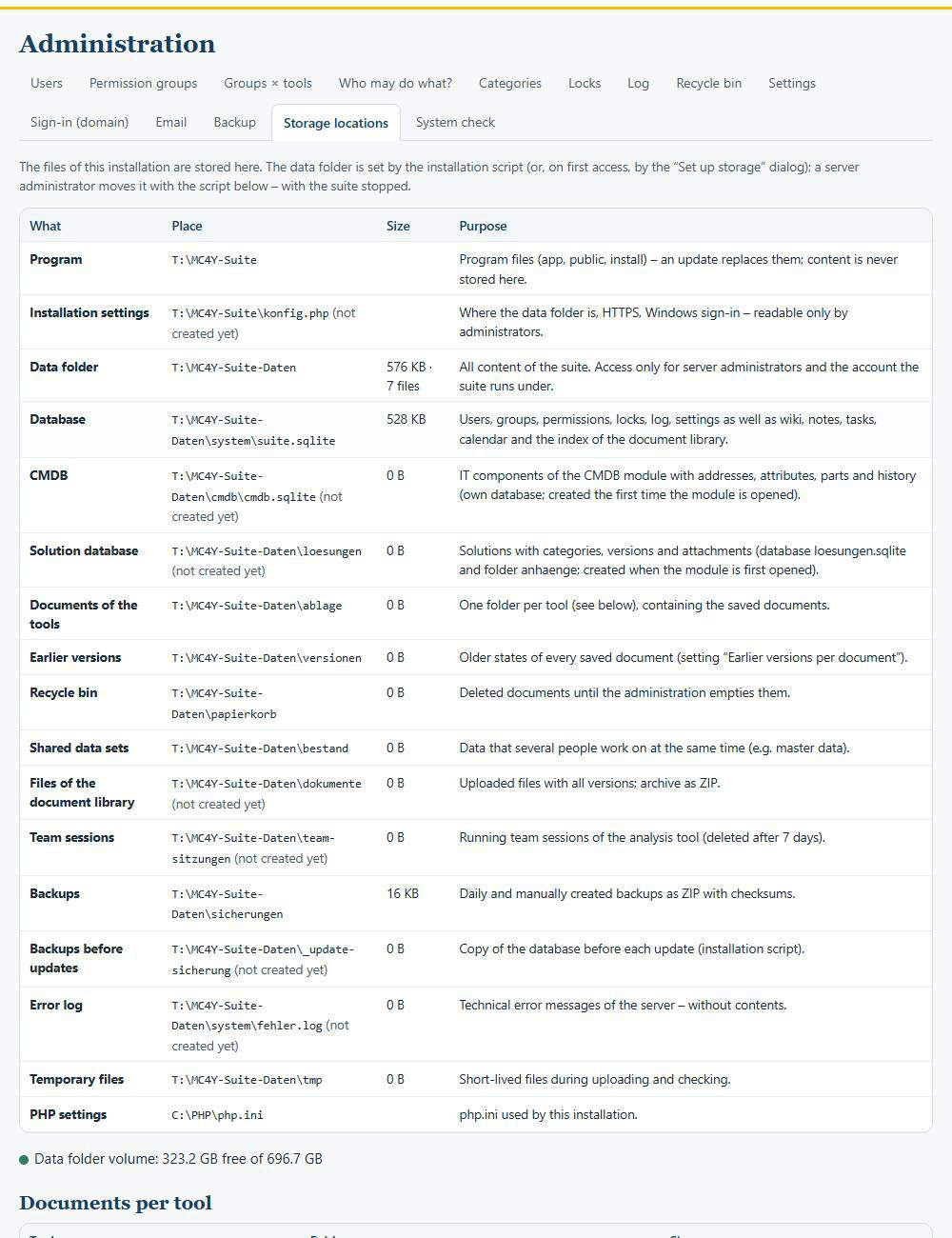
A backup contains the whole data folder except the exceptions below. The databases go in as a snapshot – a consistent copy, even while people are working.
Folders and files (1): system and databases
| Location | Content | Who creates / who removes | In the backup |
|---|---|---|---|
system/suite.sqlite | users, groups, permissions, locks, log, settings, wiki, notes, tasks, calendar, index of the document library | suite on first access | yes, as a snapshot |
system/suite.sqlite-wal, -shm | working files of SQLite | SQLite | no |
system/geheim.key | key for the encrypted SMTP password | suite when an SMTP password is first saved; remove only if damaged | no – deliberately; on another server enter the SMTP password again |
system/einrichtungscode.txt | setup code for the first account | suite, while nobody is set up; the suite removes it after the setup | no |
system/fehler.log | technical error messages of the server, without content | PHP | yes |
system/ad-ca.pem | converted certificate file for LDAPS | suite, if ad › ca names a binary file | yes |
system/sicherung.lock, sicherung-*.tmp, .schreibprobe | lock and intermediate files of the backup, write probe of the system check | suite, short-lived | no |
cmdb/cmdb.sqlite | IT components of the CMDB module | when the module is first opened | yes, as a snapshot |
loesungen/loesungen.sqlite, loesungen/anhaenge/ | solution database and its attachments | when the module is first opened | yes (database as a snapshot) |
.htaccess, web.config | lock files in case the folder does lie in the web directory | suite | yes |
.wartung | maintenance mode | restoring creates it and deletes it at the end, even after an error | no – while it exists, no backup runs |
Folders and files (2): content and backups
| Location | Content | Who creates / who removes | In the backup |
|---|---|---|---|
ablage/<tool>/ | saved documents of the tools, one folder per tool | suite when saving | yes |
versionen/ | earlier versions of every document | suite; keeps to “Earlier versions per document” | yes |
papierkorb/ | deleted documents (recycle bin) | suite; the administration empties it | yes |
bestand/ | shared data sets, e.g. stammdaten.json | suite | yes |
dokumente/, dokumente/archiv/ | files of the document library with all versions; archive as ZIP | document library module | yes |
team-sitzungen/ | running team sessions of the analysis tool | suite; deletes them after 7 days | yes |
sicherungen/ | backups mc4y-sicherung_<date>_<time>_<reason>.zip | backup; removes older ones beyond sicherung_anzahl | no |
| own backup folder inside the data folder | as sicherungen/ | Administration › Backup | no |
_update-sicherung/<time>_vor-<name>-<version>/ | copy of a database before an update or before switching to a new database version | installation scripts and suite; Linux keeps the last 10 | no |
_vor-wiederherstellung_<time>/ | previous content before a restore | restore; you delete it yourself | no |
tmp/, tmp/dav/ | temporary files when uploading and checking, helper files of the network drive | suite | no |
files ending in .part | half-written files | suite | no |
Files in the program folder
For comparison: these files are not in the data folder but in the program folder. An update replaces only app, public and install.
| Location | Content | Who creates / who removes |
|---|---|---|
konfig.php | installation settings | installation script or “Set up storage”; kept on updates |
ablage-einrichtungscode.txt | code for “Set up storage” | suite on the first call without a data folder; removes it after the setup |
installation.json | installation details without secrets, section zugang with names, IP addresses and HTTPS port | Windows scripts (installieren.ps1, installieren-server.ps1, http-zugang-einrichten.ps1, datenordner-verschieben.ps1); it does not exist on Linux and macOS |
zertifikat/mc4y-suite.cer or public/zertifikat/mc4y-suite.cer | public part of the server certificate | server installation |
php/php.ini | the suite’s own php.ini (Windows Server) | installieren-server.ps1 |
auswahl.txt | tools that were not selected | graphical installer |
System check: every line explained
The system check is under Administration › System check; cli.php system gives it as text. Every line has a traffic light: green (OK), yellow (recommendation) or red (please fix). The notes below appear exactly like this in the English interface. For some lines the note also appears with a green light.
Group Operation (1)
| Check | green | yellow/red | Remedy |
|---|---|---|---|
| Suite version | always, e.g. “0.4.68 (stage 4) · database 19” | – | – |
| PHP version | 8.4 or newer | red below 8.4 | “Too old: the suite needs PHP 8.4 or newer (PHP 8.2 only receives security updates until the end of 2026, 8.3 until the end of 2027). Please update PHP – on Windows with install\windows\php-aktualisieren.ps1, on Linux with the package manager, with web hosting in the provider’s customer menu.” |
| Extension pdo_sqlite, mbstring, openssl, fileinfo (one line each) | “present” | red “missing” | no note; enable the extension in php.ini |
| Password method | always: “Argon2id” or “bcrypt” | – | with bcrypt: “Argon2id is not available in this PHP – bcrypt is just as secure.” |
| Extension zip (backup, full-text search) | “present” | red “missing” | “No backup without zip – php.ini: extension=zip.” |
| Extension ldap (sign-in via the domain) | “present”, or “missing” with domain sign-in switched off | red “missing” if domain sign-in is switched on | red: “Domain sign-in is switched on but requires extension=ldap.” – green without ldap: “Only needed for sign-in via Active Directory.” |
| Cache (OPcache) | “on” | yellow “off” | “Speeds up PHP considerably (php.ini: zend_extension=opcache, opcache.enable=1).” |
Group Operation (2)
| Check | green | yellow/red | Remedy |
|---|---|---|---|
| Data folder writable | a probe file in system/ can be written; result = path | red | “The account the suite runs under needs write permission.” |
| Free space at the data folder | 2 GB or more, or “unknown” | yellow below 2 GB | “Less than 2 GB free – backups need space.” |
| Largest file per save | “<max_mb> MB (PHP allows <n> MB)”, default 64 MB; PHP allows at least as much | yellow if PHP allows less | “upload_max_filesize or post_max_size in php.ini are smaller than the suite’s setting.” |
| Database | always; size of suite.sqlite | – | – |
| Tool catalogue | always: “<n> tools · as of <date>” | – | – |
| Server | always: web server · operating system · “PHP runs as <account>” | – | – |
| Error log | “empty” or “<n> KB · today <m> entries” | yellow with more than 20 of today’s entries among the last 25 lines | no note; the entries appear below the table |
The line “Error log” is at the end of the group Operation – in the browser at the end of the table “Operation”, in cli.php system as the last line under “== Operation” (up to suite 0.4.60 it appeared there at the very bottom under a second heading “== Operation”).
Group Backup
| Check | green | yellow/red | Remedy |
|---|---|---|---|
| Last backup | at most 50 hours old; result “<date> (<reason>)” | yellow older than 50 hours; red “none” | yellow: “Older than two days – is the daily backup running?” – red: “No backup yet – create one under “Backup” and set up the daily backup (installation script).” |
| Number of backups | always: “<n> of at most <number>” | – | – |
| Backup on another drive | “yes” | yellow “no” | “Backups on the same drive do not help in case of a disk failure – put the backup folder on another drive or copy the ZIP files elsewhere regularly.” |
The reason appears in the line as an identifier: auto (daily), hand (manual), update (before update) or vor-wiederherstellung (before restore). Administration › Backup also shows “Last daily backup” – yellow if it is missing or more than two full days old.
Group Security (1)
| Check | green | yellow/red | Remedy |
|---|---|---|---|
| Data folder outside the web directory | “yes” | red “no” | “Please move the data folder out of public/.” |
| Encrypted connection (HTTPS) | via HTTPS; via 127.0.0.1; or with 'https' => 'erlauben' | red “no” in all other cases | red: “On a network, please run it over HTTPS only.” – local: “Single workstation: reachable only at 127.0.0.1 – fine.” – with erlauben: “This page was opened over HTTP. Encrypted: <address>” |
| Access via HTTP | “allowed, with a notice on the sign-in page”, “HTTPS only (behind a proxy)” or “HTTPS only (HTTP is redirected)” | yellow “allowed (HTTPS check off)” | “konfig.php: 'https' => 'aus' ist nur zum Testen gedacht.” (no English text in the suite – shown in German; meaning: intended for testing only) |
| Cookie only via HTTPS (Secure) | via HTTPS; via 127.0.0.1; or with erlauben | red “no” | with erlauben over HTTP: “Over HTTP, the sign-in only applies to HTTP; over HTTPS, the cookie is protected.” |
| Addresses for other devices | “Single workstation (this computer only)” or “<n> IP address(es), <m> name(s) – page adressen.php” | yellow if the request came via an IP address the setup does not know | yellow: “The request came via <IP>, which the setup does not know – run install\windows\HTTP-Zugang-einrichten.bat on the server again.” – green with names ending in .local: “Phones usually do not find names ending in “.local” – use the IP address on the phone.” |
Group Security (2)
| Check | green | yellow/red | Remedy |
|---|---|---|---|
| Error messages in the browser (display_errors) | “off”, or “on” via 127.0.0.1 | yellow “on” | “Switch off on servers (php.ini: display_errors = Off).” |
| PHP version in the header (expose_php) | “verborgen” (hidden; no English text in the suite), or “visible” via 127.0.0.1 | yellow “visible” | “php.ini: expose_php = Off” |
| Permissions of the data folder (Linux and macOS only) | no permissions for group and others, e.g. “700” | yellow | “Recommended 700: only the account the suite runs under.” |
| Active administrators | up to 3 | yellow from 4 | “As few administration accounts as possible.” |
| Minimum password length | 10 or more (the suite’s default) | yellow below 10 | at 10 and 11 “Recommended: 12 or more characters.”, below 10 “Too short: at least 10 characters (the suite’s default), better 12 or more.” (Administration › Settings) |
| Setup code removed | “yes” | yellow “no”: system/einrichtungscode.txt exists although the suite is set up | no note; open the start page (the suite clears it away) or delete the file |
| Sign-in via the domain | always: “off” or “on (<domain>, LDAPS | STARTTLS | unencrypted on this computer)” | – | – |
Figures and error log
Below the groups the page shows “Figures”: users, of which with a domain account, active sessions, groups, current locks, log entries and connected devices. Below that are the last 25 lines of the error log <data folder>/system/fehler.log. At the end the page links to the security audit checklist in the manual.
Suite messages around setup and operation
The messages appear here word for word as the English interface shows them. Placeholders such as <program folder> are replaced by the real value. The portal shows interface messages below the form or as a notice; if one appears at start-up, it shows the box “Suite not ready”. Where the suite has no English text, the German original is given.
Set up storage
| Message | Cause | Remedy |
|---|---|---|
| “The setup code is incorrect.” | input differs from the content of ablage-einrichtungscode.txt | copy the code from the file in the program folder |
| “Please enter a full path (Windows e.g. D:/MC4Y-Daten, Linux e.g. /var/lib/mc4y-daten).” | relative or empty path | enter a full path |
| “The path must not contain “..”.” | .. or . in the path | path without these parts |
| “The data folder must not be in the web directory (public) – otherwise its content would be accessible over the network.” | folder inside public | choose a folder outside |
| “The data folder must not be inside the program folder app.” | folder inside app | choose a folder outside |
| “The folder cannot be created. Please check whether PHP is allowed to write there, or create the folder by hand.” | no permission in the parent folder | create the folder via SFTP |
| “PHP may not write to this folder. Please give the web server’s account write permission.” | probe file fails | grant write permission |
| “The folder is not empty. Please choose an empty or new folder (or the data folder of an earlier installation).” | other files in the folder (only .htaccess, web.config or an existing system/suite.sqlite are allowed) | choose an empty folder |
| “konfig.php could not be written.” | program folder not writable | create konfig.php by hand |
| Check table: “missing” for PHP, an extension, “Encrypted connection (HTTPS)” or “Program folder writable (for konfig.php)” | a requirement is missing | set PHP or the extension at the provider, open via https://, grant write permission |
Data folder missing or installation incomplete
If the data folder is missing, the suite distinguishes four situations. Every message names the program folder that answers – so you can also see whether an earlier installation is still answering. <command> is, per system, installieren.ps1 -Aktualisieren (Windows single workstation), installieren-server.ps1 -Aktualisieren (IIS), install/macos/installieren.command --aktualisieren or install/linux/installieren.sh --aktualisieren.
| Message | Cause | Remedy |
|---|---|---|
| “The suite is not set up yet: the file konfig.php with the data folder is missing from the program folder <program folder> – please open the start page and set up the storage.” | no konfig.php, program folder writable | open the start page, “Set up storage” |
| “The installation is incomplete: the file konfig.php with the data folder is missing from the program folder <program folder>. PHP is not allowed to write there, so the “Set up storage” dialogue is of no help here. Please run the installation again; it writes the file itself (with administrator rights: <command>).” | no konfig.php, program folder read-only (installation with a service account) | run the installation again with administrator rights |
| “The file konfig.php in the program folder <program folder> cannot be read by the account PHP runs under. Please check the access rights of this file or run the installation again (with administrator rights: <command>).” | file permissions, e.g. after a clone with new account identifiers | check permissions (Windows: icacls) or reinstall |
| “The file konfig.php in the program folder <program folder> does not name a data folder (entry “daten”). Please enter the path there or run the installation again (with administrator rights: <command>).” | entry daten missing or empty | add the entry |
The interface answers 503 in all four cases. With web hosting the message names the Linux installer, which does not exist there; there only konfig.php by hand helps.
Maintenance mode and server errors
| Message | Cause | Remedy |
|---|---|---|
| “The suite is being restored from a backup – please try again in a minute.” (503) | Maintenance mode: the file <data folder>/.wartung exists. Meanwhile the scheduled tasks (backup, e-mail) do not run either. | wait. If the restore was aborted hard and the message stays, delete .wartung. |
| “The server cannot write to the data folder. Please check the permissions of the data folder (Administration › System check).” (500) | a folder cannot be created | check the permissions of the suite’s account |
| “The database could not be backed up before switching to the new version – it remains unchanged. Please check free storage space and the permissions of the data folder.” (500) | copy to _update-sicherung fails | free up space, check permissions, reload the page |
| “Internal server error – details are in the error log (data folder/system/fehler.log).” (500) | unexpected error | look at fehler.log or the system check |
| “The server cannot be reached.” | the browser gets no answer | check website, service or task |
| “The request was rejected (security key missing). Please reload the page.” (403) | CSRF key missing or outdated | reload the page |
| “Requests from other sites are rejected.” (403) | origin of the request does not match the address | open the suite directly via its address |
First account and setup code
| Message | Cause | Remedy |
|---|---|---|
| “The setup code is incorrect. You will find it in the data folder under system/einrichtungscode.txt.” (403) | setup from another computer with a wrong code. On the suite’s own computer no code is needed. | copy the code from the file; the installer also shows it at the end |
| “The suite has already been set up.” (409) | an account exists already | sign in |
| “The password must be at least <n> characters long.” | shorter than kennwort_min (default 10) | longer password |
| “The password must not be the same as the user name.” | password = login name | different password |
| “The password is too long.” | more than 200 characters | shorter password |
| “User name: 2–60 characters, only letters, digits and . _ @ -” | login name not allowed | name without spaces, e.g. anna.muster |
| “The two passwords do not match.” | repetition differs | enter both the same |
Sign-in and locked account
| Message | Cause | Remedy |
|---|---|---|
| “User name or password incorrect.” (401) | same message for an unknown account and a wrong password; every failed attempt counts | check the input |
| “The account is temporarily locked after several failed attempts (until <HH:MM>).” (429) | from 5 failed attempts: lock for 5 minutes, then twice as long per further attempt, at most 60 minutes | wait until the time given. Immediately: an administrator sets a password in Administration › Users (lifts the lock), or a recovery code. |
| “Too many failed attempts from this address. Please try again in 15 minutes.” (429) | 20 failed attempts from the same IP address within 15 minutes | wait 15 minutes |
| “This account is deactivated. Please contact the administration.” (403) | account deactivated | Administration › Users |
| “This account signs in with the domain password; sign-in via the domain is currently switched off. Please contact the administration.” (403) | linked domain account, domain sign-in off | on the server cli.php ad an or cli.php ad loesen <account> and then kennwort-code |
| “Please sign in.” (401) | no valid session, e.g. after 480 minutes of inactivity or after a restore | sign in again |
| “Administrators only.” (403) | administration action without administrator rights | sign in as administrator |
Recovery code
A recovery code consists of 12 characters in three groups of four; upper and lower case, hyphens and spaces do not matter when entering it. It is valid for 30 minutes, once, and expires after five wrong entries. After the new password has been set, failed attempts and the account lock are cleared; open document locks and all sessions of the account are ended.
| Message | Cause | Remedy |
|---|---|---|
| “No account with this login name.” (command line) | login name unknown | check the spelling (Administration › Users) |
| “This account signs in with the domain password – it is changed on a Windows computer of the domain, not here.” (409) | domain account | change the password in Windows |
| “Note: this account is currently deactivated.” (command line) | code created, but the account is deactivated | activate the account in Administration › Users |
| “Login name or code is not correct.” | wrong name or code, or no open code | check the input; every failed attempt counts |
| “The code has expired. Please have a new one created on the server.” | older than 30 minutes | create a new code |
| “The code was entered incorrectly too many times. Please have a new one created on the server.” | five wrong entries | create a new code |
| “Too many attempts from this address. Please try again in 15 minutes.” (429) | 20 failed attempts from the same IP address within 15 minutes | wait |
If the new password breaks a rule, the password message appears; the code then remains valid.
HTTPS, HTTP and other devices
| Message | Cause | Remedy |
|---|---|---|
| “This suite only accepts encrypted requests from the network. Please open the address with https://.” (403) | interface called over HTTP with 'https' => 'erzwingen'. Pages, by contrast, are redirected to https://. | use https:// or set up HTTP as an equal route ('erlauben'; Windows: install\windows\HTTP-Zugang-einrichten.bat) |
| “Invalid address.” (400) | invalid host name in the request when redirecting to HTTPS | check the address |
| Sign-in page: “🔓 This connection is not encrypted (HTTP). The installation allows this – for instance for devices that do not trust the server’s certificate. User name and password travel through the network unencrypted. Wherever possible, better sign in encrypted: <address>” | HTTP notice with 'erlauben' | use the HTTPS address where possible |
| Sign-in page: “Caution: the connection is not encrypted (no HTTPS).” | over HTTP without 'erlauben', e.g. with 'aus' | set up HTTPS |
| Page “Other devices”: “… – the certificate does not name this address, so the browser always warns” | name or IP missing from the certificate | use an address from the certificate or renew the certificate |
| “You opened this page via <IP> – the setup did not know this address yet. …” | the server has probably got a new IP address | run install\windows\HTTP-Zugang-einrichten.bat again |
| “No addresses are stored for this installation. …” | installation.json without addresses | as above |
| “This installation runs as a single workstation and can only be reached on this computer. …” | single workstation | choose a server installation |
E-mail: connection and certificate
| Message | Cause | Remedy |
|---|---|---|
| “No SMTP server has been entered.” | field empty | Administration › E-mail |
| “Without encryption, user name and password would travel through the network in plain text – the suite does not sign in like that. Please choose STARTTLS (usually port 587) or TLS (port 465), or send without signing in via a relay in your own network.” | encryption “none” with a user name | choose STARTTLS or TLS |
| “The certificate of the mail server “<server>” is not trusted or does not match the name. Please enter the name exactly as it appears in the certificate, or give your own certification authority as a PEM file. (Technical: <text>)” | certificate error – the check is never switched off | enter the name as in the certificate or give the PEM file of your own authority |
| “The given certification authority (<file>) is not readable on the server.” | PEM file missing or locked | check path and permissions |
| “The name of the mail server “<server>” cannot be resolved (DNS). Please check the spelling.” | DNS | check the name |
| “The mail server “<server>” refuses connections on port <port>. Please check port and encryption (STARTTLS usually 587, TLS usually 465).” | wrong port | adjust the port |
| “No answer from the mail server “<server>” on port <port> (timeout). A firewall blocks the port, or the server cannot be reached.” | firewall or network | open the firewall |
| “Connection to the mail server “<server>:<port>” not possible: <text>” | other connection error | evaluate the text |
| “The mail server does not offer STARTTLS. Please choose “TLS (port 465)” or check the provider’s details.” | server without STARTTLS | choose TLS |
| “The mail server names no sign-in method the suite supports (PLAIN or LOGIN) – offered: <methods>.” | only other methods, e.g. OAuth | relay in your own network or another sending route |
| “The mail server no longer answers (timeout).” or “The mail server closed the connection.” | aborted during the conversation | try again later; look at the log of the test message |
E-mail: mail server responses and key
If the mail server answers with an error code, the message reads “Mailserver: <code> <text of the server>” followed by an addition. For this complete message the suite has no English pattern; it appears in German, and I give the English addition from the dictionary:
| Message | Cause | Remedy |
|---|---|---|
| “Mail server: 535 … – user name or password rejected (some providers require a separate app password).” (also 534) | sign-in rejected | check the credentials; with two-factor sign-in an app password |
| “Mail server: 530 … – the server requires signing in or encryption.” | without sign-in or without TLS | enter a user name and STARTTLS/TLS |
| “Mail server: 550 … – sender or recipient rejected (may the account send with this sender address?).” (also 553, 554) | sender does not match the account or recipient unknown | check the sender address |
| “Mail server: 4xx … – temporary error, the suite will try again later.” | temporary | nothing; the suite retries |
| “Invalid recipient address.” or “Invalid sender address.” | address invalid | correct the address in the account or in Administration › E-mail |
| “Saved, but not yet switched on: SMTP server or sender is missing for sending.” (400) | sending switched on, details missing | enter server and sender |
| “The stored SMTP password cannot be read with this server’s key (for instance after moving to another server). Please enter the password again under Administration › E-mail.” | system/geheim.key does not match, e.g. after a restore on another server | enter the SMTP password again |
| “The key for encrypted credentials (data folder/system/geheim.key) is damaged. Please remove the file and enter the SMTP password again.” | file damaged | as stated |
A failed attempt is retried after 5 minutes, then each time at twice the interval up to at most one day, at most 8 times in total. Administration › E-mail shows the last error; “Send test message” shows the conversation with the mail server, where the credentials appear only as three asterisks.
Creating a backup
| Message | Cause | Remedy |
|---|---|---|
| “Backed up: <n> files, <size>.” (portal) | success | then click “Check” |
| “PHP is missing the zip extension (php.ini: extension=zip) – without it, the suite cannot create a backup.” (500) | zip missing | enable zip |
| “A backup is already running. Please wait a moment.” (409) | second backup at the same time | wait |
| “The backup file cannot be created: <path>” | no write permission in the backup folder | check permissions |
| “The backup file could not be written (disk space?).” | disk full or write error | free up space |
| “The backup file cannot be reopened.” or “Missing from the archive: <file>” | ZIP incomplete after writing | back up again; check the drive |
| “The backup file could not be renamed: <path>” | final name taken or locked | back up again |
| “This backup does not exist.” (404) or “The backup could not be deleted.” | name unknown or file locked | reload the list |
| “Please enter a full path, e.g. D:/MC4Y-Sicherungen or /srv/mc4y-sicherungen.” | backup folder relative or with .. | enter a full path |
| “The backup folder must not be inside the web directory.” | folder inside public | another folder |
| “The folder cannot be created. The account the suite runs under needs write permission there.” or “The suite is not allowed to write to this folder. Please give the account the suite runs under write permission.” | permissions missing | grant write permission |
Checking a backup: results
In the portal a good result reads “OK: <n> files match their checksums, the database is intact (<version>).”, a bad one “The backup is not OK (<n> errors):” with a list. The command line writes “OK: <n> files, database ok, created <time> with <version>” or “ERROR (<n>):”. At most 30 error lines are shown. On the command line the error lines stay German even with --lang en.
| Error line | Cause | Remedy |
|---|---|---|
| “Die Datei ist kein lesbares ZIP-Archiv.” (no English text; the file is not a readable ZIP archive) | file damaged or not a ZIP | use another backup |
| “Not a backup of the suite (MC4Y-SICHERUNG.json is missing or damaged).” | foreign ZIP or description missing | use another backup |
| “Fehlt: <path>” (no English text; missing) | a file of the list is missing from the archive | use another backup |
| “Checksum does not match: <path>” | content changed or damaged | use another backup; check the drive |
| “Not in the list: <path>” | file added to the ZIP afterwards | find out where the file came from |
| “Invalid path: <path>” or “Ordnerliste beschädigt.” (no English text; folder list damaged) | description manipulated or damaged | use another backup |
| “Backup database: <result>” or “Backup database not readable: <text>” | SQLite check of the database fails | use another backup |
| “The database is missing from the backup.” | system/suite.sqlite missing | use another backup |
| “CMDB database in the backup: …” or “Solution database in the backup: …” (also “… is not readable: …”) | check of a module database fails | use another backup |
Restoring
| Message | Cause | Remedy |
|---|---|---|
| “To restore, please confirm with --ja. Stop the suite first (website or scheduled task).” and “The current content of the data folder is not deleted but moved to <data folder>/_vor-wiederherstellung_<time>.” | --ja missing (return value 1) | repeat with --ja |
| “Backup not found: <name>” | neither a path nor in the backup folder | look at cli.php sicherungen |
“Die Sicherung ist nicht in Ordnung – nichts verändert:” with error lines (on the command line German even with --lang en; meaning: the backup is not in order – nothing was changed) | check failed | use another backup |
| “The backup comes from a newer version of the suite (database <n>, this version 16). Please update the suite first.” | backup newer than the program | update the suite |
| “No write permission in the data folder: <path>” | account without write permission | call under the suite’s account or as administrator |
| ““<entry>” cannot be moved – is the suite still running? Please stop the website or the scheduled task first.” (409) | file in use; what was already moved goes back | stop the suite, try again |
| “Cannot create folder: <path>” | write error while restoring | check permissions and space |
| “When restoring, the checksum does not match: <file> – the previous content remains unchanged in <folder>” | read error while restoring | bring back the previous content from the folder named |
A successful run writes, one after the other, the German progress lines “Prüfe die Sicherung …” (checking the backup), “Wartungsmodus: die Suite nimmt bis zum Ende keine Anfragen an.” (maintenance mode), “Lege den bisherigen Inhalt beiseite: <path>” (moving the previous content aside) and “Spiele <n> Dateien zurück …” (restoring files). These stay German even with --lang en. Then in English: “Done: <n> files from the backup of <time> (<version>).”, “Sign-ins: all sessions ended (<n>) – please sign in again.”, “The previous content is in: <path>” and “Now start the suite again.” Devices and access passwords revoked after the backup are removed by the run, and it says so.
Command line: further messages
Every error starts with “Error: ” and ends with return value 1.
| Message | Cause | Remedy |
|---|---|---|
| “Please give the name or path of the backup.” | pruefen/wiederherstellen without a name | add the name |
| “Please give the account login name.” | kennwort-code without a name | add the name |
| “The suite is not set up yet.” | kennwort-code or ad before the first account | set up first |
| “Allowed: einstellung sicherung_ordner <path> | sicherung_anzahl <number>” | other key | use an allowed key |
| “Please give a full path.” | einstellung sicherung_ordner with a relative path | full path |
| “Please give 1 to 3650 days.” | --tage out of range | adjust the number |
| “--zeitpunkt: please give YYYY-MM-DDTHH:MM.” | unreadable point in time | observe the format |
| “Sending e-mails is not switched on (Administration › E-mail).” | mail with sending switched off (return value 0; no output with --still) | switch sending on |
| “Allowed: tls=keine | tls=starttls | tls=ldaps” | wrong value for tls= | correct the value |
| “Please give the login name: ad loesen <account>” or “No account with the login name <account>” | name missing or unknown | check the name |
| “ PHP: the ldap extension is missing!” or “ – file missing!” (line certificate file) | output of ad; its labels (Domäne, Domänencontroller …) stay German | extension=ldap; check the path in konfig.php › ad › ca |
| “Inventory: expired reservations could not be deleted – <text>” or “E-mails: <text>” | side task of sicherung fails; the backup still runs | evaluate the text |
| “Call to undefined function mb_internal_encoding()” | Windows Server without -c and the suite’s php.ini | call with -c <program folder>\php\php.ini |
Reference: desktop taskbar, agent and crawler
The programs for the workstations: the desktop taskbar and the CMDB agents and crawlers – step by step, all options, messages and locations.
Desktop taskbar: step by step
The desktop taskbar (version 1.7.9) is a small program of its own. It always stays on the screen, even without an open browser, shows the categories of the suite and opens every tool in a window of its own. It is optional – the suite works without it.
What you need
- Python 3.8 or newer with tkinter (Tk 8.6 or newer). The installers check both themselves.
- The address of your suite, your user name and your password – the same details as in the browser.
- No administrator rights: the taskbar is set up for your own user account only.
- The package
mc4y-taskleiste.zip. If you download it in the suite under “Your account › Desktop taskbar and app”, the address of your suite is already filled in. It is also part of the complete packagemc4y-all.zip.
Without a suite you can use the bar only for programs, files and web links on your computer (“Use without suite”).
Windows 10 and 11
- Open Explorer (Windows key + E) and click “Downloads” on the left.
- Right-click “mc4y-taskleiste” › “Properties”. If “Security” at the bottom says the file came from another computer, tick “Unblock” and click “OK”.
- Right-click “mc4y-taskleiste” › “Extract All…” › “Extract”.
- Open the new folder and, inside it, “MC4Y-Taskleiste”.
- Double-click “installieren-windows”. If “Windows protected your PC” appears: “More info” › “Run anyway”. You see a black window with the line
MC4Y taskbar - installation for <user>. - If Python is missing and winget is available, the window asks:
Install Python now with winget (for your user account only)? [y/N]. Type y and press Enter. This takes a few minutes. - The bar starts and the window “Connect to the MC4Y Productivity Suite” opens. Continue at “First start and signing in”.
From now on the bar starts every time you sign in to Windows. In the Start menu it is called “MC4Y Taskleiste”. You switch the start at sign-in on or off under Windows Settings › Apps › Startup.
macOS
Install Python from python.org once beforehand: open https://www.python.org/downloads/macos/, download the latest “macOS 64-bit universal2 installer”, double-click the .pkg file and follow the steps. The Python that macOS itself offers is not enough – its tkinter is too old.
- In Finder (folder “Downloads”), double-click
mc4y-taskleiste.zipunless Safari has already unpacked it. - Open Terminal: cmd + Space, type “Terminal”, Return.
- Type
cdand a space, drag the folder “MC4Y-Taskleiste” into the Terminal window and press Return. - Enter
bash installieren-macos.commandand press Return. - At
Start the taskbar automatically when you sign in to your Mac? [Y/n]press Return (= yes) or type n. - The bar starts. If macOS asks for access to the keychain, choose “Always Allow”.
- You can close Terminal – the bar keeps running.
Afterwards the “Applications” folder in your home folder contains the program “MC4Y Taskbar”. Please do not start the package files by double-clicking them in Finder – macOS blocks that for files from the internet.
Linux
- Install Python with tkinter, for example
sudo apt install python3 python3-tk(Fedora:sudo dnf install python3 python3-tkinter). - Recommended:
secret-toolfor the device key, for examplesudo apt install libsecret-tools(Fedora:sudo dnf install libsecret). Without it the key is kept in a file only you can read. - Unpack the package, open a terminal in the folder “MC4Y-Taskleiste” and enter
sh installieren-linux.sh. - At
Start the taskbar automatically when you sign in? [Y/n]press Return (= yes) or type n.
Afterwards “MC4Y Taskbar” is in the applications menu. The bar runs in a session of its own and keeps running when you close the terminal. Linux is supported but not yet tried on real devices.
First start and signing in
In the window “Connect to the MC4Y Productivity Suite” you fill in:
- “Address of the suite” – the same address as in the browser, for example
https://suite.firma.example/. Withouthttp://orhttps://the bar uses https for servers and http only for 127.0.0.1 and localhost. Without a preset the default ishttp://127.0.0.1:8090/. - “User name” (without the domain) and “Password”.
- “Name of this device” – the suggestion is the computer name.
- “Certificate (own server only)” – only for a self-signed certificate, see below.
Then click “Connect”. The bar appears at the bottom left. The password is not stored: the suite gives the bar a device key of its own. “🔎 Check” shows the version, the stored certificate, the certificate of the server and the reason for an error – ready to copy. “Use without suite” starts the bar with the programs and web links of this computer only. “DE | EN” at the top right chooses the language.
How to check: click a category in the bar and then a tool – it opens signed in, in a window of its own. After signing out of the computer and in again, the bar is back.
You connect further suites under 🔍 › “Settings” › “Connection” › “+ Connect another suite (e.g. a server) …”.
Storing a certificate
If your server uses its own, self-signed certificate, this computer does not know it. The bar never switches verification off. You have three ways:
- In the sign-in window, choose the file with “File …” next to the field “Certificate (own server only)”. The suite provides it at
https://<server>/zertifikat/mc4y-suite.cer. Allowed are .cer, .crt and .pem, binary or as text. - Later under 🔍 › “Settings” › “Connection” with the padlock button 🔒 next to the suite. If one is already stored, the bar asks: “A certificate for “<name>” is stored: <file> Should it be removed?”
- Best: add it once to the certificate store of the computer. Then the browser, the taskbar, the agent and the crawler need no file at all.
Commands for the certificate store:
- Windows (PowerShell as administrator):
Import-Certificate -FilePath .\mc4y-suite.cer -CertStoreLocation Cert:\LocalMachine\Root - Linux (Debian/Ubuntu):
sudo openssl x509 -inform DER -in mc4y-suite.cer -out /usr/local/share/ca-certificates/mc4y-suite.crtand thensudo update-ca-certificates - macOS:
sudo security add-trusted-cert -d -r trustRoot -k /Library/Keychains/System.keychain mc4y-suite.cer
If the message persists although a file is stored, press “🔎 Check”. Different fingerprints of the file and the server mean you stored a different certificate, or a device on the network replaces it.
Updating (Desktop taskbar: step by step)
Simply run the installation again with the new package (Windows installieren-windows, macOS bash installieren-macos.command, Linux sh installieren-linux.sh). The installer quits the running bar, replaces the program files and starts it again. Settings and device key remain. On Windows it removes remains of earlier versions (old folder %LOCALAPPDATA%\MC4Y\Taskleiste, shortcut “MC4Y-Taskleiste”, start-up entry in the registry). On a Mac it also replaces the old program “MC4Y-Taskleiste.app” of versions up to 1.4.1.
Which version is installed and running is shown by mc4y_taskleiste.py --fassung – including the fingerprint of the program file. You also see it in the bar: right-click the handle ⠿ › “ℹ Help and version …”.
Removing
- Windows: in the unpacked folder “MC4Y-Taskleiste”, double-click “deinstallieren-windows”.
- macOS: in Terminal
bash ~/"Library/Application Support/MC4Y/Taskleiste/deinstallieren-macos.command" - Linux:
sh deinstallieren-linux.sh(in the package folder or in~/.local/share/mc4y-taskleiste)
The uninstallers do not ask. They quit the bar and remove the program, the shortcuts and the start at sign-in. With -EinstellungenLoeschen (Windows) or --einstellungen (macOS, Linux) they also delete the settings and the device key.
The device stays registered in the suite until you remove it under “Your account” › “Desktop taskbar and app” or it expires after the configured period. It is quicker to do this in the bar beforehand: 🔍 › “Settings” › “Connection” › “disconnect …”. The question reads: “Disconnect from “<name>” (<address>)? The device will be signed out there; a new connection will need the password again.”
Quitting without removing: ✕ at the end of the bar. The question reads “Quit the taskbar? It starts again <when and where>.”, for example “… the next time you sign in to Windows and from the Start menu (MC4Y Taskleiste)”.
Desktop taskbar: all options
All installers run without administrator rights. Switches without a value are marked “–”. Otherwise the language of the output follows the fixed choice in the taskbar settings, then the language of the system.
installieren.py (Windows, the actual installation)
The graphical installer of the suite calls python installieren.py directly. installieren-windows.bat only looks for Python and hands over to it. Values are given as --switch value or --switch=value. Exit code 0 = done, 1 = cancelled.
| Parameter | Value | Default | Meaning |
|---|---|---|---|
--quelle | folder | folder of installieren.py | folder with the program files |
--zip | file | – | the package mc4y-taskleiste.zip instead of a folder; extracts only the known files directly into the target folder |
--ziel (also --ordner) | folder | %LOCALAPPDATA%\Programs\MC4Y-Taskleiste | program folder |
--verknuepfungsordner | folder | – | all shortcuts go there (start-up in <folder>\Autostart); running bar, registry and old version stay untouched – for tests |
--desktop | – | off | also a shortcut on the desktop |
--adresse | URL | – | writes voreinstellung.json with the address of the suite into the program folder |
--ohne-autostart (also --ohneautostart) | – | off | no shortcut in the Startup folder |
--ohne-start (also --ohnestart) | – | off | do not start the bar after installing |
--lang (also --sprache) | de | en | setting, otherwise Windows | language of the output |
--leise | – | off | suppresses only the heading line “installation for …” |
--hilfe (also --help, -h, /?) | – | – | shows the help and exits |
installieren-windows.ps1 and .bat
installieren-windows.bat unblocks the scripts, starts installieren-windows.ps1 with your switches and waits for a key at the end. The script looks for Python (py -3, python, python3, then the folders under %LOCALAPPDATA%) and passes the switches on to installieren.py.
| Parameter | Value | Default | Meaning |
|---|---|---|---|
-OhneAutostart | – | off | no start at sign-in (becomes --ohne-autostart) |
-OhneStart | – | off | do not start the bar |
-Desktop | – | off | also a desktop shortcut |
-Ziel | folder | %LOCALAPPDATA%\Programs\MC4Y-Taskleiste | program folder; drive letters of a network share are converted to the UNC path |
-Verknuepfungsordner | folder | – | like --verknuepfungsordner (for tests) |
-Sprache | de | en | setting, otherwise Windows | language of the output |
These scripts do not pass on an address of the suite. Use installieren.py --adresse or the download from the suite for that.
installieren-macos.command and installieren-linux.sh
Start both with bash … or sh … in the package folder. They silently skip unknown switches. Without --autostart or --ohne-autostart they ask in the terminal; without a terminal (for example from the graphical installer) they switch the start at sign-in on.
| Parameter | Value | Default | Meaning |
|---|---|---|---|
--autostart | – | question | start at sign-in, without asking |
--ohne-autostart | – | question | do not start at sign-in, without asking |
--ohne-start | – | off | do not start the bar after installing |
--starten | – | on | macOS only: start the bar (this is the default anyway) |
--lang (also --sprache, --lang=en) | de | en | setting, otherwise system | language of the output |
Uninstallers
| Parameter | Value | Default | Meaning |
|---|---|---|---|
-EinstellungenLoeschen (Windows) | – | off | also deletes settings and device keys of all connections: %APPDATA%\MC4Y\taskleiste.*, taskleiste-<id>.schluessel, taskleiste-fehler.txt and the folder verknuepfungen (or in the folder from MC4Y_TASKLEISTE_ORDNER) |
-Ziel (Windows) | folder | %LOCALAPPDATA%\Programs\MC4Y-Taskleiste | program folder to remove |
-Verknuepfungsordner (Windows) | folder | – | only remove shortcuts there; the running bar and everything else stay (tests) |
-Sprache (Windows) | de | en | setting, otherwise Windows | language of the output |
--einstellungen (macOS, Linux) | – | off | also deletes taskleiste.* in the settings folder and the key in the keychain or in secret-tool |
--lang (also --sprache) (macOS, Linux) | de | en | setting, otherwise system | language of the output |
deinstallieren-windows.bat passes its switches on to the PowerShell script, for example deinstallieren-windows.bat -EinstellungenLoeschen.
Program options of the taskbar
Call mc4y_taskleiste.py [option] with the Python the bar uses. Without an option the bar starts; if it is already running, it comes to the front.
| Parameter | Value | Default | Meaning |
|---|---|---|---|
--beenden | – | – | asks the running bar to quit (exit code 1 if none is running) |
--fassung | – | – | version and fingerprint of this file, whether and which version is running; compares the content when the number is the same |
--zustand | – | – | state of the running bar as JSON (hiding, timer, what keeps it shown, last error) |
--autostart | an | aus | – | macOS and Linux only: start at sign-in on (an, ein, ja, 1, on, yes) or off (anything else); on Windows exit code 1 with a note |
--selbsttest | <address> <user name> <password> | – | checks sign-in, session, tool list and one-time key without a window; creates a device “Selbsttest <computer>” and removes it again; the password is part of the command line |
--help (also --hilfe, -h) | – | – | help in the chosen language |
--lang or --sprache | de | en | setting, otherwise system | possible with every call: language of the output of this call |
Environment variables
| Parameter | Value | Default | Meaning |
|---|---|---|---|
MC4Y_TASKLEISTE_ORDNER | folder | see “Files and locations” | different folder for settings, key file and error log (applies to the program and the installers) |
MC4Y_TASKLEISTE_SPRACHE | de | en | – | counts as the language of the system |
MC4Y_TASKLEISTE_AUTOSTART | folder | – | for tests only: Windows Startup folder that the bar displays |
Desktop taskbar: messages and remedies
In the sign-in window every message is shown in a field you can select, with a 📋 button for copying. Placeholders are in angle brackets.
Installation on Windows
| Message | Cause | Remedy |
|---|---|---|
| Cancelled: <folder>\installieren.py is missing (was the package extracted completely?). | package not fully extracted or started from inside the ZIP | extract with “Extract All…” and start in the folder “MC4Y-Taskleiste” |
| Python 3.8 or newer (with tkinter) was not found. | no suitable Python; the Microsoft Store placeholder does not count | answer the winget question with y or install Python from python.org (tick “Add python.exe to PATH”) and start again |
| Cancelled: the taskbar does not run without Python. | winget missing or the question was answered no | install Python from https://www.python.org/downloads/windows/, then start again |
| Cancelled: this Python has no tkinter – the taskbar needs it for its interface. | installieren.py called with a Python without tkinter | install Python from python.org (tkinter is included) |
| Cancelled: the package <file> is missing. | --zip names no existing file | check the path |
| Cancelled: folder <folder> could not be created: <reason> | no write access to the target | different --ziel or check permissions |
| Cancelled: the package could not be extracted: <reason> | ZIP damaged | download the package again |
| Note: the shortcut in <folder> could not be created. | folder locked or not writable | start the bar from the program folder; repeat the installation later |
| Remains of the earlier version could not be removed (locked, e.g. by the antivirus program after a restore): | old files locked | harmless; run the installation again after a restart |
| The taskbar could not be started: <reason> | start after installing failed | start it from the Start menu “MC4Y Taskleiste” |
| Unknown option: <option> | switch mistyped | check the spelling, --help |
| Not removed (locked - try again after a restart): | uninstaller: files or shortcuts locked | restart the computer, run the uninstaller again |
Installation on macOS and Linux
| Message | Cause | Remedy |
|---|---|---|
| Python (3.8 or newer, with tkinter) is missing on this Mac for the taskbar. | no Python from python.org, /usr/local/bin or Homebrew with Tk 8.6; /usr/bin/python3 only counts with Apple’s command line tools | install Python from python.org (the message lists the steps) or brew install python python-tk, then start again |
| Please start the taskbar yourself: Launchpad or Spotlight (cmd + space) › “MC4Y Taskbar”. | macOS could not open the program | start it as described |
| The taskbar is not completely installed (Python or the program is missing). Please run installieren-macos.command again. | alert of the program “MC4Y Taskbar”: Python or program file missing | repeat the installation |
| Python 3.8 or newer with tkinter was not found. Please install it, for example: | Linux: python3 missing, too old or without tkinter | run one of the commands listed (apt, dnf, zypper, pacman), then start again |
| Note: secret-tool is missing – the device key is then kept in a file that only you can read. | Linux without the libsecret tools | install libsecret-tools or libsecret beforehand |
| Note: no keychain found – the device key is stored in a file that only you can read. | after connecting: neither keychain nor secret-tool usable | install secret-tool and connect again if you want the secure store |
Signing in
| Message | Cause | Remedy |
|---|---|---|
| Please enter your user name and password. | field empty | fill in both fields |
| The address of the suite is invalid. | neither http nor https, or no host name | enter the address as in the browser |
| This suite is not fully set up yet: there is no account at <address>. Please open the address in a browser and create the first account there – then you can sign in here. | freshly installed suite | button “Open in browser”, create the first account, then sign in here |
| User name or password incorrect. | wrong details for THIS suite; the bar adds: “This means your account in the suite at <address> … After 5 failed attempts the suite locks the account temporarily.” | same details as in the browser; a domain password only if the suite has switched on sign-in via the domain |
| Anmeldename: 2–60 Zeichen, nur Buchstaben, Ziffern und . _ @ - (shown in German) | user name with domain; addition: “Enter the user name without the domain (i.e. “name” instead of “COMPANY\name”).” | enter the name only |
| Please sign in in the browser first and set your own password. Then you can connect the taskbar. | the account must set a password first | sign in in the browser, change the password |
| The account is temporarily locked after several failed attempts (until <time>). | too many wrong passwords | wait until the time given |
| Too many failed attempts from this address. Please try again in 15 minutes. | lock per network address | wait 15 minutes |
| This device is not (or no longer) connected to the suite. Please sign it in again. | device removed in the suite or unused for too long (default 90 days) | sign in again in the sign-in window |
| This account is deactivated. Please contact the administration. | account deactivated in the suite | ask the administrators of the suite |
| Button “No tools made available” | no tool has been made available to your account – administrators get no automatic permissions either | in the browser under Administration › Permission groups, add the account to a group with tools |
Certificate and encryption
| Message | Cause | Remedy |
|---|---|---|
| This computer does not know the certificate of <server> – does the server use one of its own (self-signed)? … | self-signed certificate, not stored | store the certificate or add it to the certificate store; “🔎 Check” |
| The certificate of <server> is accepted, but it is valid for a different name (<reason>). … | the address names a different name than the certificate | enter the address with the name from the certificate; “🔎 Check” shows the names |
| The certificate of <server> has expired or is not valid yet (<reason>). … | validity expired or clock wrong | issue a new one on the server (installieren-server.ps1 -Aktualisieren) and store it again |
| No encrypted service answers at <address>: <server>:<port> accepts the connection but does not speak TLS (<reason>). | only http runs there (two further variants: “does not respond to the encrypted handshake”, “drops the connection …”) | button “🔓 Connect via http://” only in a trusted network; better “🔒 Connect encrypted: …” if offered |
| The certificate file <file> does not exist. / … cannot be read (<reason>). / … is empty. | wrong path or empty file | choose the right file |
| The file <file> is not a readable certificate (<reason>). A .cer, .crt or .pem file is expected; … | wrong file | use zertifikat/mc4y-suite.cer of the suite |
| → The stored file is a DIFFERENT certificate. … | line from “🔎 Check”: fingerprints differ | get the file again from <address>zertifikat/mc4y-suite.cer |
If the suite only accepts encrypted sign-ins, the addition reads “The suite does answer at <http address>, but only accepts sign-ins there over an encrypted connection. …”. Then check the HTTPS setup on the server (Administration › System check).
Network and address
| Message | Cause | Remedy |
|---|---|---|
| The name <server> cannot be resolved on this computer. … | DNS does not know the name | enter the full name with domain or the IP address |
| <server> refuses the connection – is the suite running there and is it the right port? | no service on the port | check port and suite |
| <server> does not answer within the waiting time – a firewall is dropping the request or the server is overloaded. | usually a firewall | check the firewall rule |
| No answer from the suite at <server> – does the address really point to the suite? | the address points to a different web page | address with “/” at the end and without a path |
| The suite cannot be reached at <address> (<reason>). | other network error | read the reason; “🔎 Check” |
| The suite reports error <code>. | HTTP error without a text of the suite | check the address; error log of the suite |
| <name> answers (reply: <text>). | “check” in the settings: the path is open, the suite answers with a message | read the message, for example sign in again |
You check each connection under 🔍 › “Settings” › “Connection” with “check”. If it works, the bar reports “<name> answers – version <version>.”
Command line
| Message | Cause | Remedy |
|---|---|---|
| MC4Y-Taskleiste is already running or port <port> is in use. | single-instance lock on 127.0.0.1 (port 47100 to 47899, per user) taken, the running bar does not answer | --beenden, otherwise end the Python process; then start again |
| MC4Y-Taskleiste cannot start: <reason> Please install Python with tkinter (see README). | tkinter missing | install Python with tkinter |
| MC4Y-Taskleiste is not running. | --zustand without a running bar | – |
| The running bar is older than 1.5.14 and does not provide this information. | old version running | update |
| This file and the running bar: same version, but DIFFERENT content. | --fassung: a different file with the same number is running | quit the bar with ✕ and start it again |
| On Windows, installieren-windows.bat sets up the start at sign-in. … | --autostart on Windows | Windows Settings › Apps › Startup |
| Sign-in failed: <reason> | --selbsttest could not sign in | handle the reason as above |
If a click in the bar does nothing, it names the reason and writes the details to taskleiste-fehler.txt next to its settings.
Desktop taskbar: files and locations
The bar stores the address, user name, device name, position and appearance, language, the programs and files of this computer that you added, and a copy of your categories. It never stores the password. It connects only to the address of your suite.
Windows
| Location | Content | Created by / removed by |
|---|---|---|
%LOCALAPPDATA%\Programs\MC4Y-Taskleiste\ | program mc4y_taskleiste.py, icons, guides, installers and uninstallers, possibly voreinstellung.json (address of the suite) | installieren.py / deinstallieren-windows.ps1 |
| Start menu of the account: “MC4Y Taskleiste.lnk” | shortcut to pythonw.exe with the program file | installer / uninstaller |
| Startup folder of the account (shell:startup): “MC4Y Taskleiste.lnk” | start at sign-in; switch on and off under Windows Settings › Apps › Startup | installer (without -OhneAutostart) / uninstaller |
| Desktop: “MC4Y Taskleiste.lnk” | only with -Desktop | installer / uninstaller |
%APPDATA%\MC4Y\taskleiste.json | settings | program / uninstaller with -EinstellungenLoeschen |
%APPDATA%\MC4Y\taskleiste.schluessel or taskleiste-<8 characters>.schluessel | device key per suite, protected with the Windows data protection (DPAPI) of your account | program when connecting; “disconnect …” deletes it; the uninstaller with -EinstellungenLoeschen deletes all of them |
%APPDATA%\MC4Y\taskleiste-fehler.txt | error log of the interface (time, version, program location), at most about 200 KB | program / uninstaller with -EinstellungenLoeschen or by hand |
Remains up to version 1.1.x: %LOCALAPPDATA%\MC4Y\Taskleiste, “MC4Y-Taskleiste.lnk”, value “MC4Y-Taskleiste” under HKCU\…\CurrentVersion\Run | old version | removed by the installer and the uninstaller |
macOS (Desktop taskbar: files and locations)
| Location | Content | Created by / removed by |
|---|---|---|
~/Library/Application Support/MC4Y/Taskleiste/ | program files, guides, deinstallieren-macos.command, possibly voreinstellung.json | installieren-macos.command / deinstallieren-macos.command |
~/Applications/MC4Y Taskleiste.app (shown as “MC4Y Taskbar”; Finder: Home › Applications) | program with icon; the launcher Contents/MacOS/mc4y-taskleiste starts Python with the bar | installer / uninstaller (also the old “MC4Y-Taskleiste.app”) |
~/Library/LaunchAgents/de.my-coaching4you.mc4y-taskleiste.plist | start at sign-in (RunAtLoad, graphical session only); visible under Login Items from macOS 13 | program with --autostart an or the box in the settings / uninstaller |
~/Library/Application Support/MC4Y/taskleiste.json | settings (permissions 0600) | program / uninstaller with --einstellungen |
Keychain: service “MC4Y-Taskleiste”, account <user name>@<address> | device key; without a keychain a file taskleiste…schluessel (0600) in the same folder | program / “disconnect …” or uninstaller with --einstellungen |
~/Library/Application Support/MC4Y/taskleiste-fehler.txt | error log | program / by hand |
Linux (Desktop taskbar: files and locations)
| Location | Content | Created by / removed by |
|---|---|---|
~/.local/share/mc4y-taskleiste/ (or $XDG_DATA_HOME) | program files, icon, guides, deinstallieren-linux.sh, possibly voreinstellung.json | installieren-linux.sh / deinstallieren-linux.sh |
~/.local/share/applications/mc4y-taskleiste.desktop | entry “MC4Y Taskbar” in the applications menu | installer / uninstaller |
~/.config/autostart/mc4y-taskleiste.desktop | start at sign-in (XDG autostart) | program with --autostart an or the box in the settings / uninstaller |
~/.config/mc4y/taskleiste.json | settings (permissions 0600) | program / uninstaller with --einstellungen |
Secret Service via secret-tool: attributes dienst MC4Y-Taskleiste, konto <user name>@<address> | device key; without secret-tool a file taskleiste…schluessel (0600) in ~/.config/mc4y/ | program / “disconnect …” or uninstaller with --einstellungen |
~/.config/mc4y/taskleiste-fehler.txt | error log | program / by hand |
If MC4Y_TASKLEISTE_ORDNER is set, that folder is used instead of the settings folders above. None of the uninstallers removes the device in the suite – you do that under “Your account”.
Agent and crawler: step by step
CMDB discovery delivers inventory data to the CMDB – never user names, sign-ins or file contents. The data goes only to your own suite. All it needs is an outgoing HTTPS connection to the suite, no open port on the device.
Which program for what
- Agent (version 1.1): on a computer you manage yourself. It reports manufacturer, model, serial number, operating system, processor, memory, disks, network cards, installed programs, services and shares. Windows, Linux, Raspberry Pi, macOS and Android (Termux).
- Crawler (version 1.0): scans the networks entered in the suite and finds printers, switches, cameras and other computers. It signs in nowhere and tries no passwords. One crawler per network is enough. Windows, Linux, Raspberry Pi and macOS – not Android.
- Home Assistant integration (version 1.0): reports the Home Assistant machine and the devices Home Assistant manages.
Requirements: Windows with administrator rights and Python 3.8 or newer (otherwise the installer sets it up); Linux with sudo, Python 3.8 and systemd (otherwise cron); macOS 12 or later with the administrator password and Python from python.org or Homebrew; Android with Termux and Termux:API from F-Droid. Windows 11 has been tried; according to the guide, Windows 10 and Windows Server have not been checked.
Step 1: create a setup key
- Sign in to the suite as an administrator (or with an account with full access to the CMDB).
- Open “Business Support Tools › CMDB › 📡 Discovery”.
- In the box “🔑 Set up agents and crawlers”, under “Create setup key”, choose at “For”: “Agents and crawlers”, “agents only” or “crawlers only”. Click “Create setup key”.
- The setup key is shown only now. Write it down or click “⬇ Setup file (mc4y-erkennung.json)”. The file contains the address, the key and – since November 2026 – the certificate of the suite.
The key is only for setting up. Afterwards every device gets its own id. The key is not kept on the device.
Step 2: get and unpack the package
You find mc4y-erkennung.zip in the suite under “Business Support Tools › CMDB › 📡 Discovery” or on www.my-coaching4you.de on the Resources page in the Packages section. The package contains the folder MC4Y-CMDB-Erkennung with the subfolders windows and python.
Put mc4y-erkennung.json next to the installation script: on Windows into MC4Y-CMDB-Erkennung\windows, otherwise into MC4Y-CMDB-Erkennung/python. The agent also looks for the file in the Downloads folder of the account the setup runs under.
On a Mac, unpack with ditto -x -k ~/Downloads/mc4y-erkennung.zip ~/mc4y-erkennung and release the files with xattr -dr com.apple.quarantine ~/mc4y-erkennung.
Windows by double-click
- Open
MC4Y-CMDB-Erkennung\windows. - Double-click
Agent-installieren.bat(for the crawlerCrawler-installieren.bat). - You see
Administrator rights are required - please confirm the Windows prompt.Click “Yes” in the Windows prompt. The setup continues in a new window with administrator rights. - If Python is missing, the installer installs Python 3.13 machine-wide via winget – without a further question. If the Python found lies only in your user profile, it asks:
Install Python machine-wide as well (recommended)? [Y/n] - It copies the program files, registers with
Connecting to the suite ...and reports once. - Question:
Create a firewall rule for outgoing connections from Python? [y/N]. Usually n is fine; y only if outgoing connections are blocked in your organisation. - At the end:
Done. The task MC4Y-CMDB-Agent runs every 5 minutes and at startup.with the settings folder, the check command (in a PowerShell as administrator) and the remove command. The window with administrator rights then stays open (also after a cancellation) so that you can read the result or the reason; close it yourself.
Important: the installer does not ask for the address and the key. If no setup file is ready, pass both as switches (next section); otherwise the setup stops with exit code 2.
Windows in PowerShell and Windows Server
In a PowerShell in the folder windows:
Get-ChildItem *.ps1 | Unblock-Filepowershell -ExecutionPolicy RemoteSigned -File .\installieren.ps1 -Adresse https://suite.firma.example/ -Schluessel <setup key>- Crawler: the same call with
-Crawler, optionally-Community <SNMP community>.
“Unblock-File” removes the mark Windows puts on files from the internet; “RemoteSigned” applies to this call only. To look first without changing anything: -Probelauf (needs no administrator rights).
winget is often missing on Windows Server. Then install Python from python.org beforehand with the box “Install for all users”, or pass the path: -Python "C:\Program Files\Python313\python.exe". The task runs as SYSTEM; a Python in a user profile is reachable only while that profile exists. On a server the crawler usually makes sense as well.
For networks without internet access you can put a Python embeddable file python-<version>-embed-amd64.zip into a folder voraussetzungen next to windows; the installer then unpacks it to C:\Program Files\MC4Y-CMDB-Python. The package as shipped does not contain this file.
Linux and Raspberry Pi
- Open a terminal and change to the folder
MC4Y-CMDB-Erkennung/python. - Agent:
sudo sh installieren.sh, crawler:sudo sh installieren.sh --crawler. - Without a setup file:
sudo sh installieren.sh --adresse https://suite.firma.example/ --schluessel <setup key> - If Python is missing, the script names the command of your package manager and asks:
Install it now with "<command>"? [y/N] - At the end:
Done. The service mc4y-cmdb-agent is running and starts on boot.Without systemd it adds a cron entry that starts a run every five minutes.
To look first: sh installieren.sh --probelauf changes nothing and needs no root.
Raspberry Pi OS and Ubuntu on the Pi include Python 3. The Pi appears in the CMDB with its model name. It is a good place for the crawler. On a Raspberry Pi 3 use Raspberry Pi OS; next to pi-hole everything runs without conflict, because agent and crawler open no port. There prefer small networks (/24) and runs at most hourly.
macOS (Agent and crawler: step by step)
- Open Terminal and change to
~/mc4y-erkennung/MC4Y-CMDB-Erkennung/python. - Start – always with
bashin front, not by double-click:bash installieren-macos.command, for the crawler with--crawler. - The script obtains the rights itself:
Administrator rights are required. Please enter your password (no characters shown).Type your password; no dots appear. - At the end:
Done. The service is running and starts when the Mac starts up.What is set up is a system-level launchd service.
If Python is missing, the script names python.org and Homebrew (brew install python). Then start again.
Android (Termux)
- Install Termux and Termux:API from F-Droid (not from the Play Store).
- In Termux:
pkg update,pkg install python termux-api unzip,termux-setup-storage(allow access). - Get the package, unpack it and change to
MC4Y-CMDB-Erkennung/python. bash installieren-termux.sh --adresse https://suite.firma.example/ --schluessel <setup key>- At the end:
Done. The agent reports roughly every <minutes> minutes (Android batches schedules).The default is 60 minutes; change it with--intervall.
On Android there is only the agent. The Android scheduler allows a run every 15 minutes at most.
Home Assistant
For Home Assistant OS you need neither Python nor an installation script.
- Download and unpack
mc4y-cmdb-homeassistant.zip. - Copy the folder
custom_components/mc4y_cmdbto<config>/custom_components/mc4y_cmdb/(add-on “File editor”, Samba or SSH). Ifcustom_componentsdoes not exist, create it. - If you have it, put
mc4y-erkennung.jsoninto the same folder or into the configuration folder – then address, key and certificate are filled in. - Restart Home Assistant: “Settings › System”, menu ⋮ › “Restart”.
- “Settings › Devices & Services” › “Add integration” › “MC4Y CMDB”. Check or enter the address and the setup key, “Submit”.
To report at once: run the action mc4y_cmdb.melden_jetzt under “Developer tools › Actions”. Otherwise the integration reports shortly after the start and then at the configured interval.
Many computers: the deployer
The deployer sets up agents or crawlers from your Windows workstation: Windows targets via WinRM, Linux, Raspberry Pi and macOS targets via SSH. It does not set up Home Assistant remotely.
- In the suite, “Business Support Tools › CMDB › 📡 Discovery” › “Connect devices”: download
mc4y-verteiler.zipandverteiler.json. - Fully extract the ZIP (the folders
windowsandpythonstay next to the program), putverteiler.jsonnext to it. - Double-click
Verteiler-starten.bat. Please leave the window open. The browser opens “Connect devices” in your suite. - Pick agent or crawler, pick the operating system of the targets, enter the computers (one per line), enter the account (Windows with password; SSH with user, optionally key file and sudo password), “Check connection”, then “Roll out”.
For Windows targets you need an administrator account and WinRM enabled (otherwise run winrm quickconfig on the target once). For SSH targets you need the OpenSSH client, key-based sign-in, python3 and root rights (root, NOPASSWD sudo or a sudo password). Passwords stay in memory only.
How to check that it worked
Every program has a built-in check that says in plain words what is allowed and what is missing:
- Windows (PowerShell as administrator):
& "<path to python.exe>" "C:\Program Files\MC4Y-CMDB-Agent\mc4y_agent.py" --pruefen– the installer shows the exact command at the end. - Linux and Raspberry Pi:
sudo python3 /opt/mc4y-cmdb-agent/mc4y_agent.py --pruefen - macOS:
sudo python3 /usr/local/mc4y-cmdb-agent/mc4y_agent.py --pruefen - Crawler:
mc4y_crawler.py --pruefenin the foldermc4y-cmdb-crawler.
Without administrator rights the program reads a different settings folder on Windows and reports “No suite address configured”. All is well at Result: fine. --status shows the address, id and interval, --jetzt reports at once. In the suite the device appears under “Business Support Tools › CMDB › 📡 Discovery” with the time of the last report.
Updating and removing
Updating: unpack the new package and run the installation again. The registration remains, the device keeps its id and history; a new key stays unused. After an update the agent reports at once. On Windows the installer removes the earlier PowerShell files.
Removing (the agent signs off from the suite):
- Windows:
powershell -ExecutionPolicy RemoteSigned -File .\deinstallieren.ps1(crawler:-Crawler) - Linux and Raspberry Pi:
sudo sh deinstallieren.sh(or--crawler) - macOS:
bash deinstallieren-macos.command(or--crawler) - Android:
bash deinstallieren-termux.sh - Home Assistant: delete the integration “MC4Y CMDB” under “Devices & Services”, then remove the folder
mc4y_cmdband restart.
Apart from the request for administrator rights (Windows prompt, sudo password) the uninstallers ask nothing. The settings remain so that a new installation uses the same id; remove them with -EinstellungenLoeschen or --einstellungen-loeschen. The uninstallers are in the package, not in the program folder – keep the unpacked package at hand.
Agent and crawler: all options
installieren.ps1 (Windows): target and registration
Call powershell -ExecutionPolicy RemoteSigned -File .\installieren.ps1 [switches]. Without administrator rights the script restarts itself via the Windows prompt (except with -Probelauf).
| Parameter | Value | Default | Meaning |
|---|---|---|---|
-Crawler | – | agent | set up the crawler instead of the agent |
-Adresse | URL | from mc4y-erkennung.json | address of the suite |
-Schluessel | text | from mc4y-erkennung.json | setup key |
-Einrichtung | file | – | setup file from another location; takes precedence over mc4y-erkennung.json next to the script; if the file is missing, the setup stops and names the reason |
-Intervall | minutes | -1 (suite default) | requested report interval, passed on at registration |
-Puls | minutes | 5 | timer of the scheduled task |
-Community | text | – | crawler only: SNMP community (read-only) |
-Zertifikat | file (.cer) | – | adds the certificate of the suite to the computer’s trusted root store and puts a copy mc4y-suite.cer into the program folder |
-Sprache | de | en | MC4Y_SPRACHE, otherwise Windows | language of the output and of the program |
installieren.ps1: Python, firewall and procedure
| Parameter | Value | Default | Meaning |
|---|---|---|---|
-Python | path to python.exe | search | use this Python (must be 3.8 or newer); otherwise search in Program Files, C:\Python3*, user profile, PATH |
-OhnePython | – | off | do not install a missing Python, stop instead |
-Firewall | – | question | create a firewall rule for outgoing connections from Python (crawler also ICMP echo) |
-OhneFirewall | – | question | no rule, no question |
-OhneStart | – | off | do not start the task right after creating it |
-Probelauf | – | off | only shows what would happen; changes nothing, needs no administrator rights |
-Still | – | off | no questions (for the deployer); without -Firewall no rule. Is also passed on to the window with administrator rights (which then closes by itself at the end). |
If another script calls installieren.ps1 (for example the graphical installer), it asks nothing either and reports a failure as an exception.
deinstallieren.ps1 (Windows)
| Parameter | Value | Default | Meaning |
|---|---|---|---|
-Crawler | – | agent | remove the crawler instead of the agent |
-EinstellungenLoeschen | – | off | also remove C:\ProgramData\MC4Y-CMDB\<role> and old flat files there |
-Probelauf | – | off | only shows what would be removed |
-Sprache | de | en | MC4Y_SPRACHE, otherwise Windows | language of the output |
installieren.sh (Linux) and installieren-macos.command
Values are given as --switch value or --switch=value. Unknown switches stop with “Unbekannter Schalter / unknown option”. -h, --hilfe, --help shows the head of the script.
| Parameter | Value | Default | Meaning |
|---|---|---|---|
--crawler | – | agent | set up the crawler |
--adresse | URL | from mc4y-erkennung.json | address of the suite |
--schluessel | text | from mc4y-erkennung.json | setup key |
--intervall | minutes | suite default | requested report interval |
--cafile | file | – | certificate of the suite (.cer or .pem) as an additional root |
--community | text | – | crawler only: SNMP community |
--ohne-start | – | off | set up the service but do not start it |
--probelauf (also --dry-run) | – | off | only shows what would happen; possible without root |
--ja (also --yes) | – | off | no questions (Linux: install a missing Python without asking; macOS: no effect) |
--lang (also --sprache) | de | en | MC4Y_SPRACHE, LC_ALL, LC_MESSAGES, LANG, LANGUAGE, otherwise English | language |
Termux and the uninstallers for Linux, macOS and Termux
installieren-termux.sh knows --adresse, --schluessel, --cafile, --lang and --intervall (default 60 minutes). It silently skips anything else. Without --lang, MC4Y_SPRACHE, LC_ALL, LC_MESSAGES, LANG, LANGUAGE apply (as for installieren.sh), otherwise English.
| Parameter | Value | Default | Meaning |
|---|---|---|---|
--crawler (deinstallieren.sh, deinstallieren-macos.command) | – | agent | remove the crawler |
--einstellungen-loeschen (all three) | – | off | also delete /etc/mc4y-cmdb/<role>, or on Termux ~/.config/mc4y-cmdb/agent |
--lang (all three) | de | en | MC4Y_SPRACHE, LC_ALL, LC_MESSAGES, LANG, LANGUAGE (as when installing), otherwise English | language of the output |
deinstallieren.sh requires root. deinstallieren-macos.command obtains the rights itself via sudo.
mc4y_agent.py and mc4y_crawler.py: setup
Both programs have the same switches; the crawler also knows --community. Precedence for address and key: given explicitly, then saved settings, then setup file. The file is searched in this order: --einrichtung, folder of the program, ~/Downloads/mc4y-erkennung.json.
| Parameter | Value | Default | Meaning |
|---|---|---|---|
--adresse | URL | saved | address of the suite; without a scheme https:// is added. New address with a new key = new registration |
--schluessel | text | – | setup key; the program corrects spaces and capital letters |
--einrichtung | file | search | path to mc4y-erkennung.json |
--intervall | minutes | suite default | requested report interval at registration; afterwards the suite’s value applies |
--cafile | file | – | certificate of the suite (PEM or DER) as an additional root; verification stays on |
--name | text | computer name (crawler: <computer>-crawler) | name at registration |
--proxy | "" | auto | URL | auto (system) | proxy to the suite; "" = explicitly direct |
--community | text | – | crawler only: SNMP community, saved locally at once |
--lang | de | en | environment, otherwise English | language |
Values such as --proxy or --cafile end up in einstellungen.json as soon as the program writes its settings (at registration, report, scan run, --abmelden).
mc4y_agent.py and mc4y_crawler.py: operation and check
| Parameter | Value | Default | Meaning |
|---|---|---|---|
| (none) | – | – | service mode: regularly asks the suite and reports when due or requested |
--einmal | – | – | one run, then exit (for the Windows task, cron, Termux) |
--jetzt | – | – | report at once (agent: inventory; crawler: network scan) |
--status | – | – | suite, id, interval or SNMP, path of the settings |
--pruefen | – | – | check: name, connection, certificate, suite or key (without using it up); crawler also ping and networks |
--abmelden | – | – | sign off from the suite and delete id, device key and setup key from the settings |
--zertifikat-holen | – | – | fetch the certificate from the address, show the SHA-256 fingerprint, store it as mc4y-suite.pem after confirmation |
--fingerabdruck | SHA-256 | question | with --zertifikat-holen: fingerprint from the suite; stores only if it matches, without asking |
-h, --help | – | – | list of switches |
In service mode the agent asks about once a minute, the crawler every one to five minutes. After a connection error the program waits 1, 2, 5, 10, 20, 30 and then 60 minutes. It writes the same reason to the log only the first time and then every ten attempts.
Exit codes
| Parameter | Value | Default | Meaning |
|---|---|---|---|
| exit code | 0 | – | fine |
| exit code | 1 | – | connection error or other error; with --pruefen: something is missing |
| exit code | 2 | – | address or setup key missing |
| exit code | 3 | – | the suite refuses the key or the registration |
| exit code | 4 | – | the suite cannot be reached (firewall, name, proxy …) |
| exit code | 5 | – | certificate of the suite not trusted |
| exit code | 130 | – | cancelled with Ctrl+C |
On failure, the reason with the remedy is the last line in the log. The installation scripts show exactly this line.
Deployer
Verteiler-starten.bat unblocks the scripts and starts verteiler-dienst.ps1 with your switches. The helper itself calls verteiler-win.ps1 and verteiler-ssh.ps1, once per target; it passes passwords to them only through the environment, never on the command line.
| Parameter | Value | Default | Meaning |
|---|---|---|---|
-Port | number | 0 (random) | port of the helper on 127.0.0.1 |
-Adresse | URL | from verteiler.json | address of the suite whose “Connect devices” view opens |
-Sprache | de | en | Windows | language of the helper |
-OhneBrowser | – | off | do not open the browser (tests) |
-PortDatei | file | – | writes port and random key into a file (tests) |
Limits: at most 200 targets per rollout, at most 20 minutes per target. After two hours without a request the helper closes.
Home Assistant: fields of the setup dialog
| Parameter | Value | Default | Meaning |
|---|---|---|---|
| “Suite address (https://...)” | URL | from mc4y-erkennung.json | address; one entry per suite |
| “Setup key” | text | from the file | key for agents (a crawler key is refused) |
| “Interval in minutes” | number | 360 | report interval; at least 15 minutes |
| “Suite certificate file (optional, for a self-signed certificate)” | path | from the file | certificate as an additional root |
action mc4y_cmdb.melden_jetzt (“Report now”) | – | – | reports at once |
Agent and crawler: messages and remedies
The programs write every message with a time stamp to the log and to the console. For a refusal the line starts with “Registration refused: ”, in service mode with “The suite refuses: ”. If it is known where a key comes from, a sentence such as “The key comes from the setup file <path> dated <date>.” follows.
Setup key refused
Most sentences end with “Remedy: create a new setup key in the suite under Business Support Tools › CMDB › Discovery and repeat the setup with it.”
| Message | Cause | Remedy |
|---|---|---|
| The setup key does not have the right form – probably copied incompletely or mistyped (48 characters from 0–9 and a–f are expected). | key incomplete | copy the key completely from the suite |
| The suite does not know this setup key (any more) – it was deleted there or belongs to a different suite. | deleted or wrong suite | create a new key |
| The setup key has expired – its validity period is over. | validity period over | create a new key |
| The setup key is used up – it has already been used to register as often as allowed when it was created. | allowed number reached | create a new key |
| This setup key is only for <crawlers | agents>, but <an agent | a crawler> is being set up here. | key for the other role | create a key for the role or for “agents and crawlers” |
| The suite no longer knows the registration of this agent – it was removed there or the suite was set up anew. | participant removed in the suite | set up again with a new key |
| The suite temporarily accepts nothing from this address (too many failed attempts in a short time). … | lock after failed attempts | wait about 15 minutes |
| The CMDB is not installed in this suite. … | wrong suite or CMDB missing | check the address or add the CMDB |
| No MC4Y suite answers at this address (agent.php missing, HTTP 404). … | address does not point to the suite | give the address as it appears in the browser before signing in |
| The suite refuses the setup key: <text> or The suite refuses: <text> | other reason given by the suite | read the text |
To check beforehand without using up the key: mc4y_agent.py --adresse <address> --schluessel <key> --pruefen. The check shows Setup key: valid (…) or Setup key: REFUSED – <reason>.
Certificate
| Message | Cause | Remedy |
|---|---|---|
| No trusted connection to the suite: The certificate of <server> is not trusted on this computer (<reason>) – the suite uses its own self-signed certificate. Remedy: … | self-signed certificate (exit code 5) | download the setup file from the suite again and put it next to the installer; or give <address>zertifikat/mc4y-suite.cer with --cafile or -Zertifikat; or --zertifikat-holen; best: add it to the certificate store |
| The certificate of <server> has expired (<reason>). Remedy: set up a new certificate on the suite's server. | expired | renew it on the server; no file helps |
| The certificate of <server> is not valid for this name (<reason>). … | name in the address does not match | address with the name from the certificate (usually the full computer name) |
| TLS error with <server>: <reason> | other TLS error | check with --pruefen |
| The certificate file <file> cannot be read (<reason>). / … is empty. | --cafile wrong | check the path |
| The file <file> is not a readable certificate (<reason>). A .cer, .crt or .pem file is expected. | wrong file | use mc4y-suite.cer of the suite |
| Note: the certificate in <file> does not match its fingerprint – it is not used. | setup file altered | download the file from the suite again |
| The fingerprint does NOT match the one given – the certificate is not stored. … | --zertifikat-holen: different certificate, possibly a device in between | clarify with whoever looks after the suite |
| Not confirmed – nothing stored. Without a question: --fingerabdruck <fingerprint from the suite>. | question “Does it match the one in the suite? [y/N]” answered no | compare the fingerprint in the suite |
| Nothing is stored without confirmation. Call again with --fingerabdruck <fingerprint from the suite>. | no terminal for the question | call with --fingerabdruck |
Network, firewall and proxy
| Message | Cause | Remedy |
|---|---|---|
| The suite cannot be reached: <reason> – details: mc4y_agent.py --pruefen | path to the suite blocked (exit code 4 or 1) | run the check |
| No answer from <server>:<port> - the connection is probably dropped by a firewall. | firewall drops packets | allow outgoing HTTPS to the suite; on Windows installieren.ps1 -Firewall |
| <server>:<port> refuses the connection (nothing is listening there, or a firewall blocks it). | no service on the port | check address and port |
| The name <server> cannot be resolved (DNS). | DNS | full name or IP address |
| <server> is unreachable (no route). | no route | check the network connection |
| The proxy does not let the connection through: The proxy requires authentication (HTTP 407). | proxy with authentication | add the suite as an exception in the proxy |
| Something other than the suite answers: Unexpected response from the suite (not JSON) - is a captive portal in between? | captive portal or wrong address | check network or address |
| The suite is currently unavailable (HTTP <code>). | server answers with 502, 503 or 504 | try again later |
| The suite reports an error (HTTP <code>): <text> Remedy: try again later; … | error in the suite | look at the error log of the suite |
Service mode and setup
| Message | Cause | Remedy |
|---|---|---|
| Connection error: <reason> Please allow an outgoing connection to the suite in the firewall (HTTPS); … | service mode, first error of this kind | as above; afterwards “Connection works again.” |
| Not set up yet: the address or the setup key is missing. … | neither switches nor file (exit code 2) | --adresse and --schluessel or a setup file |
| Unexpected error: <type>: <text> – please pass these lines to whoever looks after the suite. | program error | pass on the log lines |
Notes that need no action: “Already registered as <id> – the registration remains valid, the setup key is not needed.” and “The suite no longer knows the previous registration <id> – registering anew with the setup key.”
Check (--pruefen)
| Message | Cause | Remedy |
|---|---|---|
| No suite address configured - please set up first. | not set up – or started on Windows without administrator rights | set up, or use PowerShell as administrator |
| Name: ERROR - <reason> | name cannot be resolved | check DNS or use the IP address |
| Connection: BLOCKED - <reason> | firewall or service | allow an outgoing connection to <server> port <port> |
| Certificate: NOT trusted - <reason> | self-signed | --cafile <path to mc4y-suite.cer>; graphical installer: field “Certificate of the suite” |
| Certificate: no HTTPS answer - <reason> | “Something answers on <server>:<port>, but not like an HTTPS server.” – captive portal, a proxy breaking up TLS, or the wrong port | check network and port |
| Suite: not registered yet - address and setup key required. | neither id nor key | set up |
| Suite: ERROR - <sentence> | the suite refuses | handle the sentence as above |
| Setup key: this suite version cannot check it in advance – that happens when registering. | suite older than November 2026 | – |
| Echo (ping): no answer from <IP> | crawler only; many firewalls drop echo – not an error | for more findings allow outgoing ICMP echo and TCP 22/80/443/445/139/3389/515/9100/631/53/23/5900/8006 |
| Networks: none configured (suite: Administration > CMDB > Discovery) | crawler without networks | enter networks in the suite under “Business Support Tools › CMDB › 📡 Discovery” |
| Result: something is missing (see above) | at least one line with an error | read the lines above |
Installation scripts on Windows: Python and files
| Message | Cause | Remedy |
|---|---|---|
| ERROR: The folder python with mc4y_erkennung.py is missing. Please unpack the complete package. | only windows copied | unpack the complete package |
| ERROR: <path> is not a usable Python 3.8 or newer. | -Python wrong | give the right path |
| ERROR: Python 3.8 or newer was not found (and -OhnePython is set). | no Python, installing forbidden | install Python from python.org, start again |
| ERROR: Python 3 could not be set up. | no winget, no Python in the package | Python from python.org (“Install for all users”), start again |
| Note: This Python is inside the user profile. The task runs as SYSTEM and only reaches it while that profile exists. | user Python | answer the question about machine-wide Python with Y |
| ERROR: file missing: <file> | package incomplete | unpack again |
| Note: These old files could not be removed (probably locked by the virus scanner): | old PowerShell version locked | harmless; delete after a restart |
| Note: The folder could not be removed completely (probably locked by the virus scanner): | uninstaller | delete after a restart; nothing of it is running any more |
Installation scripts on Windows: setup
| Message | Cause | Remedy |
|---|---|---|
| Certificate import failed: <reason> | -Zertifikat not readable | check the file |
| Setup failed: the suite refused the registration (reason and remedy in the line above). | exit code 3 | read the line above |
| Setup failed: the address or the setup key is missing (…). | exit code 2 | -Adresse and -Schluessel or a setup file |
| Setup failed: the suite cannot be reached. Detailed check: | exit code 4 | run the check shown |
| Setup failed: the certificate of the suite is not trusted on this computer (…; here with -Zertifikat <mc4y-suite.cer>). | exit code 5 | repeat with -Zertifikat |
| Firewall rule could not be created: <reason> | firewall service | create the rule by hand |
After a failure the files remain in the program folder (“The files remain in <folder>”). The last line reads “Agent: <reason>” or “Crawler: <reason>”.
Installation scripts on Linux, macOS and Termux
| Message | Cause | Remedy |
|---|---|---|
| Please run with sudo: sudo sh installieren.sh ... | started without root | start with sudo |
| Python is too old (3.8 or newer is required): <path> | old Python | install a newer Python |
| Python 3.8 or newer is missing. Please install it with the package manager of the system. | no known package manager | install it by hand |
| Without Python 3 the installation cannot continue. | question answered no | install Python |
| ERROR: file missing from the package: <file> | package incomplete | unpack again |
| Setup failed … (as on Windows, with --cafile <mc4y-suite.cer>) | exit code 2, 3, 5 or other | read the line above |
| Neither systemd nor cron found. Please add this command to your own scheduler: | neither systemd nor crontab | add the command shown to a scheduler |
| Python 3 is missing. Please install it from https://www.python.org/downloads/macos/ and run again. | macOS without Python | python.org or brew install python |
| This python needs the developer tools. … | macOS: only /usr/bin/python3 without the command line tools | install Python from python.org |
| Python is missing: pkg install python | Termux without Python | pkg install python |
| termux-job-scheduler is missing: pkg install termux-api and install the Termux:API app. | Termux:API missing | as stated |
| Please run with sudo. | deinstallieren.sh without root | start with sudo |
| Removed. If a schedule is still running: termux-job-scheduler --cancel-all | Termux uninstaller finished | run the command if needed |
Deployer (Agent and crawler: messages and remedies)
| Message | Cause | Remedy |
|---|---|---|
| No suite address set (verteiler.json). Open the suite, tab CMDB > Discovery > "Connect devices" and enter there: Helper: <port.key> | verteiler.json missing | put the file from the suite next to it, or enter the value shown in the view |
| WARNING: The folder "windows" with installieren.ps1 is missing next to the helper - rollout will not work. | ZIP not fully extracted | extract completely |
| Invalid key - please open the deploy helper via Verteiler-starten.bat. | the view does not know the random key | open again via Verteiler-starten.bat |
| A rollout is already running. / Too many targets at once (200 at most). / No valid targets (name and account required). | operation | wait, or adjust the list |
| No WinRM connection. Check: WinRM enabled on the target (winrm quickconfig), name/IP reachable, account allowed. | WinRM, name or account | as stated; outside a domain, User Account Control can restrict local administrators over the network |
| No SSH connection. Check: target reachable via SSH, key-based login set up for the user, host reachable. | SSH without key-based sign-in | set up key-based sign-in |
| The OpenSSH client (ssh/scp) is missing on this computer. … | no ssh.exe/scp.exe | add it via “Optional features” |
| Connection OK, but Python 3 is missing on the target (<system>). Please install python3. | “Check connection” for an SSH target | install python3 |
| Setup failed: <reason> (sudo needs a password: …) | reason from the installer on the target; addition for sudo | root, NOPASSWD sudo or a sudo password |
| The process ended unexpectedly. | rollout process without a result (or stopped after 20 minutes) | read the output in the view |
| Two hours without a request - the helper is closing. | idle | start again |
Home Assistant (Agent and crawler: messages and remedies)
| Message | Cause | Remedy |
|---|---|---|
| “MC4Y CMDB” does not appear in the list | wrong folder or no restart | check <config>/custom_components/mc4y_cmdb/, restart |
| The suite refuses the registration: <reason> | key refused (reasons as for the agent, e.g. “This setup key is only for crawlers; Home Assistant registers as an agent. …”) | create a new key for agents |
| No connection to the suite: <reason> | network or certificate, e.g. “The suite's certificate is not trusted (…). Remedy: …” | download the setup file again or fill in the field “certificate file”; allow outgoing HTTPS |
| This suite is already set up. | an integration for this address exists | use the existing entry |
| In the Home Assistant log: MC4Y CMDB: Meldung fehlgeschlagen: <reason> (prefix in German) | regular report failed, e.g. “The suite no longer knows the registration of this integration (removed there).” | remove the integration and add it again with a new key |
Agent and crawler: files, services and locations
<role> stands for agent or crawler, <Role> for Agent or Crawler. Settings (with id and device key) and the log are kept in separate folders per role, so both can run on one computer.
Windows (Agent and crawler: files, services and locations)
| Location | Content | Created by / removed by |
|---|---|---|
C:\Program Files\MC4Y-CMDB-<Role>\ | mc4y_erkennung.py, mc4y_windows.py, mc4y_<role>.py, possibly mc4y-suite.cer | installieren.ps1 / deinstallieren.ps1 |
C:\ProgramData\MC4Y-CMDB\<role>\einstellungen.json | address, id, device key, interval, proxy, certificate path | program / deinstallieren.ps1 -EinstellungenLoeschen |
C:\ProgramData\MC4Y-CMDB\<role>\protokoll.txt | log with time stamps | program / as above |
C:\ProgramData\MC4Y-CMDB\<role>\mc4y-suite.pem | certificate from the setup file or from --zertifikat-holen | program / as above |
| Scheduled task “MC4Y-CMDB-<Role>” | as SYSTEM, every 5 minutes (-Puls) and at startup, at most 1 hour per run, no second run in parallel: python.exe mc4y_<role>.py --einmal | installer / uninstaller |
| Firewall rules “MC4Y-CMDB <Role> (outbound)”, “MC4Y-CMDB Crawler (echo outbound)” | outgoing for python.exe or ICMP echo; names the same in every language | installer only on request / uninstaller |
| Computer certificate store “Trusted Root Certification Authorities” | certificate of the suite (only with -Zertifikat) | installer / remains on removal |
C:\Program Files\MC4Y-CMDB-Python\ | Python from a folder voraussetzungen you added yourself | installer / remains on removal |
%LOCALAPPDATA%\MC4Y-CMDB\<role>\ | settings and log when the program runs without administrator rights | program / by hand |
Linux and Raspberry Pi (Agent and crawler: files, services and locations)
| Location | Content | Created by / removed by |
|---|---|---|
/opt/mc4y-cmdb-<role>/ | mc4y_erkennung.py, mc4y_<role>.py (permissions 0755) | installieren.sh / deinstallieren.sh |
/etc/mc4y-cmdb/<role>/einstellungen.json | settings with device key (permissions 0600) | program / deinstallieren.sh --einstellungen-loeschen |
/etc/mc4y-cmdb/<role>/protokoll.txt, mc4y-suite.pem | log, possibly certificate | program / as above |
/etc/systemd/system/mc4y-cmdb-<role>.service | service as root, starts on boot, restarts after 30 s on failure; restricted (NoNewPrivileges, ProtectHome, PrivateTmp, writes only to /etc/mc4y-cmdb) | installer / uninstaller |
| root crontab (only without systemd) | every five minutes mc4y_<role>.py --einmal | installer / not by the uninstaller – remove it by hand with sudo crontab -e |
If you set it up with --ohne-start, start the service later with sudo systemctl start mc4y-cmdb-agent (or mc4y-cmdb-crawler). Without a service, call mc4y_<role>.py --einmal from a scheduler of your own.
macOS (Agent and crawler: files, services and locations)
| Location | Content | Created by / removed by |
|---|---|---|
/usr/local/mc4y-cmdb-<role>/ | mc4y_erkennung.py, mc4y_<role>.py | installieren-macos.command / deinstallieren-macos.command |
/Library/LaunchDaemons/de.my-coaching4you.mc4y-cmdb-<role>.plist | system-level launchd service (RunAtLoad, KeepAlive) – runs permanently | installer / uninstaller |
/etc/mc4y-cmdb/<role>/ | einstellungen.json (0600), protokoll.txt, possibly mc4y-suite.pem | program / uninstaller with --einstellungen-loeschen |
/var/log/mc4y-cmdb-<role>.log | error output of the service | launchd / removed only with --einstellungen-loeschen |
Android (Termux) and Home Assistant
| Location | Content | Created by / removed by |
|---|---|---|
~/mc4y-cmdb/ (Termux) | mc4y_erkennung.py, mc4y_agent.py, lauf.sh (0700) | installieren-termux.sh / deinstallieren-termux.sh |
~/.config/mc4y-cmdb/agent/ (Termux) | einstellungen.json (0600), protokoll.txt | program / uninstaller with --einstellungen-loeschen |
| termux-job-scheduler schedule | calls lauf.sh, at most every 15 minutes, across restarts where possible | installer / uninstaller (otherwise termux-job-scheduler --cancel-all) |
<config>/custom_components/mc4y_cmdb/ | integration | you / you, after deleting the integration |
<config>/mc4y-cmdb-suite.pem | certificate from the setup file | setup dialog / by hand |
| Entry of the integration in Home Assistant | address, id, device key, interval, certificate path | setup dialog / deleting the integration (signs off from the suite) |
Deployer (Agent and crawler: files, services and locations)
| Location | Content | Created by / removed by |
|---|---|---|
| 127.0.0.1, random port | helper, reachable only with the random key, not from outside | Verteiler-starten.bat / closing the window or after 2 hours idle |
%TEMP%\mc4y-verteiler-cer-<8 characters>.cer or %TEMP%\mc4y-verteiler-<8 characters>.pem (workstation) | certificate of the suite for the rollout | helper / helper after the rollout |
%TEMP%\mc4y-verteiler-<8 characters>\ (Windows target), mktemp folder (SSH target) | installer and program files for the setup | rollout process / right afterwards |
The deployer never writes passwords to disk. SSH trusts the host key on first connect; if it changes later, the connection is refused.
What the uninstaller removes – and what remains
The uninstallers first sign the device off from the suite (--abmelden). Then they remove the task or service, on Windows the firewall rules, and the program folder. Since suite 0.4.61 deinstallieren.sh also removes the cron entry on Linux without systemd – only its own line, others stay.
What remains:
- the settings including the log, so that a new installation uses the same id – unless you use
-EinstellungenLoeschenor--einstellungen-loeschen(on macOS this also removes/var/log/mc4y-cmdb-<role>.logsince suite 0.4.62); - on Windows a certificate added to the certificate store and a Python the installer set up;
- in the CMDB everything the device has reported. If needed, move the device to the recycle bin there by hand.
A failed sign-off (for example without a network) does not prevent the removal. In that case remove the participant in the suite under “Business Support Tools › CMDB › 📡 Discovery”.
Glossary
The technical terms of this guide, briefly explained.
The terms of this manual as the suite uses them. The German name in the interface is given in brackets where it helps.
A to C
| Term | Explanation |
|---|---|
| 3-2-1 rule | Three copies, two media, one off site. The manual recommends it for the backups. |
| Access password (Zugangskennwort) | Separate password per device or program for the network drive and calendar sync; never the sign-in password. Stored only as a hash, revocable one by one. |
| Agent | Program on a device that reports its inventory to the CMDB in encrypted form (endpoint agent.php), without user names or file contents. |
| Answer file (Antwortdatei) | mc4y-installation.json: plan of the graphical installer without a helper; the helper on the target computer takes it over. |
| Application pool (Anwendungspool) | IIS process for the suite (“MC4Y-Suite”), with a virtual identity instead of a user account. |
| Argon2id, bcrypt | Methods the suite uses to store passwords; bcrypt if PHP does not know Argon2id. |
| Backup (Sicherung) | ZIP file with the whole data folder, the databases as snapshots, manifest and checksums; daily and by hand. Not encrypted. |
| Backup folder (Sicherungsordner) | Location of the backups; default <data folder>/sicherungen, better another drive. |
| Bell (Glocke) | Notifications in the portal header (invitation, assignment, comment …). When it is polled, the suite sends due e-mails on the side. |
| CalDAV | Protocol for calendar sync; address …/dav.php/, sign-in with an access password. |
| Checksum (Prüfsumme) | SHA-256 per file of a backup, additionally as PRUEFSUMMEN.sha256 for checking with built-in tools (sha256sum -c). |
| CMDB | Module for IT components with its own database cmdb/cmdb.sqlite. |
| CMDB cleanup (Aufräumlauf) | Weekly run (cli.php cmdb-aufraeumen) that removes installations of silent devices. |
| Crawler | Program that scans the networks entered and reports reachable devices – inventory only, no sign-in attempts. |
| Cron job | Time-controlled command, e.g. the daily backup on web hosting or on Linux without systemd (/etc/cron.d/mc4y-suite). |
| CSRF key | Security key per session against foreign requests; if it is missing, the suite rejects the request. |
D to F
| Term | Explanation |
|---|---|
| Data folder (Datenordner) | Folder with all content of the suite, outside the web directory; entry daten in konfig.php. |
| Deploy helper (Verteiler) | Helper with which you roll out the agent or crawler from your workstation to many computers – Windows via WinRM, Linux and macOS via SSH. |
| Device key (Geräteschlüssel) | 256-bit key that the desktop taskbar stores in the system’s vault after the first sign-in; the database knows only its hash. It expires after 90 days without use. |
| Document library (Dokumentenablage) | Module for uploaded files with versions, archive and full-text search; folder dokumente/. |
| Domain sign-in | Sign-in with the Windows account via Active Directory (LDAP); the suite checks the password at the domain controller, without a service account. |
| Dry run (Probelauf) | Run that only shows what would happen and changes nothing: -Probelauf, --probelauf, cmdb-aufraeumen --probelauf. |
| Earlier versions (Frühere Fassungen) | Older states of every saved document in versionen/, default 20 per document. |
| Error log (Fehlerprotokoll) | system/fehler.log: technical error messages of the server without content; the system check shows its end. |
| Erreichbarkeit-pruefen | Program install\windows\Erreichbarkeit-pruefen.bat on the server; says why a phone cannot reach the suite. |
| FastCGI | Interface through which a web server runs PHP, e.g. IIS. With FastCGI and PHP-FPM, PHP reads .user.ini. |
| Fingerprint (Fingerabdruck) | Hash of the certificate (SHA-256, on Windows SHA-1). If it matches the one on the page “Other devices”, it is this suite. |
G to L
| Term | Explanation |
|---|---|
| Group Policy (Gruppenrichtlinie) | Way to enter the suite’s certificate on all computers of the domain or to put the address into the zone “Local intranet”. |
| Helper (Helfer) | Small program of the graphical installer or of the deploy helper; listens only on 127.0.0.1 with a random key. |
| HSTS | Header Strict-Transport-Security: browsers open the address only encrypted for one year. Switch hsts in konfig.php. |
| .htaccess | Settings file for Apache; in the suite it locks program parts and hidden files. nginx does not read it. |
| IIS | The Windows web server; the server installation on Windows Server sets it up. |
| installation.json | Installation details in the program folder (locations, addresses, HTTPS port), without secrets. |
| Kerberos | Sign-in method of the domain; used for remote installation via WinRM and for Windows sign-in. |
| konfig.php | Installation settings next to app and public; kept on updates. |
| launchd | Service control of macOS; starts the suite, the backup and e-mail sending. |
| LDAPS, StartTLS | Encrypted connection to the domain controller: LDAPS via port 636 (recommended), StartTLS via port 389. |
| Lock (Sperre) | Protection of a document while someone edits it: sign of life every 30 seconds, expiry after 30 minutes without one. |
M to R
| Term | Explanation |
|---|---|
| Maintenance mode (Wartungsmodus) | State during a restore (file .wartung): the suite answers every request with 503. |
| Manifest | MC4Y-SICHERUNG.json in every backup: version, time, reason and the list of all files with size and SHA-256. |
| mc4y-systemuser | System account the suite runs under (Windows single workstation, Linux, macOS). It cannot sign in. On Windows Server the suite runs in the application pool instead. |
| One-time key (Einmal-Schlüssel) | Key valid for 60 seconds with which the desktop taskbar opens a tool signed in in the browser. |
| Permission group (Berechtigungsgruppe) | Group of accounts that gives tools and modules a level: no access, read, read and write, full access. Administrators, too, see content only via groups. |
| PHP-FPM | Process manager for PHP on Linux; the Linux installation creates its own pool under mc4y-systemuser. |
| Program folder (Programmordner) | Folder with app, public, install and konfig.php. An update replaces the program parts; content never lies here. |
| Proxy operation | 'https' => 'proxy': HTTPS ends at an upstream proxy that sends X-Forwarded-Proto: https. |
| Reason (Anlass) | Part of a backup’s name: auto, hand, update or vor-wiederherstellung. |
| Recovery code (Rücksetzcode) | Code of 12 characters that the person looking after the suite creates on the server; valid for 30 minutes, single use. With it the account owner sets a new password via “Forgot password?”. |
| Recycle bin (Papierkorb) | Deleted documents in papierkorb/ until the administration empties it. |
S
| Term | Explanation |
|---|---|
| Self-signed certificate | Default of the server installation on Windows: valid for five years for the computer name, short name and IP address. You enter its public part on every workstation. |
| Server operation | Mode of operation for a team on the network: Windows Server with IIS or Linux with Apache or nginx. |
| Session (Sitzung) | Sign-in in the browser via a session cookie (HttpOnly, SameSite=Strict, with HTTPS Secure); ends after 480 minutes of inactivity. |
| Set up storage (Ablage einrichten) | Dialogue on the start page while konfig.php names no data folder. It checks the location, creates the data folder and writes konfig.php. |
| Setup code (Einrichtungscode) | 12 characters. The first is in ablage-einrichtungscode.txt in the program folder and protects “Set up storage”. The second is in system/einrichtungscode.txt and protects the first account from another computer. The suite removes both after use. |
| Setup file (Einrichtungsdatei) | mc4y-erkennung.json (or verteiler.json): details with which agent, crawler or deploy helper find this suite. |
| Setup key (Einrichtungsschlüssel) | Key from CMDB › Discovery with which an agent or crawler registers once with the suite. |
| Shared data set (Bestand) | Data that several people work on at the same time, e.g. the master data; folder bestand/. |
| Single workstation (Einzelplatz) | Mode of operation for one person on one computer; reachable only at http://127.0.0.1:8090/, without HTTPS. |
| SMTP, STARTTLS | Protocol for sending e-mail; the suite signs in with PLAIN or LOGIN. STARTTLS starts encryption after connecting (usually port 587), “TLS” from the start (usually port 465). |
| Snapshot (Momentaufnahme) | Consistent copy of a database, even while people are working (SQLite VACUUM INTO); this is how the databases go into the backup. |
| SQLite | Database included in PHP; no separate database software is needed. |
| Storage locations (Speicherorte) | Administration page with all locations, sizes, free space and the commands for backup and moving. |
| systemd | Service control on Linux; timers mc4y-suite-sicherung.timer and mc4y-suite-mail.timer. |
| System check (Systemprüfung) | Administration page with traffic lights in the groups Operation, Backup and Security; as text cli.php system. |
T to Z
| Term | Explanation |
|---|---|
| Taskbar (Taskleiste) | Bar with categories and tools – in the portal (belongs to the browser window) or as a separate program “MC4Y Taskleiste” on the computer. |
| Temporary files (Zwischendateien) | Short-lived files in tmp/ when uploading and checking; not in the backup. |
| Update (Aktualisieren) | Update with -Aktualisieren or --aktualisieren from the new package: replaces app, public and install and backs up the databases beforehand. |
| Update backup (Update-Sicherung) | Copy of the database before an update in _update-sicherung/; not part of the backups. |
| .user.ini | PHP settings in public for PHP as CGI, FastCGI or PHP-FPM (upload, run time, memory). |
| Virtual identity | Account of the application pool under IIS without a user account; permissions via the SID S-1-5-82-…. |
| web.config | Settings file for IIS in public; plus a lock file in the data folder. |
| WebDAV | Protocol for the network drive onto the document library; address …/dav.php/dokumente/. |
| Web directory (Webverzeichnis) | Folder public: the only directory the web server delivers. |
| Windows sign-in | Sign-in with the signed-in Windows account via windows-anmeldung.php (IIS, Kerberos/NTLM); switch windows_anmeldung. |
| WinRM | Windows Remote Management (port 5985); carries the remote installation of the server and the deploy helper. |
| WSL | Windows Subsystem for Linux. The Linux scripts have only been checked under Ubuntu 26.04.1 LTS in WSL. |
Frequently asked questions
Do I need a database or a web server for the suite?
Not on a single workstation: the suite uses PHP’s built-in web server and the SQLite included in PHP. For server mode the installation sets up IIS, Apache or nginx itself.
Can I open the single-workstation suite from my phone?
No. The single-workstation installation deliberately listens only on 127.0.0.1. For phone, tablet and further PCs you need a server installation in the same network; when travelling, a VPN connection belongs in front of it – not the suite on the open internet.
Why do I have to choose the storage locations myself?
Because your data is at stake. The installer suggests locations but does not fix anything silently. That way you see where the database and the backups are, and you can put the backups on a different drive.
What is the difference between the setup code and the setup key?
The setup code is valid once, for the first account of a server installation. The setup key registers agents and crawlers with the CMDB; you create it in the suite as often as you like.
Does the suite work on Debian, Fedora or openSUSE?
The installation script recognises the package manager itself. It sets up the single workstation on all of these systems, server mode only on Debian/Ubuntu and Fedora/Red Hat relatives, not on openSUSE or Arch. I have only tested it on Ubuntu 26.04.1 in WSL. On other distributions, run --probelauf first; I would be glad to see the output.
What happens to my data during an update?
It stays where it is. Beforehand the installation backs up the database to _update-sicherung; only program files are replaced.
How do I move the suite to another computer?
Install it on the new computer, create a backup on the old one, copy it to the new one and restore it there. Afterwards you enter the SMTP password again, because the key for it is deliberately not in the backup.
Is this guide available as a PDF?
Yes. The installation guide and the user manual are available in German and English as PDFs under Resources in the e-books section.
Important notes and trademark notices
The suite is free software (GPL-3.0-or-later) and is provided free of charge and without any warranty. Whoever installs it operates it themselves and is responsible for the data in it; it transfers nothing to me. Before using it with client data I recommend an encrypted hard disk, backups in a second location and an independent security review; the operations manual in the package (public/handbuch.html) contains a checklist for this. I do not offer operation for others.
The suite’s coaching tools are aids for reflection, conversation and documentation. Coaching services are psychological counselling activities outside the practice of medicine and are not psychotherapy within the meaning of Section 1 (2) sentence 3 of the German Psychotherapists Act (PsychThG). Operational implementation is not part of the freelance services; the implementation of the advice is carried out by the client or the client’s partners.
Trademark notices: Windows, Windows Server, IIS, Active Directory and Edge are trademarks of Microsoft Corporation; macOS, Safari and iPhone are trademarks of Apple Inc.; Linux is a registered trademark of Linus Torvalds. Ubuntu is a trademark of Canonical Ltd., Debian a trademark of Software in the Public Interest, Inc., Red Hat and Fedora are trademarks of Red Hat, Inc., openSUSE is a trademark of SUSE LLC, Raspberry Pi a trademark of Raspberry Pi Ltd.
Apache is a trademark of the Apache Software Foundation, nginx a trademark of F5, Inc., Python a trademark of the Python Software Foundation, Firefox and Thunderbird are trademarks of the Mozilla Foundation, Chrome and Android trademarks of Google LLC. The names are used for description only; there is no connection with the trademark owners.
I am happy to receive questions, error reports and feedback – especially on macOS and further Linux distributions – via the contact form. Would you like to introduce the suite in your team and clarify processes, roles and responsibilities along the way? Get in touch.
Sources
- PHP for Windows: windows.php.net; PHP for the Mac: static-php-cli. PHP is under the PHP licence and is not included in the package.
- Python: python.org; on Windows optionally via winget, Microsoft’s package manager.
- Licence of the suite: GNU General Public License, version 3 or later.
- In the package:
INSTALL.txt,install/windows|linux|macos/README.txt,erkennung/README.txt,taskleiste/README.txtand the operations manualpublic/handbuch-en.html.
Open or download the tools
- MC4Y productivity suite (installation package)Download (27.4 MB)
- All MC4Y packages in one (English version, ZIP)Download (50.9 MB)
- MC4Y tools for the browser (all tools in one package, ZIP)Download (20.7 MB)
- MC4Y CMDB: agents and crawlers (installation package)Download (93 KB)
- MC4Y CMDB: connect devices (roll-out helper, installation package)Download (86 KB)
Thinking further
You can find more on this topic under resources and downloads – or talk to me directly in a free initial consultation.
Comments
Comments are published immediately with your name. Only the name, title, comment text and time are stored – see the privacy policy.
Loading comments …